Table of Contents
Tipard DVD Creator: Complete Guide
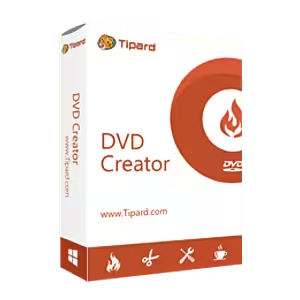
If you are looking for an easy way to turn digital videos into playable DVDs, Tipard DVD Creator is a dedicated DVD and Blu-ray authoring tool designed for Windows and Mac users. It can take videos such as MP4, MKV, AVI, MOV, WMV, M2TS, and other formats and create DVD discs, DVD folders, ISO images, Blu-ray discs, and Blu-ray folders. It also provides DVD menu templates, chapters, subtitles, audio tracks, video editing tools, and disc customization options. (Tipard)
DVD creation is still useful even though streaming and cloud storage dominate modern video consumption. A physical DVD can be convenient for family videos, archived recordings, presentations, older DVD players, gifts, or situations where you want a permanent physical copy of your own content.
At the same time, people searching for Tipard DVD Creator often have broader questions: Is DVD Creator free? Can MP4 be burned to DVD without paying? Is DVDStyler safe? What is the best DVD authoring software? Can YouTube videos be put on a DVD? And what is the difference between burning a DVD and converting a DVD to digital?
This guide answers those questions while explaining what Tipard DVD Creator can do, how it works, its pricing, free alternatives, and the important difference between DVD creation, DVD playback, DVD copying, and DVD ripping.

What Is Tipard DVD Creator?
Tipard DVD Creator is DVD and Blu-ray authoring software that converts video files into DVD or Blu-ray-compatible discs and media structures.
Unlike a simple file-burning utility, it is designed to create an actual video disc structure. That means you can organize videos into titles and chapters, create an interactive menu, add subtitles and audio tracks, customize the appearance of the menu, and then burn the finished project to a physical disc.
According to Tipard’s current product information, the software supports:
- DVD discs
- Blu-ray discs
- DVD folders
- Blu-ray folders
- DVD ISO images
- Blu-ray ISO images
- Multiple video formats
- Audio tracks
- Subtitles
- Chapters
- Custom DVD menus
- Video editing
- Watermarks
- Filters
- Cropping
- Trimming
- Color adjustments
- Opening videos
It supports DVD-5 and DVD-9 as well as BD-25 and BD-50 media. (Tipard)
Tipard DVD Creator at a glance
| Feature | Tipard DVD Creator |
|---|---|
| DVD authoring | Yes |
| Blu-ray authoring | Yes |
| DVD disc burning | Yes |
| Blu-ray disc burning | Yes |
| DVD ISO creation | Yes |
| Blu-ray ISO creation | Yes |
| DVD folder creation | Yes |
| Custom menus | Yes |
| Chapters | Yes |
| Subtitles | Yes |
| Multiple audio tracks | Yes |
| Video editing | Yes |
| MP4 input | Yes |
| MKV input | Yes |
| AVI input | Yes |
| Windows | Yes |
| macOS | Yes |
| Free trial | Yes |
| Permanent free full version | No |
The exact feature availability can vary between versions and operating systems, so users should check the current product page before purchasing. (Tipard)
Is DVD Creator Free?
The answer depends on which DVD creator you mean.
Tipard DVD Creator is not a permanently free full-featured application. Tipard provides a free download/trial, but the registered version is paid. The current Tipard purchase page lists a monthly license and lifetime licenses, while the product page provides a free download option. (Tipard)
For example, at the time of this writing, Tipard lists:
- 1-month license: $24.00 promotional price
- Lifetime license for 1 PC: $45.00 promotional price
- Lifetime license for 3 PCs: $70.00 promotional price
Prices and promotions can change, so these figures should be treated as current listed prices rather than permanent pricing. (Tipard)
The lifetime license includes lifetime access to the software’s features and lifetime upgrades/support according to Tipard’s purchase page. (Tipard)
However, if by “DVD Creator” you mean a free DVD authoring program in general, there are completely free options. DVDStyler, for example, describes itself as free, open-source DVD authoring software distributed under the GNU GPL. (DVDStyler)
So the short answer is:
Tipard DVD Creator has a free trial, but its full registered version is paid. DVDStyler is a genuinely free alternative.
What Can Tipard DVD Creator Do?
Tipard is more than a basic “video to disc” converter.
1. Create DVDs from Video Files
The main purpose is converting your digital videos into DVD-compatible content.
You can import files such as:
- MP4
- MKV
- AVI
- MOV
- MPEG
- WMV
- M2TS
- MTS
- VOB
- M4V
- FLV
- HD video formats
- H.264
- H.265
- MP3
- Other supported formats
Tipard’s current specifications list a wide range of input formats and allow users to create DVD discs, folders, or ISO files from those sources. (Tipard)
This means you generally do not have to manually convert an MP4 into a DVD structure before beginning the project.
2. Create Blu-ray Discs
A useful difference between Tipard DVD Creator and many basic DVD-burning programs is that it can also author Blu-ray media.
The software supports:
- BD-25
- BD-50
- Blu-ray discs
- Blu-ray folders
- Blu-ray ISO images
This makes it useful for users who want to preserve higher-resolution video on physical media. (Tipard)
If your project is specifically 4K Blu-ray authoring, however, you should check the exact requirements and supported Blu-ray standards rather than assuming that ordinary Blu-ray authoring is equivalent to full commercial 4K UHD Blu-ray authoring.
Can You Burn MP4 to DVD for Free?
Yes, you can burn or author an MP4 video to DVD without paying if you use suitable free software.
One example is DVDStyler. Its official website describes it as completely free and open-source DVD authoring software. It supports formats including MP4 and can create interactive DVD menus. (DVDStyler)
With a free DVD authoring program, the general workflow is:
- Install the DVD authoring software.
- Insert a blank DVD.
- Import the MP4 video.
- Choose or create a DVD menu.
- Configure chapters.
- Check the video preview.
- Select the DVD drive.
- Start the authoring/burning process.
- Wait for the disc to finish.
However, your computer must have a compatible optical drive that can actually write DVDs. A DVD reader alone cannot burn a disc.
What if your computer has no DVD drive?
Many modern laptops no longer include an internal optical drive.
In that situation, you need an external USB DVD writer.
Also remember that creating a DVD folder or ISO file does not physically burn a disc. You can create the disc structure first and burn it later.
How Can I Create a DVD?
Creating a DVD normally involves three stages:
Video → DVD authoring → physical disc
The first step is preparing your video.
The second is authoring the DVD structure. This is where software such as Tipard DVD Creator creates titles, chapters, menus, and compatible DVD files.
The third step is burning that structure to a physical DVD.
Creating a DVD with Tipard DVD Creator
Tipard’s official workflow is straightforward:
Step 1: Add your videos
Launch Tipard DVD Creator and select Add Media Files.
Import the videos you want to include in your DVD. (Tipard)
Step 2: Edit your video
Before burning, you can use the available editing tools.
These include:
- Trim
- Crop
- Rotate
- Flip
- Color adjustment
- Filters
- Text
- Image watermark
Tipard also allows you to add audio and subtitles and adjust their positioning and synchronization. (Tipard)
Step 3: Create chapters
You can organize your content into chapters.
Chapters make long videos easier to navigate, especially when creating a movie or family-video DVD.
Step 4: Customize the menu
Select a menu template and customize elements such as:
- Background image
- Background music
- Buttons
- Title
- Thumbnail
- Opening video
Tipard specifically provides customizable DVD/Blu-ray menu templates. (Tipard)
Step 5: Preview the project
The built-in preview function allows you to check the menu, chapters, and video before burning.
Step 6: Choose the output
You can create:
- DVD disc
- DVD folder
- DVD ISO
- Blu-ray disc
- Blu-ray folder
- Blu-ray ISO
Step 7: Burn
If you are creating a physical DVD, select your DVD writer and begin the burning process.
What Is the Best Software for Creating DVDs?
There is no single DVD creator that is best for everyone.
The right application depends on whether you want professional authoring, a simple interface, completely free software, Blu-ray support, or basic burning.
Tipard DVD Creator
Tipard is a strong choice if you want a modern authoring tool with:
- DVD support
- Blu-ray support
- Menu customization
- Chapters
- Subtitles
- Audio tracks
- Video editing
- ISO creation
- Folder creation
- Windows and Mac versions
Its current product page confirms support for DVD and Blu-ray authoring and multiple video formats. (Tipard)
DVDStyler
DVDStyler is particularly attractive if your priority is free DVD authoring.
Its official website describes it as free and open-source software under the GNU GPL. It supports interactive menus, multiple audio/subtitle tracks, photo slideshows, and formats including AVI, MOV, MP4, MPEG, OGG, and WMV. (DVDStyler)
Basic disc-burning software
Simple disc-burning applications can be enough if you only need to put ordinary files onto a data disc.
But a data DVD is not necessarily a video DVD.
This distinction is extremely important.
If you simply drag an MP4 onto a DVD as a data file, an old standalone DVD player may not recognize it.
A DVD authoring program creates the appropriate video-disc structure.
Tipard DVD Creator vs DVDStyler
If you are deciding between these two applications, the comparison is fairly straightforward.
| Feature | Tipard DVD Creator | DVDStyler |
|---|---|---|
| Free full version | No | Yes |
| Open source | No | Yes |
| DVD authoring | Yes | Yes |
| DVD menus | Yes | Yes |
| MP4 support | Yes | Yes |
| Chapters | Yes | Yes |
| Audio tracks | Yes | Yes |
| Subtitles | Yes | Yes |
| Video editing | Yes | Limited compared with Tipard |
| Blu-ray authoring | Yes | Primarily DVD |
| ISO creation | Yes | Yes |
| Windows | Yes | Yes |
| Mac | Yes | Yes |
| Linux | No current Tipard Windows product | Yes |
| Commercial product/support | Yes | Community/open source |
DVDStyler’s official site confirms its free/open-source status and DVD-authoring features. (DVDStyler)
Tipard offers a more commercial, integrated workflow with Blu-ray support and additional video-editing tools. (Tipard)
Is Any DVD App Free?
Yes.
There are several categories of free DVD applications:
Free DVD authoring software
DVDStyler is a prominent example. It is free and open source. (DVDStyler)
Free DVD playback software
A DVD player application is different from DVD authoring software.
A DVD player plays DVDs.
A DVD creator makes DVDs.
A DVD ripper extracts content from DVDs.
A DVD cloner duplicates DVD content.
These four categories are often confused.
Can I Download a Free DVD Player App?
Yes, free DVD playback applications exist.
One important point is that a DVD player does not create DVDs.
If your objective is:
“I have an MP4 and want to make a DVD.”
You need DVD authoring/burning software.
If your objective is:
“I have a DVD and want to watch it on my PC.”
You need DVD playback software.
And if your objective is:
“I have a DVD and want to convert it into MP4.”
You need DVD ripping/conversion software, assuming you have the legal right to copy the content.
Why this distinction matters
Search results often mix terms such as:
- DVD Creator
- DVD Player
- DVD Converter
- DVD Ripper
- DVD Cloner
- DVD Burner
They perform different tasks.
Tipard DVD Creator is primarily an authoring and burning product rather than a general-purpose DVD player.
How Can I Convert My DVD to Digital for Free?
If you own a home-made DVD or otherwise have the legal right to copy its content, you can convert the video to a digital format using DVD-ripping software.
The general process is:
- Insert the DVD.
- Open compatible DVD-ripping software.
- Select the DVD source.
- Choose a digital output such as MP4.
- Select the desired quality.
- Start the conversion.
- Save the resulting video.
However, commercial DVDs may contain encryption or copy protection.
You should not assume that software capable of reading a protected disc means that bypassing its protection is legally permitted in your country.
For personal recordings and home-created DVDs, digitization is generally the more straightforward scenario.
Why convert DVDs to digital?
Digital copies are easier to:
- Store on a hard drive
- Back up
- Watch on modern devices
- Transfer to a phone
- Edit
- Organize
- Preserve
If your objective is DVD to MP4, Tipard DVD Creator is not the most appropriate Tipard product because Creator is designed primarily for going in the opposite direction: video files to DVD/Blu-ray. Tipard separately offers DVD Ripper products for DVD-to-digital workflows. (Tipard)
Is DVDStyler Safe to Use?
DVDStyler is a legitimate open-source DVD authoring application, and its official website identifies it as free software distributed under the GNU GPL. (DVDStyler)
For safety, download it from the official DVDStyler website or its linked official download sources rather than from an unknown “free software” website.
The official downloads page currently lists DVDStyler 3.2.1 and also provides information about other releases. (DVDStyler)
Basic safety practices
When downloading DVD authoring software:
- Use the developer’s official website.
- Avoid cracked versions.
- Avoid unofficial repacks.
- Scan unfamiliar installers.
- Read the installation screens.
- Don’t install unrelated bundled software.
- Keep Windows security tools enabled.
- Download the version appropriate for your operating system.
The same principle applies to Tipard DVD Creator.
Tipard’s official product page provides its own download link and identifies the software as clean and safe. (Tipard)
What Is the Best DVD Copy Software?
DVD copying and DVD creation are different tasks.
If you want to create a new DVD from your own video files, you need a DVD creator/authoring program.
If you already have a DVD and want to create a duplicate, you need DVD copying/cloning software.
Tipard offers a separate DVD Cloner product designed for copying DVD content to another DVD, folder, or ISO. (Tipard)
For example:
Video file → DVD
Use DVD Creator.
DVD → another DVD
Use DVD Cloner.
DVD → MP4
Use DVD Ripper.
DVD → watch on computer
Use a DVD player.
This simple distinction can save you from downloading the wrong application.
How to Make a DVD from YouTube
Technically, making a DVD from a video that you have obtained from YouTube involves two separate steps:
YouTube video → legal digital video file → DVD authoring software
However, you should first consider whether you have permission to download and reuse the video.
YouTube’s official help page states that you can download videos that you have uploaded yourself, including through YouTube Studio. It also says that you cannot download other users’ videos through that feature. (Google Help)
YouTube also provides offline viewing through YouTube Premium, but that is different from obtaining a normal MP4 file for DVD authoring. (Google Help)
For your own YouTube videos
If you uploaded the video yourself:
- Open YouTube Studio.
- Go to your content.
- Select the video.
- Use the Download option.
- Obtain the available MP4.
- Import the MP4 into Tipard DVD Creator.
- Customize the DVD menu.
- Add chapters if required.
- Burn the DVD.
YouTube’s official help currently says uploaded videos can be downloaded as MP4 files, generally in 720p or 360p depending on the video. (Google Help)
For someone else’s YouTube video
You should not simply download another creator’s video and put it on a DVD without considering copyright and permission.
YouTube explains that creators generally own copyright in original videos they create, and permission, a valid copyright exception, or an appropriate license may be needed to use someone else’s work. (Google Help)
This is especially important if the DVD will be distributed, sold, uploaded, or used commercially.

Can You Make a DVD from YouTube Without Losing Quality?
Not completely.
YouTube videos are already compressed, and DVD-Video uses its own video specifications. Therefore, putting a high-resolution online video onto a standard DVD does not preserve the original resolution in full.
For example, a modern 1080p or 4K source may need to be converted to a DVD-compatible format.
Tipard’s Fit-to-Disc feature is designed to automatically transcode input video to DVD/Blu-ray formats and fit the content to the selected disc. (Tipard)
The important point is:
DVD creation is not simply copying an MP4 file byte-for-byte onto a disc.
The video generally has to be authored according to the target disc’s format.
DVD Burning vs DVD Authoring
These terms are often used interchangeably, but they are not exactly the same.
DVD burning
Burning means writing data onto a physical optical disc.
For example:
DVD folder → physical DVD
DVD authoring
Authoring means creating the structure of a DVD video project.
That includes:
- Titles
- Chapters
- Menus
- Navigation
- Video structure
- Audio
- Subtitles
Tipard itself explains that burning can involve putting video, audio, or other data onto a disc, while authoring involves building the DVD structure containing menus, titles, chapters, and related elements. (Tipard)
For a DVD that you want to play in a traditional standalone DVD player, authoring is usually the important part.
DVD-5 vs DVD-9
When creating a DVD, you may encounter terms such as DVD-5 and DVD-9.
DVD-5
A DVD-5 is a single-layer DVD format.
It has less capacity than a DVD-9.
DVD-9
A DVD-9 is a dual-layer DVD format and provides more capacity.
Tipard DVD Creator supports both DVD-5 and DVD-9. (Tipard)
The amount of video you can fit depends on factors such as:
- Video bitrate
- Resolution
- Audio settings
- Number of videos
- DVD capacity
- Encoding settings
If your source videos are too large, the software may need to compress/transcode them to fit the disc.
Does Tipard DVD Creator Support Subtitles?
Yes.
Tipard DVD Creator can add subtitles to DVD and Blu-ray projects.
The software allows users to adjust subtitle-related settings such as position and transparency, and it also provides options for dealing with synchronization issues. (Tipard)
This can be particularly useful for:
- Movies
- Educational videos
- Foreign-language content
- Training material
- Family videos
- Multilingual presentations
Does Tipard DVD Creator Support Multiple Audio Tracks?
Yes.
Tipard allows audio tracks to be added to DVD and Blu-ray projects. The software also provides audio-related adjustment options. (Tipard)
This can be useful when you want a DVD containing different language tracks or alternative audio versions.
Can You Customize a DVD Menu?
Yes.
One of Tipard DVD Creator’s major features is menu customization.
You can modify elements such as:
- Menu template
- Background
- Background music
- Buttons
- Title name
- Thumbnail
- Opening video
This makes the final disc feel more like a traditional movie DVD rather than a simple collection of files. (Tipard)
For family videos, for example, you could create a menu containing:
Family Vacation 2026
- Day 1
- Day 2
- Day 3
- Photos
- Bonus Video
That structure makes long recordings much easier to navigate.
Can Tipard DVD Creator Edit Videos?
Yes.
Before authoring the disc, Tipard provides several video-editing features.
According to its current product page, these include:
- Trimming
- Cropping
- Rotating
- Flipping
- Color grading
- Watermarks
- Filters
- Text/image additions
- Audio adjustments
- Subtitle adjustments
You can also add an opening film to the DVD/Blu-ray menu. (Tipard)
This means you can perform many basic corrections without first opening a separate video editor.
Is Tipard DVD Creator Available for Windows?
Yes.
The current Windows version supports:
- Windows 7
- Windows 8
- Windows 10
- Windows 11
Tipard lists a minimum 1.2 GHz Intel or AMD processor and recommends at least 1 GB of RAM on its current product page. (Tipard)
However, modern users should always check the latest system requirements before installing older software on a new machine.
Is Tipard DVD Creator Available for Mac?
Yes.
Tipard’s product center lists a DVD Creator for Mac separately from the Windows version. (Tipard)
This is important when purchasing because Tipard states that Windows and Mac licenses are platform-specific and cannot simply be transferred from one platform to the other. (Tipard)
Therefore, check your operating system before purchasing.
Is There a Free Alternative to Tipard DVD Creator?
Yes.
DVDStyler is one of the clearest free alternatives.
Its official website says DVDStyler is:
- Free
- Open source
- Cross-platform
- Designed for DVD authoring
- Capable of creating interactive menus
It supports video formats including MP4, MOV, AVI, MPEG, OGG, and WMV. (DVDStyler)
DVDStyler can also create photo slideshows, add multiple subtitle/audio tracks, customize menus, and use drag-and-drop functionality. (DVDStyler)
Why choose Tipard instead?
Tipard may be preferable if you want a more commercial application with:
- Blu-ray authoring
- More integrated video editing
- A modern guided workflow
- Commercial support
- Lifetime licensing options
- A unified DVD/Blu-ray workflow
Why choose DVDStyler?
DVDStyler may be better if:
- Your budget is zero.
- You want open-source software.
- You mainly need DVD authoring.
- You are comfortable with a more traditional interface.
Is Tipard DVD Creator Worth It?
For someone who regularly creates physical DVDs or Blu-rays, Tipard DVD Creator can be worth considering because it combines authoring, menu creation, basic editing, ISO generation, and disc burning in one application.
Its current feature set goes beyond simply putting a video file onto a disc. It supports menus, chapters, subtitles, audio tracks, DVD/Blu-ray folders, ISO images, and multiple disc types. (Tipard)
The lifetime license is also useful for users who dislike recurring subscriptions. Tipard currently lists a one-time lifetime purchase for one PC and a separate three-PC option. (Tipard)
On the other hand, if you only need to make a DVD once or twice, a free authoring program such as DVDStyler may make more financial sense.
Frequently Asked Questions About Tipard DVD Creator
Is DVD Creator free?
Tipard DVD Creator offers a free download/trial, but the full registered version is paid. A completely free alternative is DVDStyler, which is open source and distributed under the GNU GPL. (Tipard)
Can I download a free DVD player app?
Yes. Free DVD player applications are available, but a DVD player is used for watching DVDs rather than creating them. If you want to create a DVD from MP4, you need DVD-authoring software.
What is the best software for creating DVDs?
It depends on your needs. Tipard DVD Creator is a strong option for users wanting DVD and Blu-ray authoring, custom menus, chapters, subtitles, editing, ISO creation, and a commercial support model. DVDStyler is a strong choice when free/open-source DVD authoring is the priority. (Tipard)
How to burn MP4 to DVD for free?
Use a free DVD-authoring application such as DVDStyler. Import the MP4, create your DVD menu and chapters, select the DVD writer, and start the authoring/burning process. DVDStyler officially supports MP4 and DVD creation. (DVDStyler)
Is any DVD app free?
Yes. DVDStyler is completely free and open source. Other applications may offer free trials or limited free editions rather than completely free full versions. (DVDStyler)
How can I create a DVD?
Install DVD-authoring software, import your video files, arrange titles and chapters, create a menu, select the desired DVD settings, and burn the finished project to a compatible blank disc. Tipard follows this general workflow. (Tipard)
How can I convert my DVD to digital for free?
For DVDs that you own or are legally allowed to copy, you can use DVD-ripping software to extract the video to a format such as MP4. Be aware that commercial DVDs can have copy protection and legal restrictions may apply to bypassing it.
Is DVDStyler safe to use?
DVDStyler is legitimate free/open-source DVD-authoring software. Download it from the official DVDStyler website or its official download sources rather than from random third-party sites. (DVDStyler)
What is the best DVD copy software?
The answer depends on the task. DVD Creator software makes a DVD from video files, while DVD Cloner software is designed to duplicate existing DVD content. Tipard offers separate DVD Creator and DVD Cloner products. (Tipard)
How to make a DVD from YouTube?
First make sure you have the right to use the video. YouTube officially allows you to download videos you have uploaded yourself through YouTube Studio. You can then import that MP4 into DVD-authoring software such as Tipard DVD Creator. (Google Help)
Final Verdict: Should You Use Tipard DVD Creator?
Tipard DVD Creator is a versatile DVD and Blu-ray authoring solution for users who want to turn digital videos into physical discs, ISO files, or DVD/Blu-ray folders.
Its strongest features include:
- Wide video-format support
- DVD creation
- Blu-ray creation
- DVD-5 and DVD-9 support
- BD-25 and BD-50 support
- Custom DVD menus
- Chapters
- Subtitles
- Multiple audio tracks
- Video trimming
- Cropping
- Rotation
- Color adjustment
- Filters
- Watermarks
- ISO creation
- DVD/Blu-ray folder creation
- Windows and Mac availability (Tipard)
The main disadvantage is that the full version is not permanently free. Tipard offers a trial, but users who want all features need a license. Current listed options include monthly and lifetime licenses. (Tipard)
If you need a completely free solution, DVDStyler is worth considering because it is open source and free. (DVDStyler)
Ultimately, the best choice depends on your goal. For professional-looking DVD/Blu-ray projects with menus, chapters, subtitles, editing, and a guided commercial workflow, Tipard DVD Creator is a comprehensive option. If your only requirement is basic free DVD authoring, DVDStyler can provide a lower-cost alternative.
And if your goal is to convert an existing DVD into a digital file, remember that DVD Creator is the wrong direction: you need DVD-ripping/conversion software instead. Likewise, downloading YouTube videos should be limited to content you have the right to download and reuse; YouTube’s own tools provide direct downloading for videos you uploaded yourself.
Download Now
Tipard DVD Creator
- Version: Latest Version
- File Size: 126.2 MB
- System Type: 32-bit / 64-bit
- Setup Type: Offline / Standalone