Table of Contents
AnyTrans for Android: Complete Guide
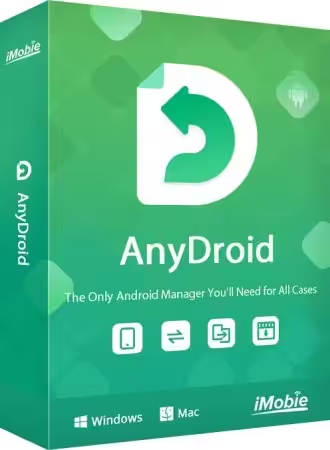
If you are searching for AnyTrans for Android, you may notice something confusing: the product is now presented by iMobie under the name AnyDroid. iMobie’s official page explicitly describes AnyDroid as “originally AnyTrans for Android,” so searches such as AnyTrans for Android download, AnyTrans for Android APK, AnyTrans for Android to PC, and AnyTrans Android to iPhone are often referring to the same Android-focused product family. (iMobie)
The software is designed to help users manage Android phones and tablets from a Windows or Mac computer. It can transfer files, back up Android data, manage media and personal information, move content between Android devices, and help migrate information between Android and iPhone.
The original AnyTrans brand is now primarily positioned as an iPhone, iPad, iPod, iCloud, and iTunes management solution, while AnyDroid handles Android management. The official AnyTrans site still supports Android-to-iPhone migration. (iMobie)
This guide answers the most common questions about AnyTrans for Android, including whether it is free, whether it is safe, how to download it, how it works with Android and PC/Mac, how it compares with iMazing, and which free alternatives are worth considering.

What Is AnyTrans for Android?
AnyTrans for Android was iMobie’s Android-focused data management solution. The product is now called AnyDroid.
AnyDroid is designed as an Android manager that lets users:
- Transfer files between Android devices
- Transfer Android data to a computer
- Back up Android content
- Move information between Android phones
- Transfer data from iPhone to Android
- Manage photos and videos
- Manage music and other media
- Manage contacts and messages
- Manage files and documents
- Work with Android apps
- Transfer selected data rather than necessarily moving everything
iMobie describes AnyDroid as an Android manager for data management and cross-device transfer. The company specifically states that it was originally AnyTrans for Android. (iMobie)
That distinction is important if you are researching an old tutorial or downloading an older version.
If an article says “AnyTrans for Android” while the official current product page says “AnyDroid,” they are not necessarily referring to two completely unrelated applications.
Is AnyTrans Free to Use?
AnyTrans is not completely free. It offers a free trial, but the full version requires activation.
iMobie’s official FAQ says the AnyTrans trial allows users to transfer 30 items within three days for each type, while some features are unavailable in the trial version. Restricted functions include features such as Phone to iPhone, App Restore, Backup Restore, and certain social-message transfer/restore functions. (iMobie)
So it is more accurate to describe AnyTrans as free to download and try, rather than completely free software.
The Android-focused product, AnyDroid, also has a free download option. iMobie’s current Android page provides a desktop download for Windows/Mac and an Android app option. (iMobie)
Free vs paid
| Feature | Free/Trial | Full Version |
|---|---|---|
| Download software | Yes | Yes |
| Basic testing | Yes | Yes |
| Limited transfers | Yes | Yes |
| Full transfer capabilities | Limited | Yes |
| Advanced backup/restore | Limited | Yes |
| Extended device management | Limited | Yes |
| Full premium functionality | No | Yes |
The exact limitations can vary by feature and product version, so it is best to check iMobie’s current trial information before relying on an old tutorial.
Is AnyTrans a Safe App?
The official AnyTrans/AnyDroid software is legitimate software developed by iMobie. However, you should distinguish between the official application and unofficial APKs, cracked versions, modified installers, or pirated license packages.
iMobie’s official AnyTrans pages describe secure data transfer and backup features, and the company provides its own download channels and support documentation. (iMobie)
For the safest experience:
- Download the application from iMobie’s official website.
- Avoid cracked AnyTrans versions.
- Avoid “full version free” installers from unknown sites.
- Do not install modified APKs simply because they promise unlimited features.
- Keep Windows, macOS, and your Android device updated.
- Use a reliable USB cable.
- Only connect devices that you own or have permission to manage.
What about AnyTrans for Android APK?
This is an especially important distinction.
The search term “AnyTrans for Android APK” can be misleading because the Android management application is primarily designed to work with the desktop software. iMobie’s current Android product page provides a Download Android App option as well as downloads for PC/Mac, but you should obtain mobile software from the official iMobie channel rather than random APK websites. (iMobie)
If a third-party website offers a modified “AnyTrans Pro APK,” treat it with caution.
How to Download AnyTrans for Android
Because the Android product was renamed, users looking for an AnyTrans for Android download should look for AnyDroid on iMobie’s official website.
The current official page provides:
- Free Download
- Download Android App
- Download for PC
- Download for Mac
- Pricing information
iMobie specifically identifies AnyDroid as the Android product that was originally AnyTrans for Android. (iMobie)
Basic installation process
- Visit the official iMobie AnyDroid page.
- Download the Windows or Mac version.
- Install the software.
- Launch AnyDroid.
- Connect your Android phone using a USB cable or supported connection method.
- Follow the on-screen instructions.
- Allow the required permissions on your Android phone.
- Wait for the device to be detected.
- Choose the transfer or management feature you need.
The broader AnyTrans user guide similarly explains that you launch the desktop application and connect an iOS or Android device after installation. (iMobie)
AnyTrans for Android to PC
One of the most useful functions is transferring Android content to a computer.
This is useful if your phone is running out of storage or you simply want a backup of important files.
You can use an Android manager to move content such as:
- Photos
- Videos
- Music
- Documents
- Contacts
- Messages
- Call information
- Books
- Ringtones
- Other supported files
iMobie’s documentation lists supported Android categories including media such as music, movies, ringtones and photo libraries, as well as personal information including contacts, messages, call logs, calendars, zipped files, documents, and books. (iMobie)
Typical Android-to-PC workflow
Android phone → USB → Computer → AnyDroid → Select data → Transfer
This can be considerably easier than manually opening individual folders and searching through Android storage.
It also gives you more control when you only want to transfer particular categories or files.
AnyTrans for Android to Mac
AnyDroid is also designed for Mac users.
iMobie lists AnyDroid as available for PC/Mac, and its official product page specifically offers desktop downloads alongside the Android app. (iMobie)
The general workflow is similar:
- Install the Mac application.
- Connect your Android phone.
- Enable the necessary Android connection permissions.
- Wait for AnyDroid to recognize the phone.
- Select the type of content you want to manage.
- Transfer or back up the selected information.
The advantage is that you can manage Android content from the larger computer interface instead of performing every operation on a phone.
What Android Versions Does AnyTrans Support?
iMobie’s official AnyTrans technical specifications list Android 5.0 and above as supported. The same page also lists Windows and macOS compatibility and states that Android connections require appropriate USB and ADB device drivers. (iMobie)
The software’s compatibility can change as Android and desktop operating systems evolve, so users with very recent Android versions should check the current technical specifications before installing an older AnyTrans build.
Which Is the Best File Transfer App for Android?
There is no single best Android file-transfer application for everyone.
The best choice depends on whether you want simple wireless sharing, PC backup, phone migration, or advanced device management.
1. AnyDroid / AnyTrans for Android
Best for:
- Android-to-PC transfers
- Android-to-Android migration
- Android-to-iPhone migration
- Data backup
- Managing multiple categories of phone data
- Computer-based Android management
2. Google Quick Share
Best for:
- Quick wireless file sharing
- Photos and videos
- Nearby Android devices
- Simple transfers
It is more focused on straightforward file sharing than complete device management.
3. USB File Transfer
Best for:
- Free transfers
- Large files
- Simple folder access
- Users who don’t need extra software
Android’s built-in USB file-transfer capability can be enough for basic tasks.
4. Local wireless transfer tools
These can be convenient when you do not want to connect a cable, but functionality varies depending on the application and devices involved.
For advanced Android management, AnyDroid is more comprehensive than a simple file-sharing utility because it combines transfer, backup, management, and migration features. (iMobie)
Can AnyTrans Transfer Android to iPhone?
Yes.
This is one of the most important capabilities associated with AnyTrans.
The current AnyTrans product supports migration from Android to iPhone, while iMobie’s documentation describes AnyTrans as a tool for moving data from Android to iOS. (iMobie)
Supported information can include:
- Contacts
- Messages
- Photos
- Videos
- Music
- Other supported personal data
iMobie specifically compares AnyTrans with Apple’s Move to iOS and says AnyTrans supports transferring WhatsApp messages and attachments and can perform Android-to-iPhone migration without requiring the same factory-reset workflow described for Apple’s Move to iOS in its comparison. (iMobie)
This makes AnyTrans useful when moving from an Android phone to an iPhone after the iPhone has already been configured.
AnyTrans Android to iPhone WhatsApp Transfer
WhatsApp migration is one of the reasons people search for “AnyTrans Android to iPhone WhatsApp.”
AnyTrans supports WhatsApp-related transfer and backup functions. iMobie’s documentation also contains specific troubleshooting instructions for social-message transfers involving Android devices. (iMobie)
However, WhatsApp’s own security and backup systems can change over time.
For example, iMobie’s current guide discusses situations involving WhatsApp’s end-to-end encrypted backup and provides instructions for managing the encryption setting during its transfer process. (iMobie)
Therefore, if WhatsApp transfer is your main reason for purchasing the software, check the current supported-device and WhatsApp requirements before beginning the migration.
How Does AnyTrans Work With Android?
The basic concept is simple:
Connect → Detect → Select → Transfer
After connecting an Android device, the desktop application reads supported information and presents it through its interface.
You can then choose what you want to do.
For example:
Backup
Android → Computer
Useful for creating a copy of important information.
Transfer
Android → Android
Useful when moving to another Android phone.
Migration
Android → iPhone
Useful when changing smartphone platforms.
File management
Computer ↔ Android
Useful for moving individual files, photos, videos, documents, and other supported content.
This is the main reason a tool like AnyDroid can be more convenient than ordinary USB file browsing.

AnyTrans for Android Features
Android Data Management
The application is designed to manage Android content from a computer.
Rather than browsing through hundreds of folders, users can work with categorized information.
This can make it easier to locate:
- Photos
- Videos
- Music
- Contacts
- Messages
- Documents
- Books
- Ringtones
- Other supported data
iMobie’s technical documentation confirms support for multiple Android media and personal-information categories. (iMobie)
Android Backup
Backing up a smartphone is one of the most practical reasons to use a desktop phone manager.
A backup can help protect information before:
- Factory resetting a phone
- Upgrading to a new phone
- Switching Android versions
- Repairing a device
- Changing from Android to iPhone
A backup is especially valuable for photos, videos, contacts, messages, and other personal information that would be difficult to recreate.
Android-to-Android Transfer
When replacing an old Android phone, you may need to move a large amount of data.
AnyDroid is designed to transfer content between Android devices. iMobie describes the product as allowing users to move between Android phones and manage Android data. (iMobie)
This can reduce the need to manually copy individual folders.
Android-to-iOS Migration
This is another major advantage of the AnyTrans ecosystem.
Instead of being limited to Android-to-Android transfers, AnyTrans can help users migrate supported information from Android to iPhone. (iMobie)
That makes it particularly relevant for people switching platforms.
How Much Does AnyTrans Cost?
Pricing varies depending on the product, platform, plan, promotion, and region.
At the time of this research, iMobie’s official download page showed a special $29.99 one-year subscription offer for Android users, reduced from a displayed $59.99 regular price. The page describes the plan as automatically renewing annually, with cancellation available at any time. (iMobie)
The same page shows different pricing for the iOS-focused AnyTrans product, demonstrating why users should check the current purchase page rather than relying on an old article or screenshot. (iMobie)
Important pricing point
Don’t assume that:
AnyTrans for Android = exactly the same price as AnyTrans for iPhone.
The Android-focused product is now marketed as AnyDroid, and current promotions can be different.
Is AnyTrans Worth Paying For?
Whether AnyTrans is worth the money depends on how frequently you manage phone data.
It can be worth it if you:
- Frequently transfer large amounts of data
- Upgrade phones regularly
- Need Android-to-iPhone migration
- Want desktop-based backups
- Need more control than basic USB transfer
- Manage large photo/video libraries
- Need WhatsApp migration
- Prefer a graphical management interface
It may not be worth it if you:
- Only transfer a few photos occasionally
- Use Google services for automatic backup
- Only need basic USB file transfer
- Never switch phones
- Don’t need advanced device-management functions
For occasional file copying, a free solution may be sufficient.
For complete phone migration and management, a specialized tool can save considerable time.
AnyTrans vs iMazing
This is one of the most common comparisons, but there is an important platform distinction.
iMazing is currently an Apple-device management application, while AnyTrans/AnyDroid supports both Android-related workflows and Apple’s ecosystem.
iMazing’s official FAQ currently states that iMazing is compatible only with Apple devices, although its FAQ also says Android support is expected in the future. (iMazing)
Therefore, if your primary device is Android, AnyTrans/AnyDroid is the more directly relevant option.
If your primary device is an iPhone or iPad, iMazing can be a strong alternative.
Feature comparison
| Feature | AnyTrans / AnyDroid | iMazing |
|---|---|---|
| Android management | Yes | No currently |
| iPhone management | Yes through AnyTrans | Yes |
| Android → iPhone | Yes | Not an Android solution |
| iPhone → Android workflows | Supported through AnyTrans ecosystem | No Android support currently |
| iOS backups | Yes | Yes |
| Android backups | Yes | Not currently |
| Windows | Yes | Yes |
| Mac | Yes | Yes |
| WhatsApp management | Yes | Yes |
| Apple-focused tools | Good | Excellent |
| Android-focused tools | Strong | Not currently available |
iMazing currently supports iPhone, iPad and iPod devices, and its latest download page lists current Mac and Windows versions. (iMazing)
Which Is Better for Personal Use: AnyTrans or iMazing?
The answer depends on your phone.
Choose AnyTrans/AnyDroid if:
- You use Android.
- You switch between Android and iPhone.
- You need Android-to-PC management.
- You want cross-platform migration.
- You want Android backups.
Choose iMazing if:
- You primarily use iPhone or iPad.
- You want deep Apple-device management.
- You want advanced iOS backup and file-management capabilities.
iMazing currently offers free features in trial mode, including Quick Transfer and app management, while premium features require a subscription. Its personal subscription allows up to 20 Apple mobile devices per year under its current licensing model. (iMazing)
So this is not simply a question of which application is “better.” It is mainly a question of which ecosystem you need to manage.
Is There a Free Alternative to iMazing?
Yes.
If you only need basic Apple file transfers, Apple’s own tools and built-in functionality can handle many ordinary tasks.
For Android users, there are also several free alternatives.
Free Android alternatives
USB File Transfer
Probably the simplest option.
Connect the Android phone to a computer, select file-transfer mode, and copy files manually.
Advantages:
- Free
- No subscription
- No extra management software
- Good for large files
Disadvantages:
- Less convenient for large migrations
- No advanced phone-management interface
- Manual folder navigation
Google Quick Share
Good for quick wireless transfers between compatible devices.
Android manufacturer tools
Some smartphone manufacturers provide their own migration utilities.
These can be useful when moving between phones from the same manufacturer.
Is There an App Like iMazing for Android?
Yes, but there isn’t a perfect one-to-one equivalent.
AnyDroid, formerly AnyTrans for Android, is one of the closest options for users looking for a desktop Android management suite. iMobie specifically describes it as an Android manager covering data management and cross-device transfer. (iMobie)
Other categories include:
- Android file managers
- Manufacturer migration tools
- USB transfer
- Wireless transfer utilities
- Google backup services
AnyDroid stands out because it combines several functions into one desktop interface rather than focusing exclusively on file copying.
AnyTrans for Android vs Simple USB Transfer
For a few files, USB transfer is probably enough.
For an entire phone migration, a dedicated tool is more convenient.
USB transfer
Best for: 10 photos, a few videos, documents, music files.
AnyDroid
Best for: large-scale phone migration, backups, categorized data, Android-to-iPhone transfers, and repeated device management.
Think of USB transfer as opening a file cabinet.
AnyDroid is more like having a filing system that helps you organize and move different categories of information.
AnyTrans for Android Troubleshooting
Sometimes the software may fail to recognize an Android phone.
Fortunately, iMobie provides troubleshooting steps.
According to its official guide, users should check:
- Whether they have the latest AnyTrans version.
- Whether USB debugging is enabled.
- Whether the Android device is properly reconnected.
- Whether another USB cable works.
- Whether the computer recognizes the Android device.
- Whether the USB and ADB drivers are up to date. (iMobie)
Try another USB port
Desktop computers can sometimes have unreliable or problematic USB ports.
Try:
- Another USB port
- A different cable
- A direct connection rather than a hub
Enable USB debugging
Some Android management operations require USB debugging.
The exact menu differs by Android manufacturer and version, so follow the instructions displayed by the application.
Update drivers
iMobie specifically mentions USB and ADB drivers as part of Android connection troubleshooting. (iMobie)
AnyTrans for Android: Pros and Cons
Pros
- Android management from Windows/Mac
- Formerly known as AnyTrans for Android
- Android-to-PC transfer
- Android-to-Android transfer
- Android-to-iPhone migration
- Backup functionality
- Support for multiple data categories
- WhatsApp transfer support
- Desktop interface
- Free trial/download option
- Supports Android 5.0 and later according to current technical specifications
Cons
- Full functionality is not completely free
- Trial has transfer limitations
- Advanced features require payment
- Some users only need basic USB transfer
- Unofficial APK/cracked versions can be risky
- Product naming can be confusing because AnyTrans for Android is now AnyDroid
- Features and pricing can change with new versions
Frequently Asked Questions
Is AnyTrans free to use?
AnyTrans can be downloaded and tried for free, but it is not completely free software. iMobie’s official FAQ says the trial has limits, including a 30-item transfer allowance per type within three days and restrictions on some advanced functions. (iMobie)
Which is the best file transfer app for Android?
For simple file transfers, Google’s Quick Share or direct USB transfer can be sufficient. For comprehensive Android management, backups, device migration, and Android-to-PC transfers, AnyDroid—formerly AnyTrans for Android—is a stronger option. (iMobie)
Is AnyTrans a safe app?
The official AnyTrans/AnyDroid application is legitimate iMobie software. For safety, download it from iMobie’s official website and avoid cracked installers or modified APKs. iMobie provides official downloads, technical documentation, and support resources. (iMobie)
How do I download AnyTrans?
For Android, search for AnyDroid, which iMobie identifies as the product originally known as AnyTrans for Android. The official page provides downloads for PC/Mac and an Android app. (iMobie)
Which is better for personal use, AnyTrans or iMazing?
For Android users or people moving between Android and iPhone, AnyTrans/AnyDroid is generally more appropriate. iMazing is currently focused on Apple devices and officially states that Android is not currently supported. (iMazing)
How much does AnyTrans cost?
Pricing varies. At the time of research, iMobie’s official download page showed a promotional $29.99 one-year Android-user subscription, discounted from $59.99. The subscription automatically renews unless canceled. (iMobie)
Always check the current official pricing page before purchasing because promotions and regional prices can change.
Is there a free alternative to iMazing?
Yes. For basic file transfers, USB transfer and Apple’s built-in tools can cover many tasks. For Android, Google Quick Share and manufacturer migration utilities are free alternatives for specific jobs. For comprehensive Android management, AnyDroid is a more feature-rich option.
Is there an app like iMazing for Android?
Yes. AnyDroid, formerly AnyTrans for Android, is one of the closest desktop-oriented alternatives for Android data management. It supports Android transfers, backups, media management, and cross-platform migration. (iMobie)
What is AnyTrans by iMobie?
AnyTrans is iMobie’s device-management software primarily focused on Apple devices, including iPhone, iPad, iPod, iCloud and iTunes. It also supports migration from Android to iOS. The Android-focused product was renamed AnyDroid. (iMobie)
Final Verdict
AnyTrans for Android remains a useful search term, but the current product name you should look for is AnyDroid. iMobie explicitly says AnyDroid was originally AnyTrans for Android, which explains why older tutorials, download pages, and search results still use the AnyTrans name. (iMobie)
The software is aimed at people who want more than basic file copying. It can help manage Android data from a PC or Mac, transfer files, create backups, move information between Android devices, and migrate supported data from Android to iPhone.
The biggest advantage is convenience. Instead of manually searching through Android folders, users can work with organized categories such as photos, videos, music, contacts, messages, documents, and other supported content. (iMobie)
It is not completely free, although iMobie provides a trial/free-download option with limitations. (iMobie)
For users who only need to copy a few files, free USB transfer or Quick Share may be all they need. But for users who frequently change phones, want computer-based Android backups, or need Android-to-iPhone migration, AnyDroid can provide considerably more functionality.
Most importantly, download the software from the official iMobie source rather than relying on “AnyTrans for Android APK,” “AnyTrans Pro APK,” cracked versions, portable repacks, or unofficial license keys. The official product is the safest route and also gives you access to current compatibility information and support.
In short, AnyTrans for Android/AnyDroid is best viewed as a complete Android data-management and migration tool rather than just a basic file-transfer application. If you need advanced phone management, backup, Android-to-PC transfer, or cross-platform migration, it is worth considering; if you only need occasional file copying, a free built-in solution may be enough.
Download Now
AnyDroid Latest Version
- Download Link 1:
Send.cm
- Download Link 2:
Usersdrive
File Details:
- Size: 63.4 MB
- System Type: 32-bit / 64-bit (specific type not mentioned)
- Setup Type: Offline / Standalone (specific type not mentioned)
This formatting meets all your requirements and provides clear information about the software.