Table of Contents
FreeFileSync 14.13 Download – Complete File Synchronization and Backup Guide
FreeFileSync 14.13 is an open-source file synchronization and backup application designed to help users keep files and folders consistent across different storage locations. It compares the contents of two folders, identifies differences, and allows users to synchronize selected files instead of copying everything manually.
The software is useful for creating local backups, updating files on external hard drives, managing shared folders, and keeping important documents organized across multiple devices. It is available for Windows, macOS, and Linux, making it a flexible option for users with different operating systems.
FreeFileSync is particularly useful for people who regularly work with documents, photos, videos, project files, and other data that needs to be copied or updated in more than one location.

What Is FreeFileSync?
FreeFileSync is a folder comparison and synchronization utility that helps users manage files between a source location and a destination location. Rather than transferring every file during each operation, it compares the selected folders and identifies which items need to be copied, updated, or removed according to the selected synchronization rules.
For example, you can use FreeFileSync to compare a Documents folder on your computer with a backup folder on an external drive. After reviewing the differences, you can choose how the software should handle the changes.
The application provides several synchronization modes, including Two Way, Mirror, and Update. Each mode is designed for a different workflow, so choosing the correct one is important when working with valuable data.
FreeFileSync also includes RealTimeSync, a companion utility that can monitor folders and trigger synchronization workflows when changes are detected.
Key Features of FreeFileSync
File and Folder Synchronization
The primary function of FreeFileSync is to synchronize files between two folder locations. It compares the contents of the selected folders and presents the differences in an organized interface.
Users can review new files, modified documents, missing items, and other changes before starting synchronization. This makes it easier to manage large collections of files without manually checking every folder.
Two-Way Synchronization
Two-way synchronization is designed for situations where files are updated in both locations. FreeFileSync uses synchronization information from previous operations to help determine which changes should be propagated in either direction.
This mode is useful when you work with the same files on two different storage locations and want changes to remain consistent.
However, synchronization conflicts can occur when the same file is modified independently in both locations. Users should review these situations carefully before applying changes.
Mirror Synchronization
Mirror synchronization makes the destination folder reflect the selected source folder. It can copy new and updated files while removing destination items that are no longer present in the source, depending on the synchronization configuration.
This mode is useful for maintaining a straightforward backup copy of a primary folder.
Because mirroring can delete files from the destination, it should be used carefully. Always review the synchronization preview and verify the destination path before proceeding.
Update Synchronization
Update synchronization is useful when you want to copy new and changed files from the source to the destination without treating the destination as an exact mirror.
It can help maintain a collection of updated documents or project files on another drive. The precise behavior depends on the selected synchronization settings, so reviewing the proposed actions is recommended.
RealTimeSync Monitoring
RealTimeSync is a companion application included with FreeFileSync. It can monitor selected folders for changes and trigger a configured command or synchronization process when activity is detected.
This can reduce the need to launch FreeFileSync and compare folders manually after every change.
RealTimeSync is not a replacement for reviewing synchronization rules. Users should configure and test automated tasks before relying on them for important files.
File Comparison Tools
FreeFileSync offers comparison options that help determine whether files differ. Depending on the selected settings, comparisons can use file attributes such as modification time and size or examine file content.
These options help users choose an appropriate balance between speed and accuracy. Comparing file contents can take longer than checking basic attributes, especially when working with large files or slow storage devices.
Batch Jobs and Automation
Users can save synchronization settings as configuration files and create batch jobs for repeatable operations. Batch jobs can be launched manually or integrated with operating-system scheduling tools.
This feature is useful for recurring tasks, such as updating a backup drive every evening or synchronizing project folders at regular intervals.
Before automating a job, test the configuration with sample data and make sure its synchronization mode matches your intended workflow.
Network and Remote Storage Support
FreeFileSync can work with local drives, network shares, and supported remote storage connections. Its capabilities include FTP, FTPS, and SFTP connections, along with supported cloud-storage workflows.
This makes it useful for users who need to synchronize data across computers, network locations, or remote servers.
Supported connection types and configuration requirements can vary, so users should check compatibility before setting up a remote destination.
File Versioning
FreeFileSync supports versioning configurations that can preserve earlier versions of files affected by synchronization. This can provide an additional way to recover files after accidental changes or replacements.
Versioning must be configured appropriately, and it should not be treated as a substitute for a separate backup. Keep important recovery copies on storage that is independent of the files being synchronized.
What Can You Do with FreeFileSync?
FreeFileSync supports a variety of everyday file-management tasks.
- Back up important documents: Copy important folders to an external drive or another storage location.
- Synchronize project files: Keep work files updated between selected folders.
- Manage photos and videos: Compare media collections and transfer new or modified items.
- Update USB drives: Copy changes to a portable drive without manually selecting each file.
- Maintain network folders: Synchronize data with supported shared storage locations.
- Automate recurring tasks: Save configurations and use batch jobs for repeatable synchronization.
- Manage remote files: Work with supported FTP, FTPS, SFTP, and cloud-storage connections.
The best configuration depends on whether you need a one-directional copy, an exact mirror, or two-way synchronization.
FreeFileSync System Requirements
FreeFileSync is available for Windows, macOS, and Linux. The exact requirements depend on the operating system and software version.
Before downloading, consider the following:
- Operating system: Choose the appropriate build for your supported Windows, macOS, or Linux environment.
- Processor: A compatible processor for the selected operating system is required.
- Memory: RAM requirements increase with the number of files and folders being compared.
- Storage: Ensure sufficient free space for the application, its configuration files, and the files being copied.
- File access: You need appropriate permissions to read the source and write to the destination.
- Network access: Remote and network synchronization requires a working connection and any necessary credentials.
Large synchronization tasks can require considerable memory, particularly when dealing with very large numbers of files. Check the requirements for your operating system and software version before installation.
How to Download FreeFileSync
To download FreeFileSync safely, use the official project website rather than an unfamiliar third-party download source.
- Open the official FreeFileSync website.
- Select the download option.
- Choose the package for Windows, macOS, or Linux.
- Download the appropriate installer or archive for your system.
- Wait for the download to finish.
- Check that the downloaded package matches the operating system you intend to use.
- Continue with the installation or setup instructions for your platform.
The project provides different editions and packages. Review the available options and licensing terms before choosing a version, particularly if you plan to use the software for business purposes.
How to Install FreeFileSync on Windows
Installing FreeFileSync on Windows is a straightforward process.
- Download the Windows installer from the official website.
- Locate the downloaded setup file.
- Open the installer and follow the on-screen instructions.
- Select the installation options available in the setup process.
- Complete the installation.
- Launch FreeFileSync from the Start menu or its installed shortcut.
Once the application opens, you can select the folders you want to compare and configure the synchronization settings.
Avoid running synchronization operations against important folders until you understand the available modes and have checked the proposed changes.
How to Use FreeFileSync
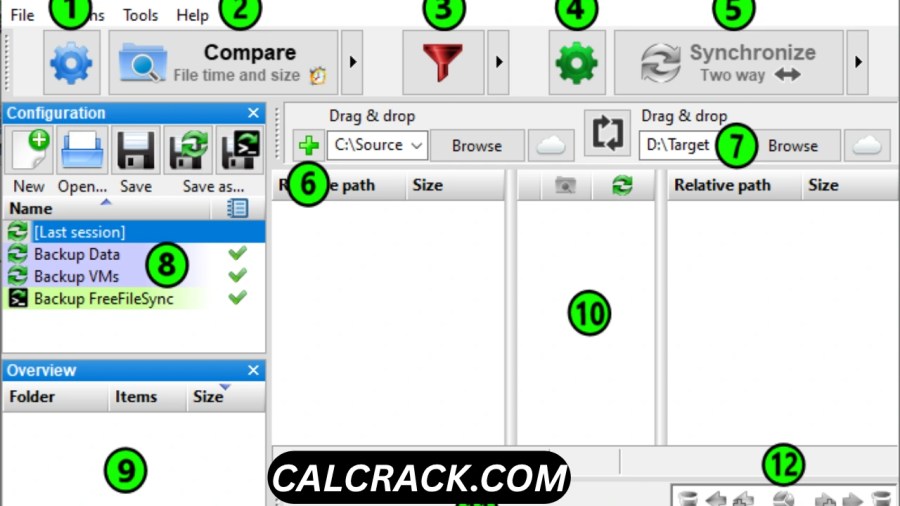
Step 1: Select the Source and Destination Folders
Open FreeFileSync and select the folder on the left and the folder on the right. These represent the two locations you want to compare and potentially synchronize.
For example, the left folder might contain your original Documents folder, while the right folder might be a backup directory on an external drive.
Double-check both paths before continuing. Selecting the wrong destination can result in unintended file changes.
Step 2: Compare the Folders
Click the Compare button to examine the selected folders. FreeFileSync displays differences between the two locations according to the configured comparison criteria.
The results can help you identify files that are missing, newer, modified, or otherwise different.
Wait for the comparison to finish before reviewing the results, especially when working with large directories or remote storage.
Step 3: Choose a Synchronization Mode
Select the mode that matches your objective.
- Choose Two Way when changes need to flow in both directions.
- Choose Mirror when the destination should reflect the source.
- Choose Update when you want to transfer new and updated files from the source to the destination.
The correct choice depends on your data and workflow. Do not select a mode simply because it sounds suitable; understand how it handles deletions and changes first.
Step 4: Review the Synchronization Preview
Examine the proposed actions before starting the process. Check which files will be copied, updated, or deleted.
Pay particular attention to deletion indicators and files that exist only in the destination. If the preview shows unexpected changes, stop and review the folder paths, comparison settings, and synchronization mode.
This step is essential when using Mirror synchronization or running a saved batch job.
Step 5: Start Synchronization
When you are satisfied with the preview, click Synchronize to begin.
FreeFileSync processes the selected operations and displays progress information. The time required depends on the number of files, total data size, storage speed, network performance, and comparison settings.
Avoid disconnecting external drives or interrupting the process unnecessarily. When the operation finishes, review the result and check that the expected files are present at the destination.
Step 6: Save the Configuration
If you expect to repeat the same task, save the configuration so you can reuse the folder paths and synchronization settings.
For recurring tasks, consider creating a batch job and scheduling it through an appropriate operating-system tool. Test the saved configuration manually before enabling automatic execution.
FreeFileSync Synchronization Modes Explained
Two-Way Mode
Two-way synchronization is intended for folders where both locations may receive changes. It can propagate new files, updates, and deletions in either direction based on the recorded synchronization state.
It is useful for keeping two working folders consistent, but conflicts and accidental deletions require careful attention.
Mirror Mode
Mirror mode makes the destination match the source according to the selected settings. It is appropriate when one folder is the authoritative source and the other is its mirror.
Because items missing from the source may be removed from the destination, this mode can cause data loss if used incorrectly.
Update Mode
Update mode focuses on copying new and changed files from the source to the destination. It is useful for maintaining an updated copy without making the destination an exact mirror.
Review the preview and current settings to confirm which files will be affected before running the operation.
Custom Synchronization Settings
FreeFileSync also provides configurable synchronization rules. These options can help users tailor file-handling behavior to specific projects or storage arrangements.
Advanced settings are useful for experienced users, but beginners should start with a simple folder pair and a small test dataset before using more complicated configurations.
Is FreeFileSync Free to Use?
FreeFileSync offers a standard edition that private individuals can use without purchasing a license. Users can also donate to the project and receive the Donation Edition, which includes additional features.
The project also offers a Business Edition for commercial environments. According to the project’s licensing information, organizations and other users outside the permitted personal-use category need the appropriate business license.
The editions differ in features and permitted use, so review the current licensing details before installing FreeFileSync for work or organizational purposes.
Pros and Cons of FreeFileSync
Advantages
- Supports Windows, macOS, and Linux.
- Provides multiple synchronization modes.
- Compares folders before applying changes.
- Helps automate recurring synchronization tasks.
- Supports local storage and various network or remote connections.
- Can handle large collections of files, subject to available system resources.
- Offers versioning options for preserving earlier file versions.
- Provides a standard edition for personal use without a purchase.
Limitations
- Beginners may need time to understand synchronization modes.
- Incorrect settings can overwrite or delete files.
- Two-way synchronization can require careful conflict management.
- Large comparisons may consume significant memory and time.
- Automated jobs need proper configuration and testing.
- Commercial use requires attention to the applicable license.
Overall, FreeFileSync is a capable utility for users who want more control over file synchronization than basic manual copying provides.
FreeFileSync Alternatives
Several other tools can help users copy, synchronize, or back up files.
Microsoft Robocopy
Robocopy is a command-line file-copy utility included with supported Windows versions. It is useful for scripted copy jobs and directory mirroring, but users need to understand its command-line options.
Syncthing
Syncthing is designed to synchronize files between devices. It may be suitable for users who want ongoing synchronization between computers rather than a primarily folder-comparison-based workflow.
GoodSync
GoodSync is a commercial file synchronization and backup solution with features designed for personal and business workflows. Its available functions and licensing differ from FreeFileSync.
Other Backup Utilities
Dedicated backup programs may be a better choice if you need scheduled system backups, disk imaging, centralized backup management, or extensive retention policies.
The right alternative depends on whether your priority is manual control, automatic device synchronization, scripted copying, or a more comprehensive backup strategy.
Common FreeFileSync Problems and Solutions
Synchronization Does Not Start
Check whether both folders are accessible and whether you have permission to read and write the necessary files. Confirm that connected drives are mounted and that the destination has enough free space.
If you are using a saved configuration, reopen it and verify that the folder paths are still valid.
Files Are Not Detected
Review the comparison settings and any file filters that might exclude the items you expect to see. Check whether the files are present in the selected directories and whether the correct paths were chosen.
For important files, consider using a more thorough comparison method when appropriate.
Access Denied Errors
Access errors may occur when files are protected, in use, or located in folders that your account cannot access. Check the file permissions and close applications that may be locking the affected files.
Only use elevated permissions when necessary and when you understand the security implications.
Network Folders Cannot Be Accessed
Verify that the network connection is working, the server is available, and the supplied credentials are correct. Check that the account has permission to access the shared folder.
For FTP, FTPS, or SFTP connections, review the server address, authentication details, and connection settings.
Unexpected Files Are Deleted or Overwritten
Stop the synchronization process if you notice unexpected changes. Recheck the source and destination paths, synchronization mode, and preview.
If versioning or a separate backup is available, use it to investigate recovery options. Avoid running additional synchronization operations until you understand what happened.
Tips for Using FreeFileSync Safely
- Keep independent backups: Maintain an additional backup of important files rather than relying on synchronization alone.
- Review the preview: Check the proposed actions before applying changes.
- Test unfamiliar settings: Use sample folders before synchronizing important data.
- Verify destination paths: Make sure you have selected the correct drive and directory.
- Use versioning when appropriate: Preserve earlier file versions when the workflow requires recovery options.
- Protect against accidental deletion: Understand how the selected mode handles files removed from the source.
- Check automated jobs: Review saved configurations and test them before scheduling recurring runs.
- Keep recovery copies separate: Store important backups on independent storage to reduce the risk of losing both copies at once.
These practices can help prevent mistakes and make synchronization more reliable.
Who Should Use FreeFileSync?
FreeFileSync can be useful for a wide range of users.
Home users can synchronize personal documents, photos, videos, and other important files with an external drive.
Office workers can maintain copies of work files across approved storage locations, subject to their organization’s software and data policies.
Photographers and content creators can compare large media collections and transfer new or modified files to backup storage.
Developers and technical users can use saved configurations and batch jobs to automate repeatable file operations.
IT professionals may find it helpful for specific folder synchronization tasks, provided the chosen edition and license meet their organization’s requirements.
It is best suited to people who want control over how files are compared and transferred. Users who need full-system disaster recovery may also require a dedicated backup solution.
Final Verdict
FreeFileSync is a practical file synchronization and backup utility for keeping folders consistent across local drives, external storage, and supported remote locations. Its comparison tools, multiple synchronization modes, saved configurations, and RealTimeSync companion make it useful for both occasional file transfers and recurring workflows.
The software is especially valuable when users want to inspect differences before copying or updating files. However, its flexibility means that synchronization settings must be chosen carefully. Mirror and two-way operations can have significant consequences when configured incorrectly.
For personal file-management tasks, FreeFileSync is worth considering as a flexible, open-source solution. Download it from the official website, select the appropriate edition for your use, and review the synchronization preview before applying changes to important data.