
Table of Contents
Microsoft Malicious Software Removal Tool 5.146 Download: Features, Installation, and Guide
Microsoft Malicious Software Removal Tool (MSRT) 5.146 is a free Windows security utility developed by Microsoft. It helps detect and remove certain prevalent malware threats from Windows computers. The tool is designed to complement existing antivirus software by focusing on specific malicious software that may already be active on a computer.
Unlike a full antivirus application, MSRT does not provide continuous, real-time protection against every type of malware. Instead, it scans for selected threats and attempts to remove infections it recognizes.
Users can obtain MSRT through Windows Update or download the standalone version from Microsoft’s official website. In this guide, we will explain its main features, system requirements, download and installation process, scanning options, limitations, and common troubleshooting steps.
| Part / Link | Direct / SourceForge | Rapidgator | Nitroflare |
| Microsoft Windows Malicious Software Removal Tool (KB890830) V5.146 (x86 / x64) | ⚡ DIRECT (x86) / DIRECT (x64) | 🔴 DOWNLOAD | 🟢 DOWNLOAD |

What Is Microsoft Malicious Software Removal Tool?
Microsoft Malicious Software Removal Tool is commonly known as MSRT. It is a Windows utility that targets selected, prevalent malware families. When it detects supported malicious software, it attempts to remove the threat and reverse certain changes made by that malware.
Microsoft generally releases updated versions through Windows Update and provides a standalone download for users who want to run the tool manually.
MSRT is intended for post-infection cleanup rather than comprehensive antivirus protection. It does not detect or remove every possible threat, so users should continue using an up-to-date antivirus product such as Microsoft Defender Antivirus.
Key Features of Microsoft Malicious Software Removal Tool
1. Detection of Selected Malware
MSRT scans for specific malware families identified by Microsoft as prevalent threats. Its detection scope is intentionally limited, so a clean result does not guarantee that a computer is free from all malicious software.
2. Malware Removal
When the tool identifies supported malware, it attempts to remove it. It may also reverse certain changes associated with the detected infection.
The result depends on the threat, the state of the infected system, and whether the malware is covered by the current version.
3. Standalone Scanning
Users can download and run MSRT manually without installing a separate full security suite. This is useful when they want to perform an additional scan on a Windows computer.
4. Windows Update Integration
Microsoft generally distributes MSRT updates through Windows Update. Keeping Windows updated helps ensure that the tool’s latest available release can be delivered through the normal update process.
5. Scan Options
The standalone utility provides different scanning choices, including Quick Scan, Full Scan, and Customized Scan.
These options let users select a scan based on their needs and the areas of the computer they want to examine.
6. Scan Results and Logging
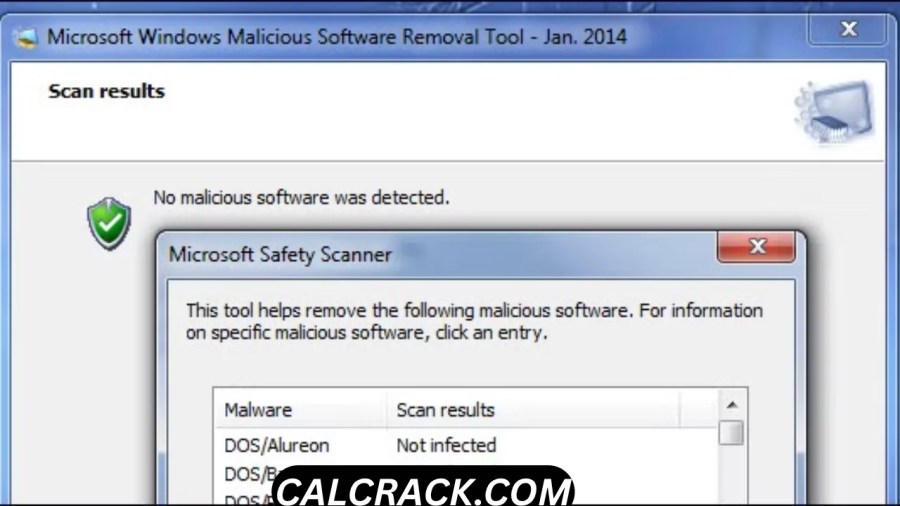
After a standalone scan, MSRT displays a report describing detected threats and the actions taken. It also creates a log file that can help users or support professionals investigate scan results.
The log is generally located at:
%windir%\debug\mrt.log
7. Microsoft Digital Signature
Microsoft confirms that MSRT is digitally signed. Downloading the tool directly from Microsoft helps users obtain an authentic release rather than an altered copy from an unknown source.
Microsoft MSRT System Requirements
Before downloading MSRT, confirm that your Windows installation is supported by the current release.
Microsoft’s download page lists Windows 10 and Windows 11 among the supported operating systems. Compatibility can differ by release and processor architecture, so check the current requirements before proceeding.
Important considerations include:
- Operating system: Verify that your Windows version is supported.
- System architecture: Select the appropriate 32-bit or 64-bit package when available.
- Administrator permissions: MSRT must be run with local administrator privileges.
- Storage space: Make sure there is enough available space for the download and normal Windows operation.
- Security software: Keep your existing antivirus software enabled and updated.
Older Windows versions may no longer be supported. Consult Microsoft’s current documentation rather than assuming that an older computer can run the latest release.
How to Download Microsoft Malicious Software Removal Tool
The safest way to download MSRT is through Microsoft’s official Download Center.
Follow these steps:
- Visit the official Microsoft MSRT download page.
- Review the available version and system requirements.
- Select the appropriate package for your Windows system.
- Click the Download button.
- Choose to run the file immediately or save it for later.
- Wait for the download to complete before opening the executable.
Avoid unofficial download sites and modified installers. If you want the latest release, check the version and publication date displayed on Microsoft’s website.
How to Run Microsoft MSRT
After downloading the standalone tool, follow these steps to perform a scan.
Step 1: Open the Downloaded File
Locate the downloaded MSRT executable and open it. Windows may request administrator permission because the tool needs sufficient access to scan and remove certain threats.
Step 2: Review the License Terms
Read the license information displayed by the application and accept it if you agree to the terms.
Step 3: Choose a Scan Type
Select Quick Scan, Full Scan, or Customized Scan according to your needs. If you suspect that your computer is infected, a Full Scan may be more appropriate.
Step 4: Start the Scan
Start the selected scan and allow the tool to examine the relevant areas of your computer. Avoid shutting down the computer while the scan is running.
Step 5: Review the Results
When the scan finishes, read the report. If MSRT identifies supported malware, follow the instructions displayed by the tool.
Step 6: Restart if Requested
Some removal operations may require a restart. Save your work and follow the application’s instructions.
Microsoft MSRT Scan Types
Quick Scan
Quick Scan examines areas where supported malware is commonly found. It is useful when you want to perform a faster check.
Because it covers a more limited scope, it may not be sufficient for every suspected infection.
Full Scan
Full Scan examines the computer more thoroughly and can take significantly longer, depending on the amount of data and the computer’s performance.
Choose this option if you suspect an infection or want a more comprehensive MSRT scan.
Customized Scan
Customized Scan allows users to choose an additional location to examine. This can be helpful when a particular folder is of concern.
The tool still checks only the malware families covered by MSRT. A customized scan is not a substitute for a complete antivirus solution.
MSRT vs. Microsoft Defender Antivirus
Although both tools are developed by Microsoft, they serve different purposes.
| Feature | MSRT | Microsoft Defender Antivirus |
|---|---|---|
| Main purpose | Remove selected prevalent malware | Provide ongoing antivirus protection |
| Real-time protection | No | Yes, when properly enabled |
| Threat coverage | Limited to selected malware families | Broader antivirus protection |
| Manual scanning | Yes | Yes |
| Automatic updates | Distributed through Windows Update | Receives security intelligence updates |
| Replaces a full antivirus product | No | Provides full antivirus functionality for supported Windows systems |
MSRT is best viewed as an additional cleanup utility. Microsoft recommends using an up-to-date antivirus product rather than relying on MSRT alone.
Advantages and Limitations of Microsoft MSRT
Advantages
- Free utility from Microsoft.
- Available as a standalone download.
- Distributed through Windows Update.
- Targets selected prevalent malware families.
- Provides scan results and a diagnostic log.
- Can complement an existing antivirus solution.
Limitations
- Does not replace real-time antivirus protection.
- Detects only selected malware families.
- May not identify every infection on a computer.
- Requires administrator permissions.
- Scan duration depends on the selected scan and computer configuration.
- Older Windows versions may not be supported by current releases.
Understanding these limitations helps users choose the right security tool for their situation.
Is Microsoft Malicious Software Removal Tool Safe?
MSRT is a Microsoft security utility, and Microsoft digitally signs the tool. For the best assurance of authenticity, obtain it directly from Microsoft’s official website or through Windows Update.
Follow these basic safety practices:
- Download the utility from Microsoft.
- Check the version and publisher information.
- Keep Windows and your antivirus software updated.
- Avoid modified installers from unfamiliar websites.
- Back up important files regularly.
- Review scan results carefully.
A scan that finds no supported malware does not prove that a computer is completely secure. If you continue to experience suspicious activity, run a full scan with your antivirus software or seek trusted technical support.
Common Problems and Troubleshooting
1. MSRT Will Not Open
Confirm that the file downloaded completely and came from Microsoft. Check whether your Windows version is supported and whether administrator permissions are available.
2. The Scan Takes Too Long
A Full Scan can take considerable time, particularly on computers with large amounts of data or slower storage. Allow it to finish unless an error occurs.
3. MSRT Does Not Detect a Suspected Infection
MSRT covers only selected malware families. If you still suspect an infection, update and run Microsoft Defender Antivirus or another reputable antivirus product.
4. Malware Cannot Be Removed
Follow the instructions shown in the scan report. If the infection persists, use your antivirus product’s recommended cleanup or offline scanning options.
5. Windows Update Does Not Offer MSRT
Check Windows Update for available updates and consult Microsoft’s support documentation. You can also check the official Download Center for the current standalone release.
6. You Cannot Find the Scan Log
The standalone tool generally creates its log at:
%windir%\debug\mrt.log
The %windir% variable usually points to the Windows installation directory. The log may contain technical details that are useful when troubleshooting.
Microsoft MSRT Alternatives
If you need additional malware protection or cleanup capabilities, consider Microsoft’s other security tools.
Microsoft Defender Antivirus
Microsoft Defender Antivirus provides ongoing protection against a broader range of malware threats on supported Windows systems. It is designed to help block, detect, and remove malicious software.
Microsoft Safety Scanner
Microsoft Safety Scanner is a separate, on-demand malware scanning utility from Microsoft. It can be useful when you want an additional manual scan. Download the latest version from Microsoft’s official website because its signature definitions and availability are time-sensitive.
Microsoft Defender Offline
Microsoft Defender Offline can scan a compatible Windows system outside the normal Windows environment. This can be useful when dealing with certain persistent threats that are difficult to address while Windows is running.
These tools have different purposes. Choose one based on your situation, and keep your primary antivirus protection enabled.
Frequently Asked Questions (FAQs)
1. Is Microsoft Malicious Software Removal Tool free?
Yes. MSRT is a free utility provided by Microsoft.
2. Where can I download MSRT?
You can download the standalone version from Microsoft’s official Download Center: https://www.mirosoft.com/en-us/download/details.aspx?id=9905.
3. Does MSRT replace antivirus software?
No. MSRT targets selected prevalent malware and does not provide continuous real-time protection. Microsoft recommends using an up-to-date antivirus product.
4. Does MSRT work on Windows 11?
Microsoft’s download page lists Windows 11 among the supported operating systems. Always verify the requirements for the current release.
5. How often is MSRT updated?
Microsoft generally releases MSRT monthly through Windows Update and makes a standalone release available around the same time. Check the official download page for the latest version.
6. Can MSRT remove every type of malware?
No. It focuses on selected prevalent malware families and cannot be relied upon to detect or remove every possible threat.
7. Where are MSRT scan results saved?
The standalone tool displays a report after scanning. It also generally creates a log file at %windir%\debug\mrt.log.
8. Does MSRT provide real-time protection?
No. It is a post-infection removal tool, not a real-time antivirus application.
9. Do I need administrator permissions to run MSRT?
Yes. Microsoft specifies that the tool must be run with local administrator privileges.
10. What should I do if MSRT finds no threats but my computer still behaves suspiciously?
Update and run your primary antivirus software, consider an additional on-demand scan, and seek trusted technical assistance if the problem continues.
Conclusion
Microsoft Malicious Software Removal Tool is a free Windows utility designed to detect and remove selected prevalent malware infections. Its standalone download, Windows Update distribution, scanning options, and results log make it useful as an additional cleanup tool.
However, MSRT is not a replacement for a full antivirus product and cannot guarantee that a computer is free from every threat. For the best protection, download it from Microsoft’s official website, keep Windows updated, and use an up-to-date antivirus solution with real-time protection.