
Table of Contents
RightClickTools v2.0.3 Download for Windows – Complete Guide
Windows provides a built-in right-click context menu for accessing common file and folder actions, but advanced users often need quicker access to system utilities and administrative tools. RightClickTools v2.0.3 expands the Windows Explorer workflow by providing a collection of useful tools that can be launched from a context menu or through its built-in launcher.
The current RightClickTools project supports Windows 7 and newer, including both 32-bit and 64-bit systems. It can work with standard and administrator accounts, multiple users, and long paths. Recent versions also support the modern Windows 11 context menu in addition to the classic context menu.
This guide explains what RightClickTools is, its main features, how to download and install it, how to use its commands, and important considerations when enabling elevated privileges.
| Part / Link | Rapidgator / DDownload | Nitroflare | Direct / SourceForge |
| Right Click Tools 2.0.3 | 🔴 DOWNLOAD | 🟢 DOWNLOAD | ⚡ DIRECT DOWNLOAD |
What Is RightClickTools?
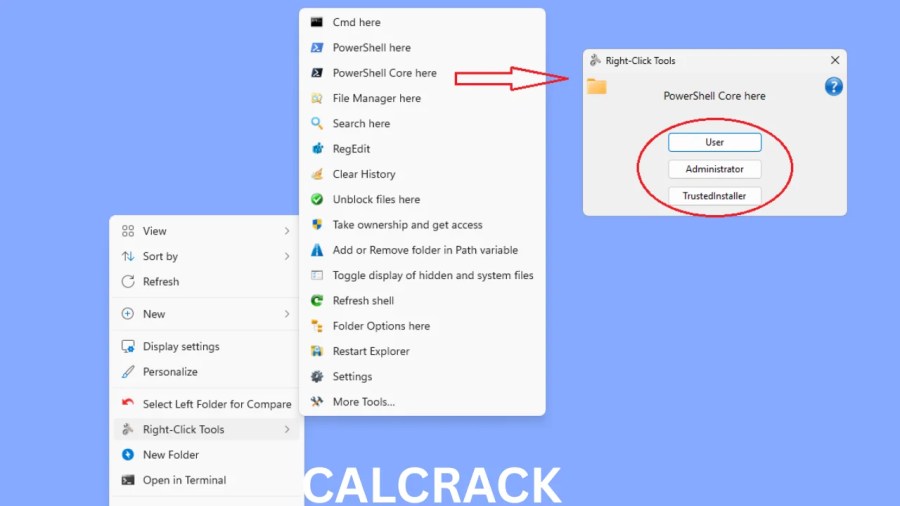
RightClickTools is a Windows utility developed by LesFerch that adds a collection of tools and shortcuts to Windows Explorer. The tools can be launched directly through the application’s built-in interface or integrated into the Windows right-click context menu.
The software is primarily aimed at Windows power users who frequently work with Command Prompt, PowerShell, Registry Editor, file managers, searches, system settings, and other administrative tasks.
One notable feature is that many tools can be configured to run under different security contexts, including the current user, Administrator, or TrustedInstaller. Because elevated tools can make significant system changes, they should be used carefully.
Key Features of RightClickTools
Windows Explorer Context Menu
RightClickTools can add its collection of commands to Windows Explorer’s context menu. This allows users to access useful utilities without opening separate applications first.
Recent versions support both the classic and modern Windows 11 context menus.
Command Prompt Here
The Cmd Here feature can open Command Prompt at the selected folder location. This saves time compared with manually navigating to a directory through Command Prompt.
PowerShell Here
The PowerShell Here command opens PowerShell at the selected location. The software also provides support for PowerShell Core in current versions.
PowerShell Core Support
Users who prefer PowerShell Core can configure RightClickTools to use it instead of the traditional Windows PowerShell environment.
Registry Editor Tools
RightClickTools provides options for launching Registry Editor under different user contexts. This can be useful for testing permissions or performing administrative registry tasks.
Because changes to the Windows Registry can affect system behavior, Registry Editor should only be used when you understand the setting you are changing.
File Manager Here
The File Manager Here feature can launch a configured file manager at the selected location. The current documentation allows the file manager to be configured according to the user’s preference.
Search Here
The Search Here feature provides tools for constructing more advanced searches. It can work with Windows Explorer’s Advanced Query Syntax and can also be configured to use supported third-party search utilities.
Clear History
RightClickTools includes options for clearing different types of Windows history and temporary data. Depending on the configuration, these options can include recent items, auto-suggest data, temporary files, and other supported history locations.
Users should review what a particular cleaning command removes before running it.
Unblock Files
Current versions include an Unblock files here feature that can remove the Windows security blocking state from files within a selected folder.
This can be useful when Windows has marked downloaded files as originating from another computer or location.
Folder Options
Recent releases also include Folder options here, which provides additional folder customization options. These include settings related to folder types, folder colors, and thumbnails.
Why Use RightClickTools?
RightClickTools is primarily useful for reducing repetitive steps in Windows.
Instead of opening Command Prompt, PowerShell, Registry Editor, or another utility and manually navigating to the required location, you can access supported commands from the appropriate Explorer context menu.
It can be particularly helpful for:
- Windows power users
- System administrators
- Developers
- IT professionals
- Users who frequently work with folders and system utilities
- Users who regularly work with long paths
- Users who need quick access to administrative tools
The software is designed as a productivity utility rather than a replacement for Windows Explorer.
RightClickTools for Windows
RightClickTools supports Windows 7 and newer and is available for both 32-bit and 64-bit systems. It also supports standard and administrator users and can be configured for multiple users on the same computer.
On Windows 11, the current release directly supports the modern context menu as well as the classic context menu. This is an important improvement compared with older releases that relied on additional configuration for modern Windows 11 menus.
RightClickTools Download
The official RightClickTools project provides downloadable installer and ZIP packages. The project is open source and is published through the developer’s GitHub repository and project documentation.
The current documentation lists version 2.0.2 on the project’s website.
For security and compatibility, users should obtain the software from the official project or another reputable software distribution source rather than using modified installers.
The project also provides both a standard installer and a portable ZIP option, giving users flexibility in how they use the software.
How to Install RightClickTools
There are two main installation approaches: the standard setup program and the portable package.
Method 1: Using the Setup Program
- Download the RightClickTools setup package.
- Run RightClickTools-Setup.exe.
- Approve the Windows UAC prompt when required.
- On Windows 11, choose the appropriate context-menu option.
- Review the privilege-elevation option carefully.
- Complete the installation.
The current installer supports the modern and classic context menus.
Method 2: Portable Installation
The portable version is supplied as a ZIP package.
After downloading:
- Extract the ZIP file.
- Locate
RightClickTools.exe,Setup.exe, and the associated application files. - Move the extracted files to a permanent folder if desired.
- Open
Setup.exe. - Configure the required options.
- Click the appropriate installation option.
The portable version can also be run from a removable drive or another chosen location.
How to Use RightClickTools
After installation, RightClickTools can be accessed through the configured Windows context menu.
Right-click a folder, the background of an open Explorer folder, or a drive to access the available RightClickTools commands. The current documentation describes it as a folder-level tool set rather than a tool that appears when right-clicking individual files.
Select the desired command from the menu and configure its options if necessary.
You can also run the application directly through its built-in launcher without installing the context-menu integration.
RightClickTools and Administrative Tools
One of the most advanced aspects of RightClickTools is its ability to launch supported tools under different security contexts.
Depending on the configuration, commands can run as:
- Current user
- Administrator
- TrustedInstaller
This can be useful when working with protected Windows settings or testing different permission levels.
However, elevated access should be treated carefully. Running an application with Administrator or TrustedInstaller privileges gives it significantly more access to the operating system.
Privilege Elevation and UAC
RightClickTools provides an optional privilege-elevation task for administrator users. According to the project’s documentation, enabling this option can allow supported tools to run without repeated UAC prompts after the initial setup.
This convenience comes with an important security consideration. The project’s documentation specifically explains that a scheduled task configured for privilege elevation could potentially be abused to run other code without a UAC prompt.
For that reason, users should understand the security implications before enabling the feature, particularly on work or shared computers.
RightClickTools and Windows 11
Windows 11 introduced a redesigned context menu, which changed how many third-party context-menu utilities integrate with Explorer.
Current RightClickTools releases directly support the modern Windows 11 context menu as well as the classic menu. The project introduced direct modern-menu support in the 2.0 release.
This means users can configure RightClickTools according to the context-menu experience they prefer.
Customizing RightClickTools
RightClickTools is designed to be configurable.
The project provides configuration options through its settings and INI files. Users can adjust various behaviors, language settings, tool preferences, and other options according to their requirements.
Advanced users can therefore create a setup that contains only the tools they regularly use.
Removing unnecessary commands can also help keep the context menu organized.
Language Support
RightClickTools includes multilingual support. The current project documentation states that the included Language.ini file contains translations for 30 languages and can be edited to change labels or add additional translations.
The installer can also use the Windows system language where supported.
Long Path Support
Long file and folder paths can sometimes be difficult to manage using traditional Windows tools.
RightClickTools is designed to work with long paths, making it useful for users who frequently manage deeply nested folders or large directory structures.
However, long-path support can still depend on the particular Windows application or file manager being used.
System Requirements
RightClickTools has relatively broad Windows compatibility.
The current project documentation states that it supports:
- Windows 7 and newer
- 32-bit Windows
- 64-bit Windows
- Standard user accounts
- Administrator accounts
- Multiple users on the same computer
- Long file paths
The software is a relatively small Windows utility, so the basic hardware requirements are generally modest compared with large desktop applications.
Pros and Cons of RightClickTools
Pros
- Adds useful commands to Windows Explorer
- Supports Windows 7 and newer
- Supports 32-bit and 64-bit systems
- Works with classic and modern Windows 11 context menus
- Provides Command Prompt and PowerShell shortcuts
- Includes Registry Editor tools
- Supports Administrator and TrustedInstaller contexts
- Supports long paths
- Offers a portable version
- Provides extensive configuration options
- Includes multilingual support
Cons
- Advanced features may be confusing for beginners
- Elevated privileges require careful consideration
- Too many context-menu entries can make the menu harder to navigate
- Registry and TrustedInstaller tools can make significant system changes
- Some security software may flag the executable because of its privilege-elevation functionality, according to the project’s documentation
Common RightClickTools Problems and Solutions
RightClickTools Does Not Appear in the Context Menu
Check whether the context-menu integration was installed correctly. On Windows 11, verify whether you selected the modern or classic context-menu option.
You can also run the setup process again to update the integration.
The Context Menu Command Does Nothing
The project documentation notes that moving the executable after installation can cause the registered context-menu commands to point to the wrong location. Running the setup process again can correct the path.
Windows Displays a SmartScreen Warning
Windows may display a SmartScreen prompt when launching a newly downloaded executable. Before allowing it to run, verify that you obtained the software from the legitimate project source and that the file has not been modified.
Antivirus Software Detects the Program
The project documentation states that some antivirus products may produce false-positive detections because RightClickTools can optionally create a scheduled task for privilege elevation.
Users should not simply disable security software based on a warning. Instead, verify the download source, inspect the software’s digital signature where applicable, and review the project’s source code and documentation before deciding how to proceed.
RightClickTools Is Not Available for Another User
The setup process can be configured for different Windows users. If another user account needs access, the software may need to be configured while logged into that account, depending on the installation method.
Is RightClickTools Safe to Use?
RightClickTools is an open-source project published by LesFerch. The source code is publicly available through GitHub, and the project documentation discusses its security model and privilege-elevation functionality.
However, users should understand that the software provides access to powerful Windows tools. Features involving Administrator or TrustedInstaller privileges can make changes that affect protected areas of the operating system.
For this reason:
- Download it from a trusted source.
- Verify the installer before running it.
- Keep backups of important data.
- Use elevated commands only when necessary.
- Avoid enabling privilege-elevation features on systems where the additional risk is unacceptable.
- Be especially careful on business or shared computers.
RightClickTools vs the Default Windows Context Menu
The standard Windows context menu provides common file and folder operations, but it does not provide the same collection of advanced shortcuts offered by RightClickTools.
The main difference is the range of utilities available.
The default menu is designed for general Windows users, while RightClickTools focuses more on power-user workflows involving Command Prompt, PowerShell, Registry Editor, file managers, searches, administrative operations, and other utilities.
Users who rarely work with system tools may not need the additional commands. Power users can benefit from having them available at the location where they are working.
Who Should Use RightClickTools?
RightClickTools is primarily aimed at users who frequently perform advanced Windows tasks.
It may be useful for:
- Windows power users
- System administrators
- IT professionals
- Developers
- Technical support specialists
- Advanced Windows users
- Users who frequently work with Command Prompt
- PowerShell users
- Users who regularly modify system settings
- People who work with complex folder structures
Beginners can use the basic commands, but advanced options such as Registry Editor and TrustedInstaller should only be used when their purpose is understood.
Frequently Asked Questions
What Is RightClickTools?
RightClickTools is a Windows utility that provides a collection of system and productivity tools through Windows Explorer’s context menu or its built-in launcher.
Is RightClickTools Free?
The RightClickTools project is distributed as open-source software under the MIT License.
Does RightClickTools Work on Windows 11?
Yes. Current versions support Windows 11, including its modern context menu as well as the classic context menu.
Does RightClickTools Work on Windows 10?
Yes. The project documentation states that RightClickTools supports Windows 7 and newer, which includes Windows 10.
Can RightClickTools Open PowerShell From a Folder?
Yes. The PowerShell Here feature can open PowerShell at the selected folder location. Current versions also support PowerShell Core configuration.
Can I Use RightClickTools Without Installing It?
Yes. RightClickTools provides a portable ZIP package and can also be launched directly through its executable.
Can RightClickTools Run Commands as Administrator?
Yes. Supported tools can be configured to run under the Administrator context, and some can also use TrustedInstaller privileges.
Can I Remove RightClickTools From the Context Menu?
Yes. The setup interface provides options for adding or removing the context-menu integration.
Is RightClickTools Suitable for Beginners?
The basic context-menu shortcuts are relatively straightforward, but advanced functions involving Registry Editor, Administrator privileges, and TrustedInstaller require a good understanding of Windows.
Conclusion
RightClickTools is a useful Windows power-user utility that brings a collection of system commands and administrative shortcuts closer to Windows Explorer. Its support for Command Prompt, PowerShell, Registry Editor, file managers, search tools, long paths, and different security contexts makes it more than a simple context-menu customization tool.
Current versions support Windows 7 and newer, including both classic and modern Windows 11 context menus. The availability of installer and portable packages also gives users flexibility when setting up the software.
If you regularly work with Windows system utilities, RightClickTools can reduce repetitive navigation and provide convenient access to frequently used commands. Because some features involve elevated privileges, however, users should configure the software carefully and understand the security implications before enabling advanced options.