
Table of Contents
Tenorshare Phone Mirror: Complete Guide
Tenorshare Phone Mirror is a screen-mirroring and phone-control application designed to display Android and iPhone/iPad screens on a Windows PC, while Android devices can also be mirrored to Mac. Depending on the device and connection method, it can let users view a phone on a larger computer display, control Android with a mouse and keyboard, play Android games using keyboard controls, take screenshots, record the mirrored screen, and transfer files in the paid version. (Tenorshare)
The software is particularly useful for people who want to mirror an iPhone to a PC, display an Android phone on a computer, demonstrate a mobile application, record a phone screen, or play supported Android games on a larger display.
This guide covers the most common questions people search for about Tenorshare Phone Mirror, including Tenorshare Phone Mirror download, APK, PC, free version, Android, Mac, iPhone screen mirroring, free iPhone mirroring apps, privacy, activation, and troubleshooting.
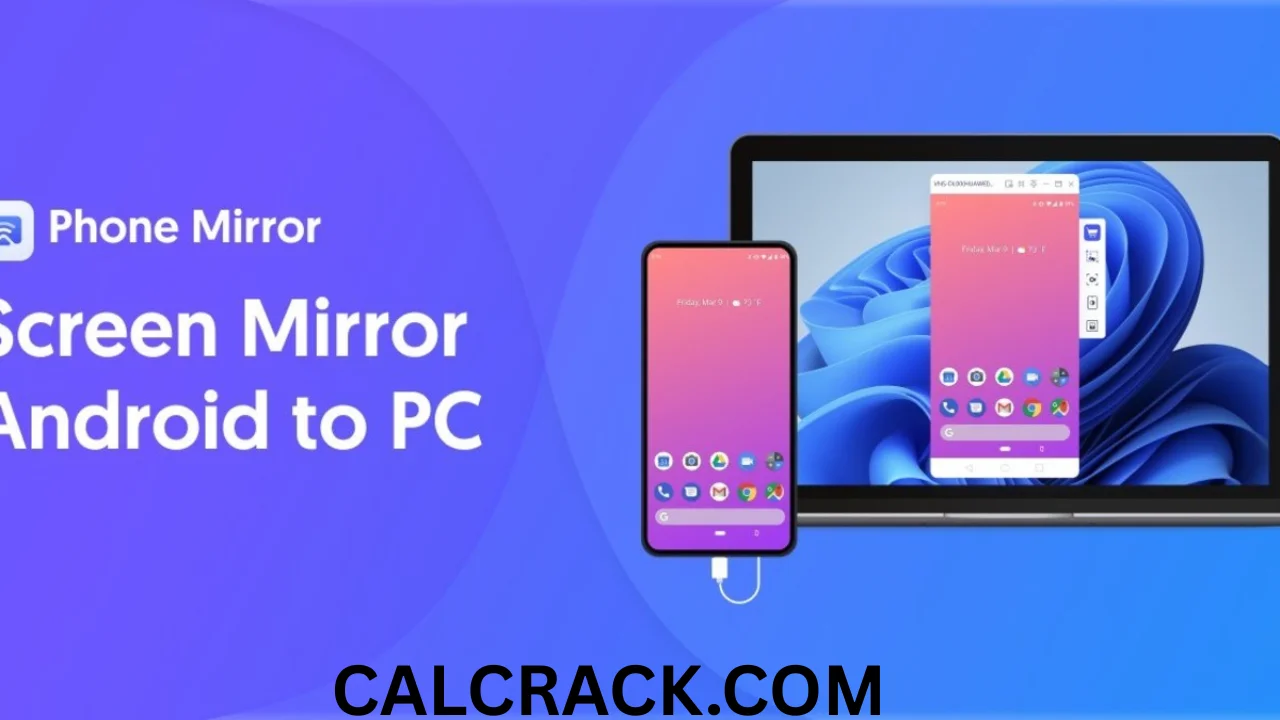
What Is Tenorshare Phone Mirror?
Tenorshare Phone Mirror is a phone screen-mirroring application for computers.
Its main purpose is to display your smartphone screen on a larger PC or Mac display.
For Android, the software goes beyond simple screen mirroring. Tenorshare says Phone Mirror can allow users to control an Android phone from a PC or Mac using a mouse and keyboard, and it also provides keyboard mapping for Android games. (Tenorshare)
For iPhone and iPad, Phone Mirror can mirror the iOS screen to a Windows PC wirelessly. Tenorshare’s official guide explains that iOS mirroring uses the iPhone’s built-in Screen Mirroring/AirPlay functionality and requires the iOS device and Windows PC to be connected to the same Wi-Fi network. (Tenorshare)
Main uses of Tenorshare Phone Mirror
You can use the software for:
- Mirroring Android to Windows
- Mirroring Android to Mac
- Mirroring iPhone to Windows
- Mirroring iPad to Windows
- Viewing a phone on a larger screen
- Controlling Android from a computer
- Playing Android games with keyboard and mouse
- Recording a mirrored phone screen
- Taking screenshots
- Demonstrating mobile apps
- Presenting mobile content
- Transferring files with the Pro version
The exact functionality depends on whether you’re using Android or iOS and which edition of Phone Mirror you have.
Is Tenorshare Phone Mirror Free?
Tenorshare Phone Mirror has a free trial, but it is not completely unlimited free software.
This distinction is important because many people search for “Tenorshare Phone Mirror free” expecting unrestricted screen mirroring.
According to Tenorshare’s current official comparison:
| Feature | Free Trial | Pro Version |
|---|---|---|
| Android & iOS screen mirroring | With watermark | No watermark |
| Android control | 10 minutes/day | Unlimited |
| Android game control | 10 minutes | Unlimited |
| Mirroring quality | Low | High |
| File transfer | No | Yes |
| Screenshots | With watermark | No watermark |
| Screen recording | 3 minutes per time | Unlimited |
(Tenorshare)
So, yes, you can try Phone Mirror for free, but the trial has restrictions.
Is the free trial useful?
Yes, especially if you want to test whether your device connects correctly.
For example, you can use the trial to determine:
- Whether your PC detects the phone.
- Whether iPhone mirroring works over your network.
- Whether Android mirroring works with your device.
- Whether the image quality is acceptable.
- Whether the software fits your workflow.
If you need unlimited control, higher-quality mirroring, unrestricted recording, or file transfer, the paid version is designed for those functions.
How Much Does Tenorshare Phone Mirror Cost?
Tenorshare’s official store currently lists Phone Mirror at $9.95/month, with a displayed crossed-out comparison price of $45.95. Promotional prices can change, so the price shown at checkout should be treated as the current amount for your purchase. (Tenorshare)
Because software companies frequently run promotions and may show different prices based on region, billing period, or campaign, it is best to verify the current price before purchasing.
What affects the value?
Before buying Phone Mirror, consider how often you will use it.
If you only need to mirror your phone occasionally, a free built-in solution may be sufficient.
If you regularly need:
- Android control from PC
- Keyboard mapping
- Screen recording
- High-quality mirroring
- File transfer
- Longer sessions
- A more integrated workflow
then Phone Mirror’s paid features may be more useful.
How to Download Tenorshare Phone Mirror
The safest way to download Tenorshare Phone Mirror is from Tenorshare’s official website.
Tenorshare’s official download center currently lists Phone Mirror with a Free Download option and describes it as software for mirroring Android and iOS screens to PC and Mac. (Tenorshare)
Basic download process
- Visit the official Tenorshare website.
- Find Phone Mirror.
- Select the download option for your computer.
- Download the installer.
- Open the installer.
- Follow the installation instructions.
- Launch Phone Mirror.
- Connect your phone using the supported method.
Why avoid third-party downloads?
Search results may show websites offering:
- Phone Mirror crack
- Phone Mirror key
- Phone Mirror activated
- Phone Mirror full version free
- Phone Mirror serial key
- Phone Mirror patched version
These unofficial packages can be modified.
Downloading software from an official developer is generally a safer approach because you can verify the publisher and obtain the intended installer.
Tenorshare Phone Mirror for PC
Phone Mirror is designed to work with Windows PCs, and Tenorshare provides specific instructions for mirroring both Android and iOS devices to a PC.
For iPhone/iPad, Tenorshare’s official guide states that Phone Mirror can mirror iOS to Windows and supports Windows 7, 8, 10, and 11 in the referenced guide. (Tenorshare)
For Android, the software provides Android-to-PC mirroring and Android control features. (Tenorshare)
Why mirror a phone to a PC?
A computer monitor is often much larger than a smartphone display.
You may want to mirror your phone when:
- Demonstrating an application
- Showing photos or videos
- Recording tutorials
- Giving a presentation
- Playing compatible mobile games
- Reading content on a larger display
- Managing Android through keyboard and mouse
Tenorshare Phone Mirror for Android
Android is one of the main platforms supported by Tenorshare Phone Mirror.
The software can mirror Android to a Windows PC or Mac, and Tenorshare also advertises the ability to control an Android device from a computer. (Tenorshare)
Android features include
Depending on your version and connection method, you can use Phone Mirror for:
- Screen mirroring
- Android control
- Mouse control
- Keyboard input
- Game keyboard mapping
- Screen recording
- Screenshots
- File transfer in the Pro version
The ability to control the Android device is one of the more important differences between a basic screen-casting tool and a dedicated phone-mirroring application.
Tenorshare Phone Mirror for iPhone
Tenorshare Phone Mirror also supports iPhone and iPad screen mirroring, although iOS functionality differs from Android functionality.
The official iOS guide says Phone Mirror can mirror an iPhone or iPad to a Windows PC wirelessly. The phone and computer need to be connected to the same Wi-Fi network, and the user selects the Tenorshare Phone Mirror receiver from iPhone’s Screen Mirroring menu. (Tenorshare)
Important difference between Android and iPhone
The feature sets aren’t identical.
Tenorshare’s documentation specifically notes that:
- iOS screen mirroring: Windows PC
- Android screen mirroring: Windows PC and Mac
(Tenorshare)
So if your goal is iPhone-to-Mac mirroring using Phone Mirror, don’t assume that the Windows iOS workflow applies to Mac. The current Phone Mirror documentation distinguishes the supported platforms.
How to Mirror an iPhone for Free
There are several ways to mirror an iPhone without paying for third-party software, depending on the receiving device.
If you’re using Tenorshare Phone Mirror, the free trial can be used for iOS screen mirroring, but the trial places a watermark on the mirrored output according to Tenorshare’s current comparison. (Tenorshare)
Using Tenorshare Phone Mirror
For a Windows PC:
- Install Phone Mirror.
- Open the application.
- Select the iOS option.
- Make sure the iPhone and PC are connected to the same Wi-Fi network.
- Open Control Center on the iPhone.
- Tap Screen Mirroring.
- Select the Tenorshare Phone Mirror receiver.
- Wait for the connection.
- Your iPhone screen should appear on the PC.
Tenorshare’s official guide confirms this Wi-Fi and Screen Mirroring process. (Tenorshare)
Is it completely free?
The Phone Mirror trial can be used without purchasing the Pro version, but Tenorshare places limitations on trial features. For iOS mirroring, the official comparison lists a watermark in the free trial. (Tenorshare)
Which Screen Mirroring App Is Free for iPhone?
There are several ways to mirror an iPhone, and the best option depends on what device you are mirroring to.
For example, Apple’s AirPlay/Screen Mirroring functionality can send compatible iPhone content to supported Apple devices and AirPlay receivers.
For a Windows PC, third-party applications such as Tenorshare Phone Mirror can provide a receiver for the iPhone’s Screen Mirroring feature.
What should you consider?
When selecting an iPhone screen-mirroring application, compare:
- Price
- Watermarks
- Resolution
- Latency
- Wi-Fi requirements
- Windows support
- Mac support
- Recording
- Screenshots
- Privacy
- Ease of setup
Tenorshare Phone Mirror’s free trial is useful for testing, but the current trial includes a watermark. (Tenorshare)
Can My Phone Be Mirrored to Another Phone Without Me Knowing?
Normally, legitimate screen-mirroring tools require some form of permission, pairing, or interaction from the device being mirrored.
A person generally cannot simply use Tenorshare Phone Mirror to secretly mirror another person’s phone without the required connection and permissions.
For example, iPhone mirroring through the normal Screen Mirroring process requires the user to open Control Center and select the receiving device. Tenorshare’s official instructions specifically describe this process. (Tenorshare)
What about malicious spyware?
There are malicious applications and spyware capable of secretly monitoring devices, but that is fundamentally different from ordinary screen-mirroring software.
If you are worried that someone is secretly viewing your phone:
- Check unfamiliar applications.
- Review connected devices.
- Check screen-sharing permissions.
- Review accessibility permissions on Android.
- Check device-management profiles where applicable.
- Change important passwords.
- Update your phone.
- Review your account security.
- Remove applications you don’t recognize.
Do not assume that seeing a “screen mirror” application automatically means someone is monitoring you. Investigate the actual application and permissions.
Can I Mirror an iPhone?
Yes, an iPhone can be mirrored to a compatible receiving device.
With Tenorshare Phone Mirror, iPhone/iPad mirroring to Windows is performed through the iPhone’s built-in Screen Mirroring functionality. The iPhone and Windows PC should be on the same Wi-Fi network. (Tenorshare)
Basic iPhone mirroring process
iPhone → Control Center → Screen Mirroring → Select receiver → Connect
Once connected, the iPhone display can appear on the computer.
This is useful for:
- Presentations
- Demonstrations
- Mobile app testing
- Tutorials
- Viewing content on a larger screen
- Screen recording
Is There a Free Mirror App?
Yes, there are free screen-mirroring applications and built-in technologies.
However, “free” can mean different things:
- Completely free
- Free with advertisements
- Free with watermarks
- Free for limited sessions
- Free for personal use
- Free trial
- Free basic features with paid upgrades
Tenorshare Phone Mirror falls into the free-trial/limited-feature category rather than being an unlimited free professional tool. (Tenorshare)
If you need unrestricted recording, better quality, Android control, and file transfer, you may need a paid plan.
Is Any Mirror App Free?
Yes, some screen-mirroring methods are free.
The important question is what you need to mirror.
For iPhone
Apple’s built-in Screen Mirroring/AirPlay functionality can work with compatible receivers.
For Android
Android phones may support built-in casting or screen-sharing features, depending on the manufacturer and Android version.
For Windows
Third-party receiver applications can provide additional functionality.
For advanced control
If you want to control Android from your computer, a specialized tool such as Tenorshare Phone Mirror may offer capabilities that basic casting does not.
How Do I Activate iPhone Mirroring?
With an iPhone, you normally don’t “activate” mirroring through a permanent setting.
Instead, you start a mirroring session.
Using Tenorshare Phone Mirror
- Install and open Phone Mirror on the Windows PC.
- Make sure the iPhone and computer use the same Wi-Fi network.
- Open Control Center on the iPhone.
- Tap Screen Mirroring.
- Choose the Tenorshare Phone Mirror receiver.
- Wait for the connection.
- The iPhone display should appear on the PC.
These are the steps described in Tenorshare’s official iOS mirroring guide. (Tenorshare)
If the receiver does not appear, troubleshoot the network first.

Why Can’t I Screen Mirror on My iPhone?
There are several reasons why iPhone screen mirroring might fail.
1. Devices are on different Wi-Fi networks
This is one of the first things to check.
Tenorshare’s iOS mirroring instructions require the iPhone and Windows PC to be connected to the same Wi-Fi network. (Tenorshare)
2. The receiver isn’t running
Open Phone Mirror on the computer before attempting to connect.
3. Network isolation is enabled
Some public, guest, corporate, or managed Wi-Fi networks prevent devices from communicating with each other.
4. Firewall interference
A firewall may prevent the mirroring application from receiving network traffic.
5. Outdated software
Update the mirroring application and your phone where appropriate.
6. Unsupported configuration
Make sure you’re using the correct operating system and connection method.
Tenorshare’s current guide specifically distinguishes iOS mirroring to Windows from Android mirroring to Windows and Mac. (Tenorshare)
7. Temporary network issue
Restarting the phone, PC, application, and router can sometimes resolve connection problems.
Can I Turn My iPhone Into a Mirror?
If you mean using the iPhone’s camera as an ordinary mirror, yes, you can use the front-facing camera.
If you mean turning the iPhone into a screen-mirroring receiver for another phone, that’s a different situation.
Tenorshare Phone Mirror is primarily designed to use a computer as the receiving display for supported phone mirroring. It isn’t simply a utility that turns one iPhone into a universal receiver for another phone.
So:
iPhone camera as mirror: Yes.
iPhone as a general-purpose receiving display for another phone: Not the primary purpose of Tenorshare Phone Mirror.
Can I Mirror My Phone to Someone Else’s Phone?
It depends on the phones and software involved.
Traditional screen-mirroring tools generally work by sending the screen to a compatible receiving device, such as:
- Computer
- Smart TV
- Streaming device
- Supported tablet
- Another compatible receiver
A normal phone isn’t automatically a screen-mirroring receiver just because it has Wi-Fi.
If your goal is to show your screen to another person, a video-call or remote-support application may be more appropriate.
Privacy consideration
Only mirror your screen to someone you trust.
Your phone display can reveal:
- Messages
- Notifications
- Password fields
- Photos
- Emails
- Banking information
- Private conversations
- Authentication codes
Before starting a mirroring session, close sensitive applications and disable unnecessary notifications.
Which Is the Best Screen Mirroring App for iPhone?
There isn’t one universal winner.
For iPhone-to-Windows mirroring, Tenorshare Phone Mirror is one option because it provides an AirPlay-based receiving workflow for Windows. (Tenorshare)
But the best application depends on your requirements.
Choose based on your needs
For simple occasional mirroring:
A built-in AirPlay-compatible solution may be enough.
For Windows PC:
A dedicated receiver such as Phone Mirror can be convenient.
For recording:
Look for screen-recording support and check whether the free version adds a watermark.
For presentations:
Prioritize stability and low latency.
For gaming:
Latency and refresh rate become especially important.
For Android control:
Look for mouse/keyboard control and game-key mapping.
What Makes Tenorshare Phone Mirror Different?
The main advantage of Phone Mirror is that it combines screen mirroring with additional Android control and recording features.
A basic screen-mirroring tool might only display the phone.
Phone Mirror can also provide functions such as:
- Android control
- Keyboard mapping
- Screen recording
- Screenshots
- File transfer
- Multi-platform support
Tenorshare’s current feature comparison specifically lists Android control, Android game support, file transfer, screenshots, and screen recording. (Tenorshare)
This makes it more interesting for people who want to interact with their phone through the computer rather than merely watch the display.
Can Tenorshare Phone Mirror Control an iPhone?
This is an important distinction.
Tenorshare Phone Mirror supports iPhone/iPad screen mirroring, but the Android control features are more extensive.
Tenorshare specifically advertises controlling Android phones from PC and Mac using a mouse and keyboard. (Tenorshare)
For iPhone, the documented Phone Mirror workflow is primarily screen mirroring through the iPhone’s Screen Mirroring/AirPlay feature. (Tenorshare)
Therefore, don’t assume that the Android mouse-and-keyboard control functionality applies identically to iOS.
Can I Play Android Games With Tenorshare Phone Mirror?
Yes.
Tenorshare specifically advertises Android game keyboard mapping as a Phone Mirror feature.
This allows supported Android games to be played on a computer using keyboard controls. (Tenorshare)
The free trial limits Android game control to 10 minutes according to Tenorshare’s current feature comparison, while the Pro version removes that time limit. (Tenorshare)
Why use keyboard mapping?
Mobile games are normally designed around touchscreen controls.
On a PC, keyboard controls can make certain games more comfortable, especially games involving:
- Movement
- Repeated actions
- Directional controls
- Key combinations
However, individual games can have their own rules about external controls or automation, so users should always check the game’s terms.
Can Tenorshare Phone Mirror Record My Phone Screen?
Yes.
Tenorshare lists screen recording as a Phone Mirror feature.
The free trial currently limits screen recording to three minutes per recording, while the Pro version provides unlimited recording according to the official feature comparison. (Tenorshare)
Screen recording can be useful for:
- Tutorials
- App demonstrations
- Troubleshooting
- Educational videos
- Presentations
- Gameplay recordings
The trial also places limitations/watermarks on some output features.
Can Tenorshare Phone Mirror Take Screenshots?
Yes.
Tenorshare lists screenshot functionality as part of Phone Mirror.
According to its current comparison:
- Free trial: screenshots include a watermark.
- Pro version: screenshots have no watermark.
(Tenorshare)
This can be useful when you need to capture a particular phone screen while working from your computer.
Can Tenorshare Phone Mirror Transfer Files?
Yes, but file transfer is listed as a Pro feature.
Tenorshare’s current comparison shows:
Free Trial: No file transfer
Pro: File transfer available
(Tenorshare)
This makes the Pro version more useful for people who want both screen mirroring and computer-to-phone file management.
Tenorshare Phone Mirror for Mac
Phone Mirror supports Android screen mirroring on Mac, according to Tenorshare’s current documentation. (Tenorshare)
However, Tenorshare’s iOS guide specifically states that iOS screen mirroring with Phone Mirror is supported on Windows PC, while Android screen mirroring works on both PC and Mac. (Tenorshare)
Therefore, the operating-system matrix is important:
| Device | Windows PC | Mac |
|---|---|---|
| Android mirroring | Yes | Yes |
| Android control | Yes | Yes |
| iPhone/iPad mirroring with Phone Mirror | Yes | Current guide specifies Windows |
| Android game keyboard mapping | Yes | Supported feature |
| Screen recording | Yes | Supported feature |
Always check the latest Tenorshare documentation before purchasing if your setup depends on a particular phone/OS combination.
Tenorshare Phone Mirror APK: Is There an Official APK?
This is an important point for users searching “Tenorshare Phone Mirror APK.”
Phone Mirror is primarily presented by Tenorshare as computer software for Windows and Mac, rather than a conventional Android APK that you install on your phone to perform the same function.
Tenorshare’s official download center lists Phone Mirror as desktop software for mirroring Android and iOS to PC and Mac. (Tenorshare)
Therefore, be cautious with websites claiming to offer a “Tenorshare Phone Mirror APK download.”
An APK claiming to be an official Phone Mirror mobile application should be verified carefully before installation.
Why is this important?
A fake APK could potentially contain:
- Malware
- Spyware
- Adware
- Credential-stealing components
- Unwanted permissions
If you want Phone Mirror, start with Tenorshare’s official download page instead of an unknown AK mirror.
Is Tenorshare Phone Mirror Safe?
Tenorshare Phone Mirror is legitimate software from Tenorshare, but users should still follow normal security practices.
The strongest way to reduce risk is to download the application directly from Tenorshare.
The official Tenorshare website provides the Phone Mirror product page, download center, user guides, and product documentation. (Tenorshare)
Safety checklist
Before installing:
- Download from the official Tenorshare website.
- Avoid cracked versions.
- Avoid unofficial APKs.
- Keep Windows/macOS updated.
- Keep your phone updated.
- Review permissions.
- Use security software.
- Don’t mirror confidential information unnecessarily.
- Disconnect devices when finished.
- Don’t install remote-control software from strangers.
Tenorshare Phone Mirror vs Built-In Screen Mirroring
Built-in screen mirroring is often the easiest option if it already works with your hardware.
However, a dedicated program can offer additional functionality.
| Feature | Built-in mirroring | Phone Mirror |
|---|---|---|
| Basic screen mirroring | Often | Yes |
| Android control | Limited/varies | Yes |
| Keyboard mapping | Usually limited | Yes |
| Screen recording | Depends on setup | Yes |
| Screenshots | Depends on setup | Yes |
| File transfer | Usually separate | Pro feature |
| Windows support | Varies | Yes |
| Mac Android mirroring | Varies | Yes |
The main reason to use a dedicated application is not necessarily basic mirroring—it is the additional workflow around the mirrored device.
How to Fix Tenorshare Phone Mirror Connection Problems
If Phone Mirror isn’t connecting, try these steps.
Step 1: Restart Phone Mirror
Close the application completely and reopen it.
Step 2: Restart your phone
A temporary networking or permission issue may disappear after a restart.
Step 3: Check Wi-Fi
For iPhone wireless mirroring, make sure both devices are on the same Wi-Fi network. This is specifically required by Tenorshare’s iOS mirroring instructions. (Tenorshare)
Step 4: Check Windows firewall
Make sure Phone Mirror isn’t being blocked from network communication.
Step 5: Update Phone Mirror
Use the latest official version when possible.
Step 6: Update the phone
Make sure your iOS or Android device is reasonably up to date.
Step 7: Try another network
If you’re on guest or public Wi-Fi, device-to-device communication may be blocked.
Step 8: Reconnect the device
Disconnect and reconnect the phone.
Step 9: Follow the correct platform instructions
Android and iPhone have different connection workflows.
Don’t try to use an Android setup guide for an iPhone.
How to Use Tenorshare Phone Mirror
The basic workflow is straightforward.
Step 1: Download Phone Mirror
Obtain the official Windows or Mac version from Tenorshare.
Step 2: Install it
Run the installer and complete setup.
Step 3: Open the program
Launch Phone Mirror.
Step 4: Select your phone platform
Choose Android or iOS depending on the device you’re connecting.
Step 5: Connect
Follow the on-screen instructions.
For iPhone, Tenorshare’s official workflow uses the iPhone’s Screen Mirroring option over the same Wi-Fi network. (Tenorshare)
Step 6: Start mirroring
Once the connection is established, the phone screen appears on the computer.
Step 7: Use additional features
Depending on your device and plan, you can use:
- Screenshots
- Recording
- Android control
- Keyboard mapping
- File transfer
Advantages of Tenorshare Phone Mirror
1. Supports Android and iOS
Phone Mirror supports both major mobile platforms, although platform capabilities differ. (Tenorshare)
2. Android control
Controlling Android with a mouse and keyboard is a major advantage.
3. Game keyboard mapping
Android games can be used with computer keyboard controls.
4. Screen recording
Useful for tutorials and demonstrations.
5. Screenshots
You can capture the mirrored phone display.
6. Windows and Mac support
Android mirroring is available on both platforms.
7. Free trial
Users can test core functionality before purchasing.
Disadvantages of Tenorshare Phone Mirror
1. Free version limitations
The trial has restrictions on time, quality, watermarks, and certain features. (Tenorshare)
2. Paid features
Unlimited Android control, file transfer, higher quality, and unrestricted recording require the Pro version.
3. iOS limitations
The iPhone feature set is not identical to Android control.
4. Network dependence
Wireless iPhone mirroring requires the phone and Windows PC to be on the same Wi-Fi network. (Tenorshare)
5. APK confusion
Users searching for an APK may encounter unofficial downloads because Phone Mirror is primarily a desktop application.
Who Should Use Tenorshare Phone Mirror?
Phone Mirror can be useful for several types of users.
Students
Students can mirror a phone during:
- Presentations
- Tutorials
- Demonstrations
- Educational sessions
Content creators
Creators can use screen mirroring for:
- Mobile tutorials
- App demonstrations
- Gameplay
- Product demonstrations
- Recording phone workflows
Android gamers
Android gamers may benefit from keyboard and mouse controls.
Developers
Developers can display mobile applications on a larger screen during demonstrations or testing.
Support technicians
Screen mirroring can help demonstrate or troubleshoot phone-related problems.
Business users
Businesses can use mirroring for presentations and demonstrations, provided sensitive information is handled appropriately.
Is Tenorshare Phone Mirror Worth It?
It can be worth it if you need more than basic screen casting.
If your only goal is occasionally displaying an iPhone screen on a compatible device, a built-in solution may be enough.
However, Phone Mirror becomes more attractive when you need a combination of:
- Screen mirroring
- Android control
- Keyboard mapping
- Recording
- Screenshots
- File transfer
- PC-based phone management
The free trial makes it possible to test the workflow before paying, although the trial has limitations. (Tenorshare)
My overall assessment
For basic iPhone mirroring: Good option to test.
For Android-to-PC control: More compelling.
For Android gaming: Useful if keyboard mapping fits your needs.
For completely free unlimited use: Not ideal because the trial is restricted.
For occasional screen casting: Built-in alternatives may be sufficient.
For an integrated phone-to-computer workflow: More useful.
Frequently Asked Questions About Tenorshare Phone Mirror
How to mirror an iPhone for free?
You can use the iPhone’s built-in Screen Mirroring/AirPlay functionality with a compatible receiver. Tenorshare Phone Mirror also provides a free trial for iPhone mirroring, although its free trial places a watermark on mirrored output. (Tenorshare)
Which screen mirroring app is free for iPhone?
There are multiple free or limited-free options. Tenorshare Phone Mirror offers a free trial for iOS screen mirroring, but its trial has limitations. (Tenorshare)
Can my phone be mirrored to another phone without me knowing?
Normal legitimate mirroring requires a connection or permission. Tenorshare’s iPhone workflow requires the user to select the receiving device from Screen Mirroring. Secret monitoring would generally involve a different category of software, such as spyware. (Tenorshare)
Can I mirror an iPhone?
Yes. Tenorshare Phone Mirror can mirror an iPhone or iPad to a Windows PC using the iPhone’s Screen Mirroring feature. (Tenorshare)
Is there a free mirror app?
Yes. There are free mirroring solutions, including built-in device features and free trials of third-party applications. Tenorshare Phone Mirror provides a limited free trial. (Tenorshare)
Is any mirror app free?
Yes, but features vary. Some are completely free, while others have watermarks, time limits, advertisements, or restricted features.
How do I activate iPhone mirroring?
Open Phone Mirror on your Windows PC, ensure the iPhone and PC are on the same Wi-Fi network, open Control Center on the iPhone, select Screen Mirroring, and choose the Phone Mirror receiver. (Tenorshare)
Can I turn my iPhone into a mirror?
If you mean a physical mirror, use the front camera. If you mean a screen-mirroring receiver for another device, that is a different function and isn’t the primary purpose of Tenorshare Phone Mirror.
Can I mirror my phone to someone else’s phone?
It depends on the receiving phone and its software. A normal phone isn’t automatically a universal screen-mirroring receiver. A compatible receiver or dedicated application may be required.
Which is the best screen mirroring app for iPhone?
The best option depends on your receiving device. Tenorshare Phone Mirror is useful for iPhone-to-Windows mirroring, while built-in AirPlay-compatible solutions may be preferable in Apple-focused environments. (Tenorshare)
Why can’t I screen mirror on my iPhone?
Check that the devices are on the same Wi-Fi network, Phone Mirror is running, firewall settings aren’t blocking it, and you’re following the correct iOS connection process. (Tenorshare)
Which screen mirroring is free?
Free options include built-in casting technologies and limited third-party applications. Tenorshare Phone Mirror has a free trial, but unlimited features require the Pro version. (Tenorshare)
Conclusion
Tenorshare Phone Mirror is a versatile screen-mirroring application aimed at users who want to display Android or iPhone content on a computer. Its Android functionality goes beyond simple casting by offering computer control, mouse and keyboard interaction, and game keyboard mapping. (Tenorshare)
For iPhone users, Phone Mirror provides a way to mirror an iPhone or iPad to a Windows PC through the device’s built-in Screen Mirroring/AirPlay feature. The official workflow requires the iPhone and Windows computer to be connected to the same Wi-Fi network. (Tenorshare)
The software is not completely unlimited free software. Tenorshare currently provides a free trial, but the trial includes restrictions such as watermarks, limited Android control, lower mirroring quality, and a three-minute screen-recording limit. (Tenorshare)
For users who only need occasional screen mirroring, built-in phone and operating-system features may be sufficient. But for users who want Android control, keyboard mapping, screen recording, screenshots, file transfer, and PC-based phone interaction, Tenorshare Phone Mirror can provide a more comprehensive solution.
The safest way to obtain it is through Tenorshare’s official download channels. Avoid unofficial Tenorshare Phone Mirror APK, cracked, key, or activated downloads because they may not be genuine.
Overall, Tenorshare Phone Mirror is best suited to users who want to bring their smartphone experience onto a larger computer screen and, particularly with Android, interact with the phone using a keyboard and mouse.
Download Now
Tenorshare Phone Mirror
- Download Option 1:
Drop.Download - Download Option 2:</strong
Send.cm
File Size: 75.9 MB