
Table of Contents
WinZenith 1.3.3 Download – Complete Windows Optimization Guide
WinZenith 1.3.3 is a free Windows system optimization and maintenance suite that brings several PC management tools together in one portable application. It is designed for Windows 10 and Windows 11 and includes utilities for system cleanup, driver updates, software updates, application removal, startup management, duplicate-file detection, disk tools, browser extension management, and network optimization.
Unlike traditional desktop utilities that require a conventional installation, WinZenith is distributed as a portable package. Users can download the ZIP archive, extract it to a folder, and launch the application without going through a standard installation wizard.
| Part / Link | Rapidgator / DDownload | Nitroflare | Direct / SourceForge |
| WinZenith | 🔴 DOWNLOAD | 🟢 DOWNLOAD | ⚡ DIRECT DOWNLOAD |
What Is WinZenith?
WinZenith is an all-in-one Windows maintenance utility designed to simplify common system management tasks. Instead of opening different Windows utilities for cleanup, software removal, startup management, driver maintenance, and system information, users can access these functions from a centralized interface.
The current WinZenith release provides tools covering system health, drivers, application updates, backups and rollback, system information, software removal, startup management, cleanup, duplicate files, disk utilities, browser extensions, and network configuration.
WinZenith is free to use and portable. Its project source code is publicly available through GitHub, making the application different from closed-source commercial PC optimization suites.
Key Features of WinZenith
System Health Dashboard
WinZenith provides a centralized dashboard where users can review different areas of their Windows system. The dashboard can scan for issues involving drivers, installed software, and system cleanup.
This approach makes it easier to see maintenance-related information without opening several independent Windows tools.
Driver Updater
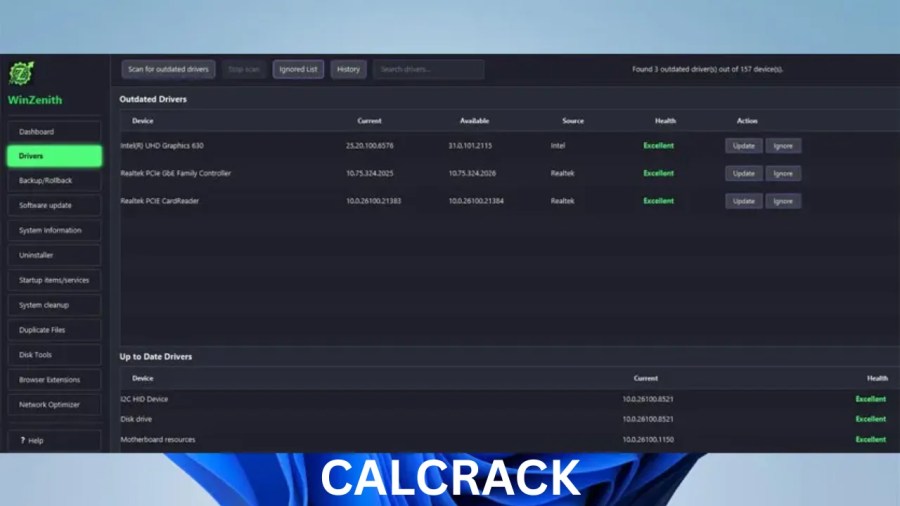
The driver management feature can scan for outdated drivers and provide update options. The project documentation describes support for major hardware providers, including Intel, NVIDIA, and Realtek. WinZenith also includes driver backup and rollback functionality.
Driver updates should always be handled carefully because an incompatible driver can cause hardware or stability problems. Creating a backup or restore point before making significant changes can provide an additional recovery option.
Driver Backup and Rollback
WinZenith includes tools for creating driver backups and Windows system restore points. These options are useful when a driver update causes unexpected behavior and the user needs to return to an earlier configuration.
Software Updater
The software update module integrates with Windows Package Manager, commonly known as winget, to identify and update supported applications. Batch updating can make it easier to maintain several compatible applications without updating each one manually.
The exact applications available for updating depend on the configured winget sources and the software’s current capabilities.
System Information
WinZenith can display detailed information about a Windows computer, including operating system, processor, graphics hardware, RAM, storage, and BIOS information.
This can be useful when checking a PC before troubleshooting, upgrading hardware, installing software, or documenting system specifications.
Application Uninstaller
The built-in uninstaller can remove desktop and Store applications. WinZenith also provides cleanup for leftover files, folders, and registry entries associated with removed applications.
Users should review what is being removed before confirming an uninstall, particularly when dealing with system components or software they may need later.
Startup Manager
The Startup Manager provides controls for startup items, scheduled tasks, and Windows services. WinZenith also supports configuration backup and restoration for this area.
Managing unnecessary startup programs can help reduce the number of applications that launch automatically when Windows starts, although users should avoid disabling services or startup components they do not recognize.
System Cleanup
WinZenith includes a system cleanup tool for removing unnecessary files. The current project website lists cleanup categories covering temporary files, browser cache, Windows update leftovers, and other system data.
Cleaning unnecessary files can free storage space, but important files should always be reviewed before deletion.
Duplicate File Finder
The duplicate-file feature can identify duplicate data using content-based detection. This can help users find multiple copies of the same files and potentially recover storage space.
Before deleting duplicates, make sure that the selected files are genuinely unnecessary copies.
Disk Tools
WinZenith provides several disk-related functions, including disk defragmentation, secure file deletion, and free-space wiping.
Defragmentation is mainly relevant to traditional hard disk drives. Solid-state drives use different storage technology, so users should follow Windows and drive-manufacturer recommendations rather than treating all drives identically.
Browser Extension Manager
The browser extension manager supports browsers including Chrome, Edge, Firefox, Brave, Opera, and Vivaldi. It provides a centralized way to review and manage installed browser extensions.
Removing extensions that are no longer required can simplify browser management and reduce unnecessary browser components.
Network Optimizer
WinZenith includes network-related configuration tools for network adapters, DNS settings, and connection parameters. Recent releases have added improvements for adapter properties, Wi-Fi detection, and TCP-related configuration.
Network settings can affect connectivity, so advanced changes should be made carefully and preferably after recording the original configuration.
Why Use WinZenith?
WinZenith can be useful for users who want several Windows maintenance tools in one application. Its centralized design reduces the need to switch between multiple utilities for routine tasks.
For example, a user can review system information, check software updates, manage startup applications, clean temporary data, inspect drivers, and uninstall unwanted programs from the same application.
Its portable design is another practical feature. Because the application does not require a conventional installation, it can be extracted to a folder or compatible removable drive and launched when needed.
WinZenith for Windows 10 and Windows 11
WinZenith is designed for Windows 10 and Windows 11. The official project currently lists both operating systems as supported platforms.
Windows users can therefore use the application for a range of maintenance tasks without requiring a separate utility for each function.
Because system utilities can interact with Windows configuration, users should make sure they have current backups before performing major cleanup, driver, registry, or configuration operations.
WinZenith Download
WinZenith is distributed as a portable ZIP package. The official project currently lists version 1.3.2 as the latest release, dated September 13, 2026.
The recommended download process is straightforward:
- Visit the official WinZenith project or its GitHub release page.
- Download the latest portable ZIP package.
- Save the ZIP file to your computer.
- Extract the archive to a suitable folder.
- Open the extracted folder.
- Launch
WinZenith.exewith administrator privileges when required.
Because the software is portable, there is no conventional setup wizard to complete.
How to Install WinZenith
WinZenith does not require a traditional installation. Instead, it works as a portable Windows application.
Step 1: Download the ZIP File
Download the latest WinZenith portable package from the project’s official release source.
Step 2: Extract the Archive
Right-click the downloaded ZIP file and use Windows’ extraction option or another trusted archive utility.
Step 3: Choose a Folder
Extract the contents to a location that is easy to access. You can also place the portable application on a removable drive if appropriate.
Step 4: Launch WinZenith
Open the extracted folder and run WinZenith.exe.
Step 5: Grant Administrator Access
Some maintenance operations require elevated Windows privileges. The official instructions recommend running WinZenith as Administrator.
How to Use WinZenith
After launching WinZenith, users can begin from the main dashboard and select the maintenance category they want to work with.
A typical workflow might look like this:
- Open WinZenith.
- Review the system health information.
- Check available software and driver updates.
- Review unnecessary startup items.
- Scan for temporary or unwanted files.
- Review installed applications.
- Check duplicate files if storage is limited.
- Use disk or network tools when appropriate.
- Create backups or restore points before significant changes.
- Apply only the changes you understand.
This approach allows users to perform maintenance gradually rather than making many system changes at once.
WinZenith System Optimization Tools
WinZenith combines several maintenance functions that can help users manage Windows more efficiently.
The system cleanup feature can remove unnecessary files, while the startup manager can help identify programs and services configured to run automatically. The uninstaller can remove unwanted applications and associated leftovers.
The application also includes network and disk tools for users who need more advanced system management.
However, system optimization does not automatically mean that every available setting should be changed. Windows already manages many performance-related functions automatically, so users should apply changes based on an identifiable need.
WinZenith Privacy and Security Tools
WinZenith’s public project information emphasizes its portable, ad-free design and states that the application does not use telemetry or background tracking. Its source code is publicly available through GitHub.
The application also provides utilities that can affect privacy-related browser extensions and Windows configuration.
Users should nevertheless distinguish between a system maintenance utility and dedicated antivirus or endpoint-security software. WinZenith should not be treated as a replacement for Windows Security or a full security suite.
WinZenith File and Storage Tools
Storage management is one of the areas covered by WinZenith.
The application includes system cleanup, duplicate-file detection, and disk-related utilities. These functions can help users identify unnecessary data and manage available storage.
For example, duplicate-file detection can identify files that occupy storage multiple times, while the cleanup feature can locate temporary system and browser data.
Before deleting files, always verify their contents and location. Important personal documents should be backed up before performing large cleanup operations.
WinZenith Customization Options
WinZenith is primarily focused on system maintenance rather than desktop customization. Its customization-related functionality is centered more around Windows configuration and management than changing visual themes.
Users can manage startup behavior, system settings, browser extensions, network parameters, and other configurable areas from the available tools.
The exact settings available can change between releases as the project continues to develop.
WinZenith Settings and Configuration
WinZenith provides different configuration options depending on the selected utility.
For example, the driver section handles driver scanning and backup operations, while the startup manager focuses on applications, scheduled tasks, and services. Network settings provide options related to adapters and connection parameters.
When changing advanced settings, users should first record the existing configuration. This makes it easier to reverse a change if the result is unexpected.
System Requirements
The official WinZenith website lists support for:
- Operating System: Windows 10 or Windows 11
- Architecture: Compatible Windows PC
- Java: Java 17 or later is included with the portable package
- Installation: No conventional installation required
The portable package includes the required Java runtime, so users do not normally need to install a separate Java runtime before launching the application.
Adequate free storage is also required for the downloaded archive and for the files being managed during cleanup or other maintenance operations.
Pros and Cons of WinZenith
Pros
- Free Windows maintenance utility
- Supports Windows 10 and Windows 11
- Portable and does not require conventional installation
- Multiple system tools in one application
- Driver update and rollback functionality
- Software update support through winget
- Built-in application uninstaller
- Startup management
- System cleanup and duplicate-file detection
- Disk and network utilities
- Publicly available source code
- No ads according to the official project site
Cons
- Windows-only
- Some tools require administrator privileges
- Advanced settings can affect system behavior
- Driver updates should be handled carefully
- Not every optimization will produce a noticeable performance improvement
- Compatibility with individual hardware or software configurations can vary
Is WinZenith Safe?
WinZenith’s official project describes it as free, portable, and open source, with its source code publicly available on GitHub. The project also states that it contains no ads or telemetry.
The safest approach is to download the application from its official project or release source rather than from an unknown third-party website.
Windows SmartScreen may display a warning when launching a newly distributed unsigned application. The official WinZenith instructions explain that this can occur because the application does not use a costly corporate digital certificate. Users should still verify that they downloaded the genuine application before deciding whether to proceed.
As with any system utility, create a restore point or backup before making substantial changes to Windows.
Common WinZenith Problems and Solutions
WinZenith Does Not Start
Make sure you extracted the complete ZIP archive rather than attempting to run the application directly from a compressed archive.
If a Windows security warning appears, verify the application’s source and authenticity before proceeding.
A Feature Requires Administrator Access
Some system-management operations require elevated privileges. Close the application and launch WinZenith.exe using the Run as administrator option when appropriate.
Driver Update Does Not Work
Driver availability depends on the supported provider and current driver information. Check the hardware manufacturer’s official website if a required driver is unavailable.
Creating a driver backup or restore point before updating is recommended.
Cleanup Does Not Free Much Space
The amount of recoverable storage depends on the computer. If the system already has relatively little temporary data, a cleanup scan may not produce a large difference.
Network Settings Cause Problems
If a network change produces unexpected behavior, restore the previous configuration where possible. Keep a record of existing DNS, adapter, and other network settings before experimenting with advanced options.
An Application Cannot Be Removed
Some Windows components and applications may have restrictions that prevent normal removal. Do not force removal of system components unless you fully understand the consequences.
Who Should Use WinZenith?
WinZenith can be useful for several types of Windows users.
General Windows Users
Users who want basic cleanup, application removal, software updates, and system information in one place may find the centralized interface convenient.
Power Users
Advanced Windows users can use tools such as startup management, network configuration, driver management, disk utilities, and system information.
PC Maintenance Users
People who regularly maintain several Windows computers can benefit from the portable format and collection of maintenance utilities.
Users Managing Storage
The cleanup and duplicate-file tools can be useful for identifying unnecessary data and recovering storage space.
WinZenith Alternatives
Windows users have access to many system maintenance applications, including commercial optimization suites and individual utilities.
Built-in Windows tools can also handle many tasks. For example, Windows provides its own storage management, Task Manager, Windows Update, Device Manager, Disk Management, and Windows Security features.
The main difference is that WinZenith brings several related maintenance functions together in a single interface. Users should compare supported features, privacy practices, update methods, and system requirements before selecting an alternative.
Frequently Asked Questions
What Is WinZenith?
WinZenith is a free Windows system maintenance and optimization suite that combines tools for cleanup, drivers, software updates, application removal, startup management, disk management, duplicate files, browser extensions, and network configuration.
Is WinZenith Free?
Yes. The official project describes WinZenith as free to use.
Is WinZenith Available for Windows 11?
Yes. The official project lists Windows 10 and Windows 11 as supported operating systems.
Does WinZenith Require Installation?
No. WinZenith is distributed as a portable ZIP package. Users can extract it and run the executable without a conventional installation process.
How Do I Download WinZenith?
Download the latest portable ZIP package from the official WinZenith project or its GitHub releases, extract the archive, and launch WinZenith.exe.
Can WinZenith Update Drivers?
Yes. WinZenith includes driver scanning and update functionality, along with driver backup and rollback options.
Can WinZenith Update Installed Software?
Yes. Its software update feature integrates with winget to identify and update supported applications.
Is WinZenith a Complete Antivirus Program?
No. WinZenith is a system maintenance and optimization utility, not a replacement for dedicated antivirus or endpoint-security software.
Can WinZenith Improve PC Performance?
It can help with certain maintenance tasks, such as removing unnecessary files, managing startup items, and keeping supported drivers and applications updated. However, the actual performance improvement depends on the condition and configuration of each PC.
Can WinZenith Settings Be Reversed?
Some functions provide backup or rollback capabilities, including driver backups and system restore points. Users should create backups before making significant system changes.
Conclusion
WinZenith is a portable Windows maintenance suite that combines system cleanup, driver management, software updates, application removal, startup management, system information, duplicate-file detection, disk utilities, browser extension management, and network tools in one application.
Its support for Windows 10 and Windows 11, portable distribution, and centralized interface make it a practical option for users who want multiple maintenance utilities without installing a collection of separate programs.
For the safest experience, download WinZenith from its official project source, review each proposed system change carefully, and create backups or restore points before performing advanced maintenance operations.