Table of Contents
AnyToISO Professional: Complete Guide to ISO Creation, CD/DVD Conversion, and Disk Image Management
AnyToISO Professional is a specialized disk-image utility designed to create, convert, extract, and manage ISO files on Windows and macOS. It is particularly useful when you need to convert CD, DVD, or Blu-ray media into an ISO image, convert archives and other disk-image formats into standard ISO files, or create an ISO directly from a folder.
Unlike general-purpose compression software, AnyToISO Professional focuses specifically on optical-disc images and ISO conversion. It supports a wide range of formats, including ZIP, RAR, 7Z, DMG, BIN, IMG, NRG, MDF, ISZ, PKG, and several other archive or disk-image formats. (CrystalIDEA)
The software is also useful for users who work with installation media, archived discs, software distributions, backups, virtual machines, and other situations where ISO files are more convenient than physical media.
This guide explains what AnyToISO Professional does, whether AnyToISO is free, how to convert a CD or DVD to ISO, how ZIP files relate to ISO images, how to create ISO files, whether Rufus can create an ISO from a CD, and what makes AnyToISO different from other ISO tools.
What Is AnyToISO Professional?
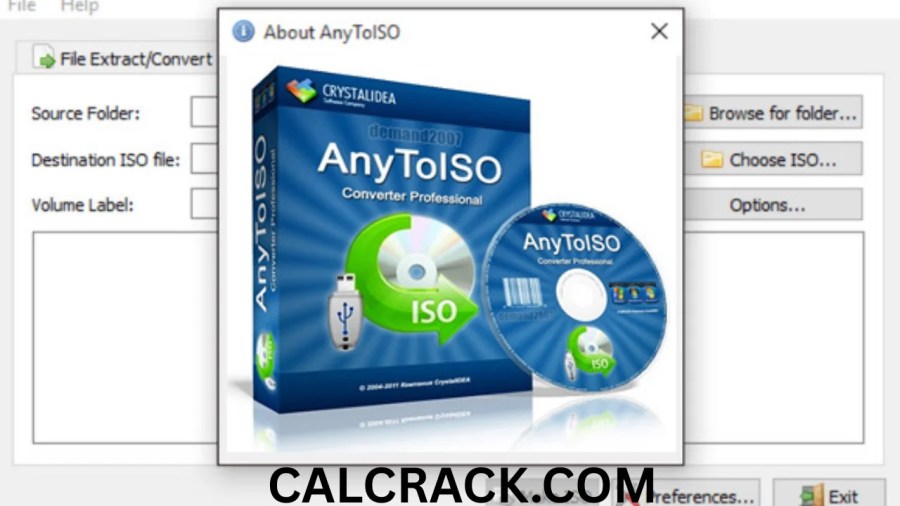
AnyToISO Professional is an ISO creation and conversion utility developed by CrystalIDEA. Its primary purpose is to work with disk images and archives and convert supported formats into standard ISO files.
The application can perform three major types of tasks.
First, it can convert supported archives or disk-image files into ISO format. Second, it can create ISO images directly from CD, DVD, and Blu-ray discs. Third, it can create an ISO image from files and folders stored on a computer.
This makes it useful for people who frequently work with installation media or downloaded image files.
For example, if you have a ZIP archive containing a collection of installation files, you may want to create an ISO from those files for easier distribution or mounting. Similarly, if you have an old software DVD, you can create a digital ISO backup of the disc.
AnyToISO also integrates with Windows Explorer and Apple Finder, allowing supported files, folders, and optical drives to be accessed through contextual menus rather than requiring users to open the main application every time.
Main Features of AnyToISO Professional
AnyToISO Professional is focused on disk imaging rather than trying to become a complete archive manager or general computer utility.
Its main capabilities include:
- CD, DVD, and Blu-ray to ISO conversion
- Folder to ISO creation
- Archive to ISO conversion
- Disk-image extraction
- Conversion of many non-ISO image formats
- BIN/CUE support
- Windows Explorer integration
- Apple Finder integration
- Portable operation
- Command-line support
- ISO extraction
- Support for multiple ISO file systems
- Creation of bootable-media images when the source contains appropriate boot information
The official feature set specifically includes conversion from formats such as 7Z, RAR, ZIP, DMG, BIN, IMG, NRG, MDF, ISZ, PKG, and others. (CrystalIDEA)
For advanced users, command-line functionality can also be useful for automation and batch conversion.
AnyToISO Professional vs AnyToISO Lite
One of the most important things to understand is that AnyToISO is available in a free Lite edition as well as a Professional edition.
The Lite edition can be used without paying, but it has a major size limitation. According to the developer’s current download information, the free Lite version works with files no larger than the size of a regular CD, listed as 870 MB.
This means that the free edition can be useful for smaller ISO conversion tasks, but it may not be sufficient for large DVDs, Blu-ray images, or large archive files.
AnyToISO Professional is intended for users who need fewer limitations and want to work with larger images and more demanding conversion tasks.
Therefore, when someone asks whether AnyToISO is free to use, the most accurate answer is: AnyToISO Lite is free, while the Professional version is the paid edition designed for larger and more advanced ISO tasks.
Is AnyToISO Free to Use?
Yes, AnyToISO has a free Lite edition.
The free version allows users to try the core ISO conversion functionality, but it has a file-size limitation of 870 MB. This is roughly the capacity of a standard CD and means that larger image files require the Professional edition. (CrystalIDEA)
The limitation is important because many DVD and Blu-ray images are significantly larger than a standard CD.
For example, a user converting a small archive may have no problem using the free version. Someone converting a full DVD image will likely need the Professional version.
This pricing structure makes AnyToISO Lite useful for occasional smaller tasks, while AnyToISO Professional is more appropriate for users who regularly work with larger disk images.
How Can I Convert a CD to an ISO File?
Converting a CD to ISO is one of AnyToISO’s primary functions.
The general process is straightforward. Insert the CD into the computer’s optical drive, open AnyToISO, choose the CD/DVD-to-ISO function, select the appropriate optical drive, choose the destination for the ISO file, and start the image creation process.
The resulting ISO attempts to preserve the file system information present on the source disc. AnyToISO can preserve boot information when it exists on the original disc. (CrystalIDEA)
The basic workflow is:
- Insert the CD into the optical drive.
- Open AnyToISO.
- Select the CD/DVD-to-ISO option.
- Choose the correct optical drive.
- Select a destination for the ISO.
- Start the ISO creation process.
- Wait for the imaging process to finish.
- Verify that the resulting ISO was created successfully.
On Windows, AnyToISO can also integrate directly into Windows Explorer, allowing users to access optical-disc imaging through the drive’s context menu. (CrystalIDEA)
How to Convert a DVD to ISO in Windows 11
Windows 11 users can use AnyToISO to create an ISO from a DVD when the computer has access to a compatible optical drive.
The process is similar to creating a CD image.
Insert the DVD, launch AnyToISO, select the optical drive, choose the ISO destination, and begin the conversion.
The resulting image can then be stored on a hard drive, external storage device, or another suitable location.
AnyToISO states that the resulting ISO contains the same file system as the source disc and can preserve supported file-system information and boot information. (CrystalIDEA)
One important limitation is that AnyToISO does not allow users to create copies of copyright-protected DVD or Blu-ray discs. Users should therefore make sure that they have the legal right to copy the media they are imaging. (CrystalIDEA)
Can AnyToISO Create an ISO From a Blu-ray Disc?
Yes, AnyToISO supports creating ISO images from Blu-ray discs as part of its CD/DVD/Blu-ray imaging functionality.
The purpose of this feature is to turn physical optical media into a digital disk image.
This can be useful for legitimate archival purposes, personal media management, software distribution, or preserving discs that you own and are legally allowed to copy.
The resulting ISO can later be extracted or, where appropriate, used to create another optical disc. (CrystalIDEA)
However, copyright protection is an important limitation. AnyToISO explicitly states that it cannot be used to create copies of copyright-protected DVD or Blu-ray discs. (CrystalIDEA)
What Is the Best Software to Create an ISO Image?
There is no single ISO application that is best for every user.
AnyToISO Professional is particularly useful when the main requirement is converting different archive and disk-image formats into ISO or creating ISO files from optical media and folders.
Other applications may be better suited to different tasks. For example, some tools concentrate on bootable USB creation, while others focus on burning discs, mounting images, advanced optical-disc preservation, or creating specialized images.
AnyToISO stands out because it combines several related functions in one relatively focused application.
It supports many image and archive formats, optical-disc imaging, folder-to-ISO creation, Explorer/Finder integration, and command-line operation. (CrystalIDEA)
For someone who specifically needs an ISO converter, AnyToISO Professional is therefore a strong option.
How Does AnyToISO Create ISO From a Folder?
AnyToISO can create an ISO image directly from a folder containing files and subfolders.
This is useful when you have already prepared the contents of an installation disc or archive and want to package everything into a single ISO image.
The process starts by selecting the folder containing the files. AnyToISO then creates an ISO image using the selected file-system settings.
The software supports ISO 9660, Joliet, and UDF file systems when creating folder-based ISO images. These options allow users to choose an appropriate structure depending on how the ISO will be used. (CrystalIDEA)
The general process is:
- Prepare the folder and confirm that it contains everything you need.
- Open AnyToISO.
- Select the Folder-to-ISO function.
- Choose the source folder.
- Select a destination.
- Enter an appropriate volume label.
- Choose file-system options if necessary.
- Create the ISO.
The resulting image can then be mounted, extracted, or burned to compatible optical media.
Can You Convert a ZIP File to an ISO File?
Yes, AnyToISO supports ZIP-to-ISO conversion.
ZIP is an archive format, while ISO is a disk-image format, so they are not technically the same type of file. Converting ZIP to ISO usually means taking the files contained inside the ZIP archive and creating a new ISO image from them.
AnyToISO supports ZIP as one of its archive formats and can convert supported archives into ISO files. (CrystalIDEA)
This can be useful when software, documents, drivers, or other files are packaged inside a ZIP archive but need to be distributed as an ISO.
The conversion process can also be automated using AnyToISO’s command-line functionality. The developer provides command-line examples for converting files and performing batch operations. (CrystalIDEA)
How to Convert ZIP to ISO With AnyToISO
The process is relatively simple.
Start by opening AnyToISO and selecting the ZIP file you want to convert. Choose the conversion option and select ISO as the output format. Then specify where you want the resulting ISO file to be saved.
For larger ZIP archives, the Professional version may be necessary because the free Lite edition is limited to files up to 870 MB. (CrystalIDEA)
Before converting, it is worth remembering that a ZIP archive and an ISO image serve different purposes.
ZIP is optimized for file compression and distribution.
ISO is designed to represent the structure of an optical disc or a disc-like file system.
Therefore, converting ZIP to ISO does not magically transform a compressed archive into a physical disc. Instead, it creates an ISO container containing the archive’s contents.
How to Create an ISO File for Free
You can create smaller ISO files for free using AnyToISO Lite.
The free version is suitable for files within its 870 MB size limitation. (CrystalIDEA)
Another free method is to use built-in or freely available operating-system utilities when the task is simple enough.
However, the best method depends on what you are trying to create.
If you want to create an ISO from a folder, you need software capable of constructing an ISO file system.
If you want to create an image from a CD or DVD, you need software capable of reading the optical disc and creating an image.
If you want to create a bootable installation image, additional boot information may be necessary.
AnyToISO can cover several of these scenarios in one application, which is one reason it is useful for ISO-related work.
Can Rufus Create an ISO From a CD?
Rufus is primarily known as a utility for creating bootable USB drives from ISO images and other bootable sources.
It is not primarily designed to function as a general-purpose CD-to-ISO imaging tool.
If your objective is to take a physical CD and create an ISO image from it, a dedicated optical-disc imaging utility such as AnyToISO is a more appropriate type of software.
Once you have an ISO, Rufus can be useful for preparing bootable USB media when the ISO and target system are compatible.
The two tools therefore serve different purposes.
AnyToISO focuses on creating, converting, extracting, and managing ISO images.
Rufus focuses primarily on creating bootable USB drives.
Using them together can make sense in a workflow where an ISO needs to be created from legitimate physical media first and then transferred to a USB device for a supported purpose.
Are ISO Files the Same as CDs?
No. An ISO file is not physically the same thing as a CD.
A CD is physical optical media.
An ISO file is a digital disk image that represents the contents and file-system structure of optical media or another ISO-compatible disk layout.
An ISO can contain files, folders, file-system information, and sometimes boot information.
This is why an ISO can often be mounted as a virtual disc or burned onto physical optical media.
For example, if you create an ISO from a software CD, the ISO becomes a digital representation of that disc. You can store it on a hard drive rather than keeping the physical CD inserted in the computer.
AnyToISO can create ISO images from optical discs while preserving the source disc’s supported file-system information. (CrystalIDEA)
What Is the Difference Between ISO and BIN/CUE?
ISO and BIN/CUE are both forms of disk imaging, but they are structured differently.
An ISO normally represents a standard optical-disc file system.
BIN/CUE consists of two related files. The BIN file stores the raw disc data, while the CUE file contains information about track layout.
BIN/CUE can be particularly useful for discs with multiple tracks or situations where a raw representation is required.
AnyToISO supports BIN/CUE images and can convert supported data BIN/CUE images into ISO. However, Audio CD images have special limitations because standard ISO format cannot represent an Audio CD’s track structure correctly. (CrystalIDEA)
For Audio CDs, AnyToISO explains that BIN/CUE is the appropriate image format rather than ISO.
Can AnyToISO Convert DMG to ISO?
Yes. AnyToISO supports DMG files and can convert supported DMG images into ISO.
DMG is commonly associated with macOS disk images, while ISO is a more broadly recognized optical-disc image format.
The conversion can be useful when a disk image needs to be used in an environment or application that expects ISO rather than DMG.
However, users should understand that the resulting ISO may retain characteristics of the original file system. AnyToISO’s documentation specifically notes that some DMG-to-ISO conversions result in an HFS+ file system because HFS+ is the file system used by the original image.
Therefore, converting the container format does not necessarily convert every internal file-system characteristic.
AnyToISO Supported Formats
One of the biggest strengths of AnyToISO Professional is its broad format support.
The supported list includes formats such as:
- 7Z
- BIN
- B5I
- B6I
- CDI
- CPIO
- CPGZ
- DAA
- DEB
- DMG
- GBI
- IMG
- ISO
- ISZ
- MDF
- NRG
- PDI
- PKG
- RAR
- RPM
- TAR
- TAR.GZ
- GZIP
- TAR.BZ2
- TGZ
- TBZ2
- TAR.XZ
- UIF
- XAR
- ZIP
The exact conversion and extraction capabilities vary depending on the format. Some formats can be converted to ISO, while others may primarily support extraction. (CrystalIDEA)
This broad format support is one reason AnyToISO can be useful when dealing with old software images created by different programs.
AnyToISO Professional on Windows
AnyToISO supports modern Windows versions, including Windows 11, Windows 10, Windows 8.1, Windows 8, and Windows 7 according to its current support information. (CrystalIDEA)
Windows users can take advantage of Explorer integration, which places AnyToISO functions into context menus.
For example, users can work with supported files, folders, and optical drives directly from Windows Explorer rather than opening the application manually every time. (CrystalIDEA)
This is particularly convenient for people who frequently convert images or create ISO files.
AnyToISO Professional on Mac
AnyToISO is also available for macOS.
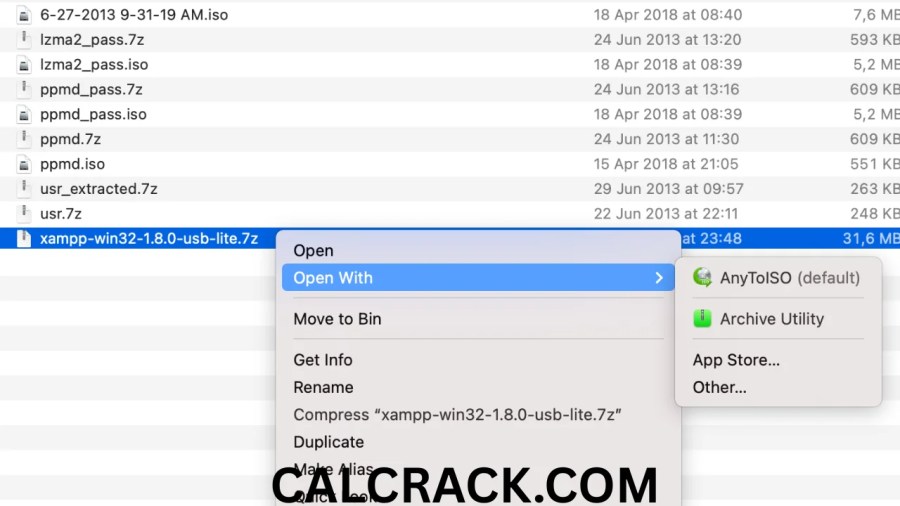
The application integrates with Apple Finder and can appear in the Open With workflow for supported files.
Mac users can use it to convert or extract supported archives and disk images and create ISO files from supported sources. (CrystalIDEA)
The current support information lists compatibility with a broad range of macOS versions, including recent releases such as macOS Tahoe, Sequoia, Sonoma, Ventura, and Monterey, along with older versions. (CrystalIDEA)
This cross-platform support makes AnyToISO useful for households or workplaces where Windows and Mac computers are both used.
AnyToISO Explorer and Finder Integration
A major convenience feature is integration with the operating system’s file manager.
On Windows, AnyToISO can add options to Windows Explorer for supported files, folders, and optical drives. (CrystalIDEA)
On macOS, the application can integrate with Finder’s Open With menu for supported file types. (CrystalIDEA)
This means the conversion process can often start from the file itself rather than requiring users to open AnyToISO first.
For occasional users this may not matter much, but for people who convert ISO images regularly, it can make the workflow considerably faster.
AnyToISO Portable Mode
AnyToISO also offers a portable mode.
Portable software can be useful for technicians, IT administrators, support staff, or anyone who regularly works on multiple computers.
According to the developer, AnyToISO Portable can be run from a USB flash drive without installing the application on every computer. Its settings and license can travel with the portable setup according to the applicable licensing conditions. (CrystalIDEA)
This can be useful when a user needs an ISO utility while working on different Windows machines.
AnyToISO Command-Line Support
Advanced users can automate AnyToISO through command-line commands.
The developer provides commands for converting images or archives to ISO, extracting images, creating ISO files from CDs or DVDs, and creating ISO files from folders. (CrystalIDEA)
This can be particularly valuable for batch operations.
For example, someone who has many ZIP files that need to be converted into ISO files can automate the process rather than manually processing every file.
Command-line functionality also makes AnyToISO more useful in technical environments where repetitive conversion tasks need to be integrated into scripts.
Is AnyToISO Professional Easy to Use?
One of the strengths of AnyToISO is its relatively focused purpose.
The software is not trying to manage every aspect of a computer. Instead, its interface is centered around converting, extracting, and creating disk images.
A typical user can select a source, choose an output location, and start the operation without needing advanced knowledge of file systems.
Advanced users can access additional controls for file systems, volume labels, command-line operations, and other imaging options.
This makes the software suitable for both beginners who need straightforward ISO conversion and experienced users who need more control.
Is AnyToISO Safe to Use?
AnyToISO is developed by CrystalIDEA and is designed specifically for disk-image conversion and extraction.
As with any software that works with files and optical media, users should obtain it from a trustworthy source and keep it updated.
Users should also understand what an image file contains before extracting or mounting it.
An ISO can contain executable files, installers, scripts, or other content. The fact that something is stored inside an ISO does not automatically make it safe.
A good practice is to scan unfamiliar images with appropriate security software before opening or executing their contents.
Users should also avoid modified installers or unofficial versions because software obtained from untrusted sources can create unnecessary security risks.
AnyToISO Professional for ISO Backups
One practical use for AnyToISO Professional is creating digital backups of legitimate optical media.
Physical discs can become scratched, damaged, or difficult to access as computers increasingly remove optical drives.
Creating an ISO can provide a convenient digital representation that can be stored on an external drive or other backup medium.
The ISO can then be mounted or extracted when needed.
This is particularly useful for old software discs, personal data discs, installation media, and other non-protected content that the user has the legal right to copy.
The result is easier to organize than keeping a large collection of physical discs.
AnyToISO vs General Archive Software
A standard archive utility can handle ZIP, RAR, and 7Z files, but archive extraction is not the same thing as creating an optical-disc ISO.
AnyToISO is designed around the additional structure associated with ISO images.
For example, when creating an ISO from a folder, users can select file-system configurations such as ISO 9660, Joliet, and UDF. (CrystalIDEA)
This makes AnyToISO more appropriate when the goal is to create a genuine ISO image rather than simply compress files into an archive.
If you only need to compress a group of documents, ZIP may be more appropriate.
If you need a disc-like image, ISO is often the better format.
AnyToISO Professional for Bootable ISO Files
AnyToISO can preserve boot information when the source optical disc contains it. (CrystalIDEA)
This is important because a bootable ISO is more than a collection of files.
Boot information tells compatible systems how the image should start when used as bootable media.
If you are creating an ISO from an existing bootable disc, preserving the boot information can help maintain the original disc’s bootable characteristics.
However, simply placing ordinary files into an ISO does not automatically make that ISO bootable.
Creating a bootable ISO requires the appropriate boot structure and files.
Common Problems When Converting Files to ISO
One common problem is attempting to convert an unsupported or incorrectly identified file.
AnyToISO’s FAQ explains that a file may have a familiar extension while actually containing different data. For example, a BIN file can represent several different types of content, while AnyToISO supports particular types of BIN images. (CrystalIDEA)
Another issue is file size.
Users of the free Lite edition may encounter the 870 MB limitation when attempting to convert larger files. (CrystalIDEA)
Other possible problems include:
- Damaged source files
- Unsupported image structures
- Corrupted optical media
- Insufficient storage space
- Permission restrictions
- Incorrect source-drive selection
- Incompatible file systems
- Protected optical media
Checking the source file and available storage before beginning a conversion can prevent many common problems.
Final Verdict on AnyToISO Professional
AnyToISO Professional is a specialized and practical solution for users who regularly work with ISO files, optical-disc images, and archive-to-ISO conversions.
Its strongest feature is versatility within a specific area. It can create ISO images from CD, DVD, and Blu-ray media, create ISO files from folders, convert numerous archive and disk-image formats, extract supported images, integrate with Windows Explorer and Finder, and provide command-line support for automation. (CrystalIDEA)
The free Lite edition makes the application accessible for smaller jobs, but its 870 MB file-size limitation means that serious ISO users may need AnyToISO Professional. (CrystalIDEA)
For someone who only needs to create a small ISO occasionally, the free version may be enough.
For users who regularly work with DVDs, Blu-rays, large archives, disk images, software media, or batch conversion, the Professional edition is more appropriate.
Overall
AnyToISO Professional is best suited to users who want a focused ISO converter and creator rather than a general-purpose archive application. Its cross-platform support, wide format compatibility, optical-disc imaging, folder-to-ISO functionality, and automation options make it a useful tool for both everyday and advanced ISO workflows.
Is AnyToISO free to use?
AnyToISO has a free Lite edition, but it has an 870 MB file-size limitation. AnyToISO Professional is the paid version intended for larger and more advanced conversion tasks. (CrystalIDEA)
How can I convert a CD to an ISO file?
Insert the CD, open AnyToISO, select the CD/DVD-to-ISO function, choose the optical drive, select a destination, and start the imaging process. AnyToISO can preserve the supported file-system information and boot information from the original disc. (CrystalIDEA)
What is the best software to create an ISO image?
The best ISO creator depends on your requirements. AnyToISO Professional is particularly useful for converting archives and disk images, creating ISO files from folders, and creating images from CD, DVD, and Blu-ray media.
Can you put an ISO on a DVD?
Yes. An ISO image can be burned to compatible optical media using suitable disc-burning software. The process creates physical media containing the data represented by the ISO.
How can I convert a ZIP file to an ISO file?
A tool such as AnyToISO can convert supported ZIP archives into ISO images. ZIP and ISO are different formats, so the process creates an ISO containing the files from the archive rather than simply renaming the ZIP extension.
How to create an ISO file for free?
AnyToISO Lite can create or convert smaller ISO files without requiring a paid license, subject to its 870 MB limitation. Larger conversion tasks may require the Professional edition.
Can Rufus create an ISO from a CD?
Rufus is primarily designed for creating bootable USB drives rather than serving as a general CD-to-ISO imaging application. For creating an ISO from physical optical media, a dedicated imaging tool such as AnyToISO is more appropriate.
Are ISO files the same as CDs?
No. A CD is physical optical media, while an ISO is a digital disk image. An ISO can represent the contents and file-system structure of a disc and can sometimes be mounted virtually or burned onto physical media.
How to convert DVD to ISO image in Windows 11?
Insert the DVD into a compatible optical drive, open AnyToISO, select the CD/DVD-to-ISO option, choose the DVD drive, specify the output location, and start the conversion. AnyToISO supports Windows 11 and can create ISO images from supported optical media.
Download Now
AnyToISO Professional
- Version: Latest
- File Size: 15.9 MB
- System Type: 32-bit / 64-bit
- Setup Type: Offline