
Table of Contents
MacPaw CleanMyPC: Complete Guide to PC Cleaning, Optimization, Features, and Alternatives
MacPaw CleanMyPC was a Windows-based PC cleaning and optimization utility designed to help users remove unnecessary files, uninstall applications, manage browser data, control extensions, and keep their computers more organized. It was developed by MacPaw, the company better known for CleanMyMac.
However, there is an important update that anyone searching for MacPaw CleanMyPC in 2026 should know: MacPaw officially discontinued CleanMyPC on April 22, 2025. The software is no longer sold, actively developed, updated, or supported, and MacPaw no longer guarantees its compatibility or stability with current or future versions of Windows. (MacPaw)
This makes MacPaw CleanMyPC an interesting product to understand historically, especially because many older PC-cleaner comparisons and search results still mention it. This guide explains what CleanMyPC was, what features it offered, how it compared with CCleaner and Windows’ built-in cleanup tools, and what users should consider today.
What Is MacPaw CleanMyPC?
MacPaw CleanMyPC was a Windows maintenance application designed to help users clean unnecessary data and manage different parts of a Windows computer from a single interface.
Its goal was broader than simply deleting temporary files. CleanMyPC included tools for removing junk, uninstalling applications and leftovers, managing browser privacy data, controlling extensions, and identifying other items that could be cleaned or disabled.
MacPaw positioned CleanMyPC as a Windows-oriented counterpart to its Mac-focused cleaning software. The application supported Windows 7, Windows 8, Windows 10, and Windows 11 during its supported period. MacPaw listed approximately 50 MB of disk space and 2 GB of RAM among its requirements. (MacPaw)
The important difference today is that CleanMyPC is now a discontinued product. It can be useful to understand its previous capabilities, but it should not be treated as a modern, actively supported Windows optimization application.
Is MacPaw CleanMyPC Still Available?
MacPaw CleanMyPC is no longer available as a current commercial product.
MacPaw announced the sunset of CleanMyPC on April 22, 2025. The company explained that it had shifted its focus toward the Apple ecosystem and decided to discontinue its Windows cleaning product. (MacPaw)
The company stopped new development and distribution, and CleanMyPC no longer receives new features, compatibility updates, security updates, bug fixes, or ongoing technical support.
This is particularly important for Windows users considering old installers found through third-party websites. A discontinued cleaner may continue to launch on some computers, but that does not mean it is suitable for long-term use.
Modern Windows versions change over time, and unsupported applications may eventually encounter compatibility, security, or functionality problems.
Therefore, if someone searches for MacPaw CleanMyPC download, they should understand that an old installer is not equivalent to an actively supported application.
Why Was MacPaw CleanMyPC Discontinued?
MacPaw discontinued CleanMyPC because the company decided to concentrate its development efforts on the Apple ecosystem.
MacPaw stated that CleanMyPC no longer fit its product direction and that the company wanted to focus on products such as CleanMyMac and other Apple-oriented services. (MacPaw)
This does not necessarily mean that CleanMyPC was technically useless. It means that MacPaw no longer considered continued Windows development part of its long-term product strategy.
The distinction matters because people sometimes interpret a discontinued product as automatically unsafe or defective. Those are not the same thing.
A discontinued application can continue to work for some users, but the lack of updates means there is no ongoing guarantee that it will remain compatible with newer operating systems.
What Features Did MacPaw CleanMyPC Have?
MacPaw CleanMyPC provided several tools aimed at everyday Windows maintenance.
Its main features included:
- Junk and unnecessary-file cleanup
- Multi-app uninstallation
- Removal of leftover application files
- Browser privacy cleanup
- Extension management
- Registry-related maintenance
- Hibernation and other system-management options
- Autorun and startup management
- Storage cleanup
- Privacy-data removal
The exact behavior depended on the specific version being used.
One of the major advantages of CleanMyPC was convenience. Instead of opening several Windows settings and manually searching different folders, users could access many maintenance functions from one application.
That centralized approach was one reason third-party PC cleaners became popular.
MacPaw CleanMyPC Junk Cleaner
The junk-cleaning function was one of CleanMyPC’s core features.
A Windows computer can accumulate temporary files, application leftovers, browser caches, logs, installation remnants, and other unnecessary data over time.
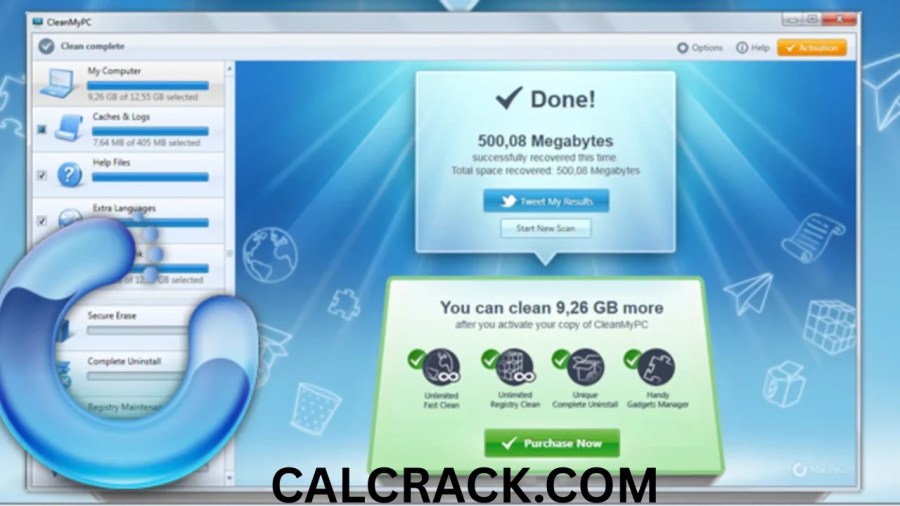
CleanMyPC was designed to scan these areas and identify files that could potentially be removed.
The benefit of this type of cleaning is mainly storage management. If a computer has accumulated several gigabytes of unnecessary data, removing it can recover disk space.
However, deleting junk files does not automatically make every computer significantly faster.
This is an important distinction for anyone researching MacPaw CleanMyPC review information. PC cleaning software can remove unnecessary data, but it cannot compensate for every hardware or software limitation.
For example, a computer with insufficient RAM, an aging processor, overheating problems, or a failing drive may remain slow even after a successful cleanup.
MacPaw CleanMyPC Uninstaller
One of the more useful features of CleanMyPC was its application uninstaller.
Traditional Windows uninstallers can sometimes leave behind preferences, caches, folders, and other application remnants.
CleanMyPC’s Multi Uninstaller was designed to remove applications and then clean up associated leftovers. MacPaw’s documentation describes the process as uninstalling the selected application and subsequently allowing users to clean remaining files. (MacPaw)
This can be useful when a user frequently tests software.
For example, developers, gamers, students, and general users may install applications for temporary projects and later remove them. Over time, leftover data can accumulate.
A dedicated uninstaller can make this process easier than manually searching Windows folders.
However, users should always review what an uninstaller proposes to remove. Not every leftover file is necessarily useless, and aggressive deletion can sometimes remove information that another application still needs.
MacPaw CleanMyPC Browser Privacy Tools
CleanMyPC also included privacy-cleaning functionality.
Windows browsers can store cookies, cached files, browsing history, download history, and other information. Some of this data improves convenience and performance, while some users may want to remove it for privacy or storage reasons.
MacPaw’s CleanMyPC documentation explains that its privacy tool could identify browser caches, cookies, and history-related information for removal. (MacPaw)
An important distinction is that deleting browser history does not make someone anonymous online.
Browser cleanup removes locally stored information from the computer. It does not prevent websites, internet service providers, online accounts, or other systems from retaining information elsewhere.
Therefore, privacy cleanup should be viewed as local data management rather than complete online privacy protection.
MacPaw CleanMyPC Extensions Manager
Another CleanMyPC feature was its Extensions module.
Windows applications and browsers can install extensions, plugins, toolbars, and other components. Some may be useful, while others may no longer be needed.
CleanMyPC could scan for extensions and allow users to select items for removal. MacPaw’s documentation describes reviewing the detected extensions and then using the cleanup function to remove selected items. (MacPaw)
This type of tool can be useful because unwanted browser extensions sometimes remain installed even after users forget which application added them.
However, extensions should not be removed blindly. Some may be required by software, security tools, accessibility applications, or workplace systems.
MacPaw CleanMyPC vs CleanMyMac
The names CleanMyPC and CleanMyMac can easily cause confusion.
CleanMyPC was designed for Windows.
CleanMyMac is MacPaw’s Mac-focused product.
They share a similar philosophy—helping users clean and maintain their computers—but they are designed for different operating systems.
MacPaw eventually discontinued CleanMyPC and focused its product development on the Apple ecosystem. (MacPaw)
Therefore, a Windows user should not search for CleanMyMac as though it were a Windows PC cleaner.
If the goal is Windows maintenance, users should choose software that is specifically supported for Windows.
What Is the Best Free PC Cleaner App?
There is no single PC cleaner that is best for every user.
For Windows 11, the built-in Windows storage-management features are an excellent starting point because they are already integrated into the operating system.
Windows provides Storage Sense and Cleanup recommendations for identifying unnecessary files and recovering disk space. Cleanup recommendations can identify temporary files, large or unused files, previous Windows installations, and applications that may no longer be needed. (Microsoft Support)
Third-party utilities can provide additional convenience and features.
CCleaner is one of the better-known examples. Professional testing has found it useful for cleaning, startup management, software updates, and other maintenance tasks, although reviews differ on how necessary paid PC optimization utilities are for modern Windows systems. (Tech Advisor)
The best choice depends on the problem rather than the marketing claim.
Does Windows 11 Have a Cleanup Tool?
Yes. Windows 11 includes several built-in cleanup and storage-management tools.
Storage Sense can automatically remove unnecessary temporary files and manage certain Recycle Bin items according to the user’s settings. Microsoft also provides Cleanup recommendations for identifying files and applications that can potentially be removed. (Microsoft Support)
To access these tools, users can open Windows Settings and go to the Storage section.
This is particularly useful for people looking for a MacPaw CleanMyPC alternative on Windows because basic cleanup does not necessarily require third-party software.
Windows can already handle many common maintenance tasks.
How to Clean Up a Computer for Free
A computer can be cleaned without purchasing a dedicated cleaner.
Start by checking available storage and identifying which categories are consuming the most space.
Then review applications that are no longer needed, remove unnecessary downloads, clear temporary files, empty the Recycle Bin when appropriate, and inspect large personal files.
Windows 11 users can also use Storage Sense to automate certain cleanup tasks. Microsoft states that Storage Sense can automatically free drive space by removing items such as temporary files and selected Recycle Bin content. (Microsoft Support)
A simple free maintenance routine includes:
- Uninstall unused applications.
- Remove unnecessary downloads.
- Delete temporary files.
- Empty the Recycle Bin.
- Review large files.
- Disable unnecessary startup programs.
- Install Windows updates.
- Run a reputable security scan.
- Keep adequate free storage space.
- Restart the computer periodically.
These steps can solve many common maintenance problems without installing a PC cleaner.
How Can I Cancel My MyCleanPC Subscription?
MyCleanPC and MacPaw CleanMyPC are different products and companies, despite the very similar names.
This distinction is important when searching for subscription-cancellation information.
According to MyCleanPC’s current FAQ, customers can cancel an annual MyCleanPC subscription by contacting its customer support through the listed phone, online chat, email, or contact form. Its published information also describes a 30-day money-back guarantee for eligible purchases. (My Clean PC)
Therefore, someone who purchased MyCleanPC should not try to manage the subscription through MacPaw.
MacPaw CleanMyPC itself was discontinued, and MacPaw’s former CleanMyPC subscription system was no longer used after the product moved through its sunset process. (MacPaw)
Is CCleaner a Safe PC Cleaner?
CCleaner is a well-established PC maintenance application, but its history includes a significant security incident that users should know about.
In 2017, Avast reported that a version of CCleaner had been illegally modified during the software build process to include a malicious backdoor component. The compromised version was distributed to users before the issue was discovered. (Avast Blog)
Avast later reported that approximately 2.27 million computers had been affected by the compromised distribution, while a more targeted second-stage payload was delivered to a much smaller group. (Avast Blog)
This historical incident does not mean that every current CCleaner release is malicious.
Instead, it demonstrates why users should keep security-sensitive software updated and obtain installers from trustworthy sources.
The same principle applies to any PC cleaning application.
Has CCleaner Ever Had Security Issues?
Yes.
The most important publicly documented incident occurred in 2017 when attackers compromised the software-development process and inserted malicious code into a CCleaner release.
Avast described the incident as an advanced persistent threat and explained that the attackers used CCleaner as a distribution mechanism to reach selected targets. (Avast Blog)
The incident became an important example of a supply-chain attack because the compromised application was legitimate software distributed through normal channels.
For users, the lesson is straightforward: even reputable applications should be kept updated, and software with extensive system permissions should be treated carefully.
Is It Worth Buying CCleaner Pro?
Whether CCleaner Pro is worth buying depends on how much you need its additional features.
The free edition can handle basic cleaning tasks, while the Professional edition has historically added features such as scheduled cleaning, performance-related tools, software updating, and additional automation.
Independent testing has found CCleaner Professional to be a capable PC maintenance application, while also noting that some of its functions may be less essential on modern versions of Windows. (Tech Advisor)
For someone who only wants to delete temporary files, paying for a cleaner may not be necessary.
For someone who wants automated maintenance and additional management features, a paid edition can be more convenient.
The important question is whether the additional features solve an actual problem.
How Often Should I Run CCleaner?
There is no universal schedule for running CCleaner.
A normal home user might check storage and perform maintenance every few weeks or once a month.
People who download large files, install many applications, edit videos, manage large photo collections, or frequently run out of disk space may need to check their systems more often.
However, running a cleaner every day is generally unnecessary.
Modern operating systems already manage many temporary files automatically, and excessive manual cleaning can sometimes remove caches that applications would simply recreate.
The goal should be sensible maintenance rather than constantly trying to achieve a zero-junk report.
Does CCleaner Speed Up Your Computer?
CCleaner can improve certain aspects of PC maintenance, but it should not be considered a guaranteed speed booster.
Removing unnecessary files can recover disk space. Managing startup applications can reduce the number of programs loading during startup. Updating applications can also address problems caused by outdated software.
Professional testing has shown that CCleaner can recover meaningful amounts of disk space and includes tools for startup and performance management. (Tech Advisor)
However, the actual performance improvement depends on the condition of the computer.
A PC with insufficient RAM, an old CPU, thermal problems, failing storage, or resource-heavy software may remain slow after cleaning.
Therefore, cleaning should be one part of troubleshooting rather than the entire solution.
How Do I Know If My PC Needs to Be Cleaned?
Several signs can indicate that a Windows PC needs maintenance.
Low storage is one of the clearest indicators. When a drive becomes heavily occupied, users may have trouble installing updates, saving files, or installing new applications.
Microsoft notes that insufficient free storage can interfere with Windows updates and recommends using Storage Sense and Cleanup recommendations to free space when necessary. (Microsoft Support)
Other signs include:
- A nearly full system drive
- Large numbers of unused applications
- An overloaded Downloads folder
- Excessive temporary files
- Too many startup programs
- Old browser data
- Large forgotten files
- Frequent software crashes
- Difficulty installing updates
- Unusual background activity
However, a slow PC does not automatically mean it needs a cleaner.
The underlying problem could be malware, overheating, failing hardware, outdated drivers, insufficient memory, or another software issue.
MacPaw CleanMyPC vs CCleaner
MacPaw CleanMyPC and CCleaner were both designed around PC maintenance, but they are now in very different positions.
CleanMyPC was discontinued by MacPaw in 2025 and no longer receives development or support. (MacPaw)
CCleaner remains an actively maintained PC cleaning product and continues to offer free and paid editions.
Historically, both applications provided tools for junk cleanup, application management, privacy cleanup, and other optimization tasks.
For someone researching an old MacPaw CleanMyPC review, it is therefore important to check the publication date. A review written several years ago may accurately describe the software at that time but should not be interpreted as evidence that CleanMyPC is still supported today.
MacPaw CleanMyPC Alternatives
Since MacPaw CleanMyPC has been discontinued, Windows users have several alternatives.
The first alternative is Windows itself.
Windows 11’s Storage Sense and Cleanup recommendations can handle many basic cleanup tasks without additional software. (Microsoft Support)
Another option is CCleaner, which remains one of the best-known third-party PC cleaning applications.
Other Windows maintenance utilities are also available, but users should compare them based on their specific needs rather than installing several cleaners simultaneously.
Running multiple system cleaners can create unnecessary complexity and may result in overlapping cleanup functions.
A simple maintenance setup is usually better than having several applications competing to manage the same files.
Should You Still Use MacPaw CleanMyPC?
For someone who already has an old CleanMyPC installation, the application may continue to function on some systems.
However, MacPaw no longer guarantees compatibility, stability, or security because the product has been discontinued. The company explicitly states that CleanMyPC is no longer updated, fixed, sold, or supported. (MacPaw)
That makes switching to a currently supported solution the more sensible long-term approach.
Users should also avoid relying on random modified or unofficial versions of discontinued software. A cleaner application requires considerable system access, so using an untrusted installer can introduce unnecessary security risks.
MacPaw CleanMyPC and Windows 11
CleanMyPC originally supported Windows 11 while the product was still maintained.
MacPaw’s documentation states that CleanMyPC supported Windows 7, 8, 10, and 11 during its supported period. After the product sunset, however, MacPaw stopped guaranteeing compatibility with current or future Windows versions. (MacPaw)
This distinction is especially important today.
An application can technically open on Windows 11 without being officially supported. Compatibility is not the same as active support.
Windows continues to receive feature updates, security changes, and system modifications, so discontinued software can become less reliable over time.
How to Keep a Windows PC Clean Without Third-Party Software
Users do not need a dedicated cleaner for every maintenance task.
A practical Windows maintenance routine starts with the built-in Storage settings.
Check which categories are using the most disk space and remove only files you are confident are unnecessary.
Uninstall applications that are no longer used and review startup applications to reduce unnecessary background activity.
Keep Windows and installed applications updated, because maintenance is not only about deleting files. Security updates, application updates, and proper system configuration are equally important.
Users should also maintain backups.
A cleaner cannot protect you from accidental deletion, hardware failure, ransomware, or other serious problems. A reliable backup strategy is much more important than recovering a few extra gigabytes of disk space.
Common Mistakes When Using PC Cleaning Software
One common mistake is assuming that every file identified as “junk” should automatically be deleted.
Temporary files and caches can sometimes be recreated, but other files may contain information that an application still needs.
Another mistake is using registry-cleaning functions without understanding what they change. Registry modifications should be approached cautiously because incorrect changes can create application or system problems.
Users should also avoid installing multiple cleaners simply because each one promises additional performance.
Another mistake is confusing storage cleanup with malware removal.
Deleting temporary files does not remove every type of malware, and malware protection should be handled with appropriate security software.
Finally, users should never assume that a cleaner can repair physical hardware. A failing SSD, damaged hard drive, overheating CPU, defective RAM, or faulty power supply requires hardware-level troubleshooting.
What Are the Reviews of CCleaner by PC Magazine?
PC Magazine, now commonly known as PCMag, has historically published reviews and evaluations of computer software and utilities, including PC maintenance applications.
When researching CCleaner reviews from PC Magazine or any other professional publication, the publication date is important.
Software changes over time, and an old review may discuss a version with different features, pricing, interface design, or operating-system support.
Professional reviews should therefore be used alongside current product information.
For example, other professional testing has described CCleaner Professional as a capable PC cleaning application with a broad selection of maintenance tools, while also pointing out limitations such as the degree of control users have over certain cleanup operations. (Tech Advisor)
The best approach is to compare several recent evaluations instead of relying on a single historical rating.
Final Verdict on MacPaw CleanMyPC
MacPaw CleanMyPC was a useful Windows cleanup and maintenance application during its active development period.
Its combination of junk-file cleanup, application removal, leftover cleanup, privacy management, extension control, and other maintenance features made it a convenient alternative to manually managing different parts of Windows.
However, the most important fact for modern users is that MacPaw CleanMyPC was discontinued on April 22, 2025. MacPaw no longer sells, develops, updates, or supports the software. (MacPaw)
Because of this, users searching for MacPaw CleanMyPC download, MacPaw CleanMyPC review, or MacPaw CleanMyPC alternative should consider the software’s discontinued status before installing an old copy.
For basic Windows cleanup, Windows 11’s own Storage Sense and Cleanup recommendations are strong starting points. (Microsoft Support)
For users who want additional third-party maintenance features, an actively supported PC cleaner can be considered.
The most important principle is to use cleaning software as a maintenance convenience rather than expecting it to magically make every computer faster. Good storage management, software updates, security protection, backups, and proper hardware maintenance remain the foundation of a healthy PC.
What is the best free PC cleaner app?
For most Windows 11 users, the built-in Storage Sense and Cleanup recommendations are excellent free options for basic storage maintenance. Third-party tools such as CCleaner can provide additional features, but the best choice depends on whether you need automated cleaning, startup management, software updates, privacy tools, or other functions.
How can I cancel my MyCleanPC subscription?
MyCleanPC is different from MacPaw CleanMyPC. MyCleanPC’s current support information says customers can cancel an annual subscription through its customer support channels, including phone, online chat, email, or its contact form. (My Clean PC)
Does Windows 11 have a clean up tool?
Yes. Windows 11 includes Storage Sense and Cleanup recommendations. These features can identify temporary files, large or unused files, previous Windows installations, and applications that may no longer be necessary. (Microsoft Support)
How to clean up a computer for free?
You can clean a computer for free by uninstalling unused applications, removing unnecessary downloads, deleting temporary files, emptying the Recycle Bin, checking large files, managing startup applications, installing updates, and running a reputable security scan.
Is CCleaner a safe PC cleaner?
CCleaner is a well-known PC maintenance application, but it had a serious security incident in 2017 involving a compromised software build. Users should keep current versions updated and obtain them from trustworthy sources. (Avast Blog)
Is Clean Master free to use?
Clean Master has historically offered free versions, but availability and features can vary by platform and version. Users should verify the developer and current software source before installing an application with this name.
Is it worth buying CCleaner Pro?
CCleaner Pro can be worthwhile if you need additional automation, scheduled cleaning, performance tools, software updating, or other premium features. If you only need basic storage cleanup, Windows’ built-in tools may be enough.
Has CCleaner ever had security issues?
Yes. The major documented incident occurred in 2017 when attackers compromised the CCleaner development process and distributed a modified version containing a malicious backdoor. Avast reported that approximately 2.27 million computers were affected by the compromised distribution. (Avast Blog)
How often should I run CCleaner?
Most users do not need to run a cleaner every day. Checking storage and performing basic maintenance every few weeks or once a month is generally reasonable, while people who regularly handle large files may need to perform maintenance more frequently.
Does CCleaner speed up your computer?
CCleaner can help with certain maintenance tasks, such as freeing storage and managing startup programs, but it cannot guarantee a significant speed increase. If the real problem is insufficient RAM, an aging processor, overheating, malware, or failing hardware, cleaning alone may not solve the problem.
How do I know if my PC needs to be cleaned?
Low storage, excessive temporary files, many unused applications, large forgotten downloads, too many startup programs, and difficulty installing updates are common signs that a PC needs maintenance. However, slow performance can also have causes unrelated to storage.
What are the reviews of CCleaner by PC Magazine?
PC Magazine and other professional technology publications have reviewed PC cleaning utilities over the years. When reading an older CCleaner review, check the publication date and software version because features, pricing, and Windows compatibility can change substantially. Recent independent testing has generally recognized CCleaner as a capable PC maintenance utility while also noting limitations in some areas.
Download Now
MacPaw CleanMyPC Latest Version
- Download Option 1: Drop.Download
- Download Option 2: Userscloud
File Details:
- File Size: 28.2 MB
- System Type: 32-bit / 64-bit
- Setup Type: Offline / Standalone