Table of Contents
Asmwsoft PC Optimizer: Complete Guide
Asmwsoft PC Optimizer is a Windows system optimization and maintenance utility designed to help users clean unnecessary files, manage startup programs, control running processes, optimize certain Windows settings, and troubleshoot common system issues. It combines several utilities in one application rather than focusing on only one task such as disk cleanup or registry maintenance.
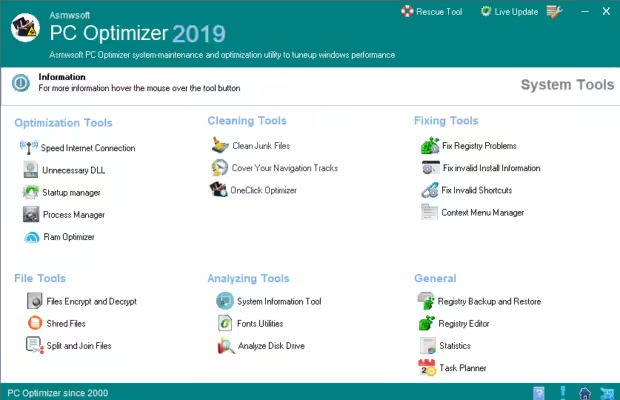
The software includes tools for startup management, process management, system tuning, Internet connection optimization, RAM management, junk-file cleaning, privacy-track removal, registry maintenance, shortcut fixing, and system information. Asmwsoft currently lists compatibility with Windows 7, Windows 8, Windows 8.1, Windows 10, and Windows 11.
The idea behind a PC optimizer is simple: computers can become harder to manage when unnecessary files accumulate, too many programs launch with Windows, storage becomes limited, or background processes consume system resources. However, a third-party optimizer is not always necessary. Windows already provides built-in tools for storage cleanup, startup management, drive optimization, performance monitoring, updates, and security scanning.
This detailed guide explains Asmwsoft PC Optimizer, what it does, its major features, pricing information, how PC optimization works, whether you actually need an optimizer, and how it compares conceptually with tools such as McAfee PC Optimizer and Microsoft’s built-in Windows utilities.
What Is Asmwsoft PC Optimizer?
Asmwsoft PC Optimizer is a Windows-focused utility suite intended to combine multiple system-maintenance functions in one program. Instead of installing separate utilities for startup management, junk cleaning, process monitoring, registry maintenance, and system information, the software places these functions inside a single interface.
According to Asmwsoft, the application provides optimization, cleaning, fixing, file, analysis, and general system tools. Its optimization features include a Startup Manager, Process Manager, System TuneUp, Internet connection tools, RAM optimization, and tools for unnecessary DLL files. Its cleaning section includes junk-file cleaning, Internet-track removal, and a OneClick Optimizer.
The software is therefore better understood as an all-in-one Windows maintenance suite rather than a traditional antivirus application.
It is designed primarily for users who want access to different PC maintenance controls from one dashboard. Some functions are automated or simplified, while others require the user to inspect settings and decide what should be changed.
How Does Asmwsoft PC Optimizer Work?
A PC optimizer generally works by identifying areas that may contribute to unnecessary system activity or clutter.
With Asmwsoft PC Optimizer, users can access different tools individually. For example, the Startup Manager allows users to control applications that launch with Windows. The Process Manager provides information about running programs and processes. The cleaning tools can identify unnecessary files and Internet traces, while system-maintenance features address registry entries, shortcuts, and installation information.
This approach is different from simply pressing one button and expecting every computer problem to disappear.
The performance of a Windows PC can be affected by many different factors, including:
- Limited storage space
- Too many startup applications
- Background programs
- Outdated software
- High CPU or memory usage
- Malware
- Aging hardware
- Excessive temporary files
- Poorly configured system settings
Microsoft specifically identifies limited storage, unnecessary startup applications, outdated software, and hardware limitations as common reasons a Windows computer may feel slow.
That means an optimizer can be useful for maintenance, but it cannot overcome every hardware limitation.
Asmwsoft PC Optimizer Features
One reason users may search for Asmwsoft PC Optimizer is its large collection of system utilities. Instead of concentrating on one specific optimization category, it provides several different types of maintenance tools.
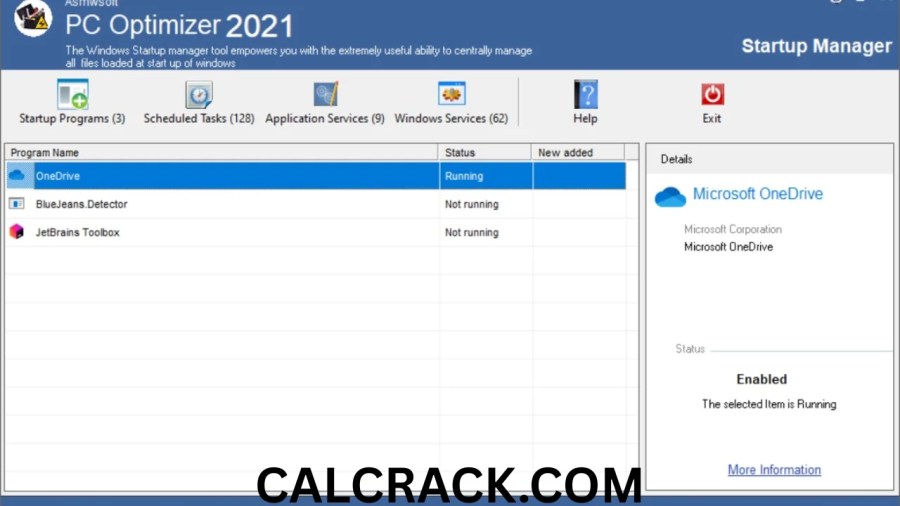
Startup Manager
Startup programs can affect how quickly Windows becomes ready after you turn on the computer.
Asmwsoft’s Startup Manager allows users to add, remove, edit, disable, or enable startup items. This gives users control over which programs automatically start with Windows.
Windows itself provides similar functionality through Settings and Task Manager. Microsoft explains that startup applications can affect startup speed and overall system performance, and Task Manager can show whether a startup application has low, medium, or high impact.
The important point is to disable only programs you recognize and do not need at startup.
Process Manager
The Process Manager provides information about programs running in the background.
Asmwsoft describes this feature as a way to view running programs and investigate executable files. The included information can help users understand which software is active on their system.
This type of functionality can be helpful when troubleshooting unusually high CPU or memory usage.
Windows users can also use Task Manager for this purpose. Microsoft’s Task Manager provides information about CPU, memory, disk, and network usage and allows users to manage active applications and startup programs.
System TuneUp
The System TuneUp feature is designed to provide system-performance adjustments and maintenance options.
Asmwsoft describes System TuneUp as a tool intended to improve Windows speed, performance, and stability.
The actual benefit of system tuning depends heavily on the condition of the computer. A PC suffering from unnecessary startup programs or storage clutter may respond differently from a computer whose main limitation is an old processor or insufficient RAM.
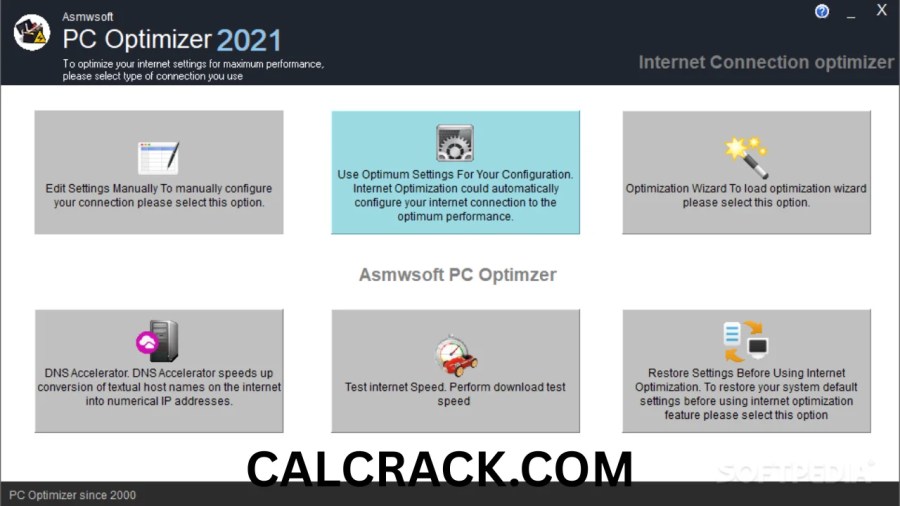
Internet Connection Optimization
Asmwsoft includes an Internet Optimizer designed to adjust selected Windows configuration settings associated with Internet connectivity.
It is important to distinguish this from increasing the actual speed provided by an Internet service provider. Software can change certain computer-side settings, but it cannot magically turn a slow Internet connection into a faster connection when the underlying limitation is the network, router, ISP plan, Wi-Fi signal, or hardware.
RAM Optimizer
The software also includes a RAM optimization feature intended to release physical memory.
Asmwsoft’s documentation explains that clearing memory can affect how quickly open applications become responsive afterward because applications may need to reload information.
This is why RAM optimization should not automatically be treated as a permanent performance solution. Windows already manages memory dynamically, and manually clearing memory may not always provide a meaningful long-term improvement.
Junk File Cleaner
Unnecessary files can consume storage over time.
Asmwsoft PC Optimizer includes tools designed to clean junk files and other clutter. The company describes these functions as a way to remove unnecessary data and improve available storage.
Microsoft also recommends Windows Storage Sense and temporary-file cleanup when storage is limited. Freeing storage can help a computer operate more effectively, particularly when the drive is getting close to full.
Internet Tracks Cleaner
The application includes a feature for removing Internet activity traces such as browser-related data.
Asmwsoft lists Internet-track erasing among its cleaning and privacy functions.
This type of function is primarily related to privacy and cleanup rather than directly increasing CPU performance.
Registry Optimization
Registry maintenance is another major part of Asmwsoft PC Optimizer.
The developer states that the software can scan and fix registry problems and describes registry optimization as a way to improve Windows performance.
However, registry cleaning deserves caution. The Windows registry contains configuration information used by the operating system and applications. Removing an incorrect entry can potentially create problems.
For that reason, users should avoid treating registry cleaning as a routine activity that must be performed frequently. A backup and a clear reason for making a registry change are preferable to indiscriminate cleaning.
Invalid Shortcut Fixer
Asmwsoft also provides tools for fixing invalid shortcuts.
Broken shortcuts can occur after applications are moved, deleted, or uninstalled. Cleaning these references can make the Start menu, desktop, or file system more organized.
System Information Tool
The System Information tool can display hardware and software information.
Asmwsoft says the feature provides information about Windows, hardware, display settings, processors, memory, drivers, storage, and other system details.
This can be useful when troubleshooting because knowing your processor, RAM, graphics hardware, Windows version, and available storage makes it easier to understand the computer’s capabilities.
Do I Need a PC Optimizer on My Computer?
Not necessarily.
Whether you need a PC optimizer depends on what you want to accomplish. Modern versions of Windows already contain several tools that cover common maintenance tasks.
Microsoft recommends checking Windows updates, running malware scans, freeing disk space, uninstalling unused applications, managing startup apps, controlling background applications, monitoring system resources, and optimizing drives when appropriate.
For example, if your computer is slow because dozens of unnecessary applications launch at startup, you may be able to solve the problem directly through Windows Task Manager.
If the issue is low storage, Storage Sense may be sufficient.
If malware is consuming system resources, Windows Security can perform a malware scan.
A third-party optimizer becomes more relevant when you prefer having many maintenance functions collected into one application.
Therefore, Asmwsoft PC Optimizer is optional rather than a mandatory Windows component.
Is PC Optimizer Part of McAfee?
McAfee has its own product called McAfee PC Optimizer, but it is not the same product as Asmwsoft PC Optimizer.
McAfee describes its PC Optimizer as a standalone application that requires a separate subscription. Its functions include removing unnecessary files and programs, reducing unnecessary background processes, improving startup performance, and temporarily turning off background services for an on-demand performance boost.
McAfee specifically states that PC Optimizer is a standalone application rather than a component included in McAfee Total Protection.
Asmwsoft PC Optimizer is developed separately by Asmwsoft.
So if you see Asmwsoft PC Optimizer on a computer, it should not be confused with McAfee PC Optimizer.
Is McAfee’s PC Optimizer Worth Buying?
The answer depends on the features you need and whether you want a dedicated optimizer.
McAfee PC Optimizer provides features for cleaning storage, managing unnecessary programs, reducing background activity, and improving startup behavior. McAfee also states that its optimizer can be used on up to 10 PCs, depending on the applicable plan.
However, many of the basic tasks performed by PC optimization software can also be performed manually in Windows.
For example, Windows provides:
- Storage cleanup
- Startup application management
- Task Manager
- Windows Security
- Drive optimization
- Performance monitoring
- Application removal
- Background app controls
Microsoft documents these features as part of its standard Windows maintenance recommendations.
The practical question is therefore whether the convenience of a dedicated optimizer justifies its cost for your particular computer.
What Does a PC Optimiser Do?
A PC optimizer is designed to help maintain or improve aspects of computer performance.
Depending on the product, it may:
- Remove temporary files
- Clean unnecessary data
- Manage startup programs
- Monitor processes
- Free or manage memory
- Optimize certain settings
- Remove browser traces
- Find broken shortcuts
- Provide system information
- Identify unnecessary applications
- Manage certain Windows components
Asmwsoft PC Optimizer includes many of these categories. Its official feature list covers optimization, cleaning, fixing, file-management, analysis, and general-purpose tools.
However, a PC optimizer cannot overcome every performance problem.
If a computer has insufficient RAM, an aging CPU, a failing hard drive, thermal problems, or hardware that does not meet the requirements of modern applications, software cleanup may provide only limited improvement.
Microsoft also notes that older computers with outdated hardware may not experience significant improvements from software-based optimization, in which case a hardware upgrade or replacement may be a longer-term solution.
What’s the Best PC Optimizer?
There is no single PC optimizer that is automatically best for every Windows user.
The right choice depends on the problem you are trying to solve.
For basic Windows maintenance, Microsoft’s built-in tools cover many important tasks. For users who want a collection of utilities in one interface, applications such as Asmwsoft PC Optimizer offer a broader set of dedicated maintenance controls.
Asmwsoft can be particularly relevant for users interested in startup management, process monitoring, junk cleanup, registry tools, privacy cleanup, system information, and other utilities from a single application.
When evaluating a PC optimizer, consider:
- What problem are you trying to solve?
- Does Windows already provide the required feature?
- Does the optimizer create backups before making important changes?
- Can individual changes be reversed?
- Is the software compatible with your Windows version?
- Does the program clearly explain what it will remove or change?
- Is the pricing appropriate for the features you actually need?
These questions are more useful than choosing an optimizer solely because it claims to make a computer faster.
How Do I Optimize My PC to Run Faster?
You can start with several simple steps before installing additional optimization software.
1. Install Windows Updates
Windows updates can include fixes and performance improvements. Check Windows Update and install appropriate updates for your system.
2. Remove Unused Applications
Unused programs take up storage and may install background components.
Go through your installed applications and uninstall software you no longer need.
3. Control Startup Applications
Open Task Manager and review the Startup apps section.
Disable programs that you do not need to launch automatically. Microsoft notes that startup applications can influence boot time and overall system performance.
4. Free Up Storage
A drive that is nearly full can contribute to performance problems.
Windows Storage settings can show where your storage is being used, including applications, temporary files, and system data.
5. Check for Malware
Malware can consume CPU, memory, and disk resources.
Microsoft recommends using Windows Security and running a malware scan when investigating slow performance.
6. Check Task Manager
Task Manager can help identify programs consuming unusually high CPU, memory, disk, or network resources.
Instead of randomly changing system settings, first identify what is actually consuming resources.
7. Optimize Your Drive
Windows automatically optimizes drives in many circumstances, but users can also check drive optimization manually.
For HDDs, Windows can perform defragmentation. For SSDs, Windows uses TRIM-related optimization rather than traditional defragmentation.
8. Restart the Computer
A simple restart can close stuck processes and refresh system resources.
Microsoft includes restarting among its basic troubleshooting steps for slow computers.
What Is the Best Free PC Cleaner and Optimizer?
The meaning of “best free PC cleaner” depends on what you want to clean.
For basic Windows cleanup, built-in Windows tools are an important starting point. Storage Sense can remove temporary files automatically, while Windows Storage settings help users understand how their disk space is being used.
Third-party cleaners can provide additional convenience, but users should be careful with programs that promise dramatic performance improvements from deleting large numbers of files or changing sensitive system settings.
A cleaner should clearly explain what it is going to remove.
Important files, browser data, application data, restore points, and system components should not be deleted simply because a program labels them as unnecessary.
What Is the Best Optimization for PC?
The most useful optimization is usually the one that addresses the actual cause of the slowdown.
If startup is slow, manage startup applications.
If storage is nearly full, clean unnecessary files.
If CPU usage is constantly high, identify the process responsible.
If malware is present, remove the threat.
If the hardware is too old for modern applications, consider a hardware upgrade.
If Windows is outdated, install appropriate updates.
This targeted approach is more reliable than repeatedly running an optimizer without understanding what it changes.
Asmwsoft PC Optimizer can provide a centralized collection of tools for users who prefer this type of maintenance workflow. Its current product information lists startup management, junk cleanup, registry optimization, privacy cleanup, system tools, and other utilities.
Asmwsoft PC Optimizer Pricing
Asmwsoft’s current purchase page presents PC Optimizer as a lifetime-license product rather than a recurring subscription. The page currently displays a promotional price of $9.95, reduced from a listed $49.95, although promotional pricing can change. It describes the license as a one-time payment for one PC and lists lifetime updates and email support.
Older Asmwsoft pages have displayed different promotional prices, including $19.95, so users should check the current purchase information before making a decision.
The current purchase page lists support for Windows 7, 8, 8.1, 10, and 11.
Because pricing and promotional offers can change, the displayed price should be treated as current promotional information rather than a permanent price.
Is Asmwsoft PC Optimizer Safe?
Safety is an important question whenever software makes system-level changes.
Asmwsoft provides a PC Optimizer product and publishes documentation, support information, and compatibility details. However, users should still download software from a source they trust and keep Windows security protections active.
There is also a Microsoft Q&A discussion from 2023 in which a user asked whether Asmwsoft software was safe. The accepted response was an independent advisor recommendation to scan the system using Microsoft’s Safety Scanner and another security product and expressed concern about registry-optimization software. This is an individual support response rather than an official Microsoft determination that Asmwsoft is malicious.
That distinction is important.
A security question should not be answered simply by saying that every PC optimizer is either safe or dangerous. Instead, users should:
- Download from a trusted source.
- Keep Microsoft Defender or another reputable security product active.
- Scan downloaded installers when appropriate.
- Review what the optimizer intends to remove.
- Create backups before major system changes.
- Avoid blindly cleaning registry entries.
- Keep recovery options available.
Asmwsoft itself says its software should be tested before purchase and provides a trial version. Its support page also states that registered users receive updates and email/web support.
Asmwsoft PC Optimizer: Advantages and Limitations
Asmwsoft PC Optimizer has several characteristics that may appeal to Windows users.
Advantages
- Multiple maintenance utilities in one application
- Startup management
- Process management
- Junk-file cleaning
- Privacy-track cleaning
- Registry tools
- System information
- RAM-related utilities
- Shortcut and installation troubleshooting
- File-management utilities
- Lifetime-license option
- Support for multiple Windows versions
The broad selection of tools is one of the main characteristics of the product.
Limitations
The software also has limitations worth considering.
Some optimization functions require users to understand what they are changing. A system tool that provides many manual controls can be useful for experienced users but may be confusing for beginners.
Independent software documentation has also noted that Asmwsoft does not automate every task and that users may need to select individual tools manually. Softpedia’s review described it as a collection of more than 20 system-tweaking and optimization tools and noted that it lacked some automatic fixing features found in other modern utilities.
Another limitation is that optimization software cannot replace hardware upgrades when hardware is the actual bottleneck.
Asmwsoft PC Optimizer vs Windows Built-In Tools
Windows already provides many optimization features.
| Task | Windows Built-In Tools | Asmwsoft PC Optimizer |
|---|---|---|
| Startup management | Yes | Yes |
| Process monitoring | Yes | Yes |
| Storage cleanup | Yes | Yes |
| Temporary file cleanup | Yes | Yes |
| Drive optimization | Yes | Yes |
| System information | Yes | Yes |
| Registry tools | Limited/manual | Yes |
| Privacy cleanup | Basic browser/system options | Yes |
| Multiple maintenance utilities | Spread across Windows | Centralized |
| Third-party optimizer required | No | Optional |
The biggest difference is convenience and the range of utilities available through a third-party interface.
Microsoft’s own recommendations show that many performance improvements can be performed directly through Windows.
Should You Use Asmwsoft PC Optimizer?
The answer depends on your maintenance preferences and the condition of your computer.
If your PC works well and has sufficient storage, reasonable startup behavior, updated software, and no significant performance problems, you may not need a dedicated optimizer.
If you frequently manage older Windows computers, want multiple maintenance utilities in one interface, or prefer having dedicated controls for startup programs, junk files, registry entries, processes, and system information, Asmwsoft PC Optimizer provides a broad collection of those tools.
The important thing is to use optimization tools carefully. Not every detected item is necessarily harmful or unnecessary, and not every registry entry needs to be removed.
For major system changes, maintaining backups and knowing how to restore the system is more important than simply maximizing the number of “cleaned” items.
Final Thoughts on Asmwsoft PC Optimizer
Asmwsoft PC Optimizer is a Windows maintenance suite that combines system optimization, cleanup, troubleshooting, analysis, and file-management utilities. Its feature set includes startup management, process monitoring, System TuneUp, Internet optimization, RAM tools, junk cleaning, privacy cleanup, registry maintenance, shortcut repair, and system-information utilities.
A PC optimizer is not mandatory for every Windows computer. Microsoft already provides built-in tools for many common performance tasks, including storage cleanup, startup management, malware scanning, drive optimization, resource monitoring, and Windows updates.
For users who want a single application containing many system-maintenance utilities, Asmwsoft offers a centralized approach. Its current product page also presents a one-time lifetime.
Ultimately, the most effective PC optimization strategy is to identify the actual cause of slow performance and address that specific issue. Cleaning unnecessary files can help when storage is limited, disabling unnecessary startup programs can improve boot behavior, and removing unwanted software can reduce background activity. But when the underlying problem is outdated hardware, software optimization alone may have limited impact.
Frequently Asked Questions
Do I need a PC optimizer on my computer?
No. A PC optimizer is optional. Windows already includes tools for storage cleanup, startup management, malware scanning, drive optimization, and performance monitoring. A third-party optimizer can mainly provide additional convenience and centralized maintenance tools.
Is PC optimizer part of McAfee?
McAfee has its own product called McAfee PC Optimizer, but Asmwsoft PC Optimizer is a separate product. McAfee describes its PC Optimizer as a standalone application requiring its own subscription.
Is McAfee’s PC Optimizer worth buying?
Its usefulness depends on whether you want a dedicated optimization application and whether its features provide value beyond the Windows tools you already use. McAfee PC Optimizer includes junk cleanup, background-process management, startup improvements, and performance-related features.
What does a PC optimiser do?
A PC optimizer can clean unnecessary files, manage startup applications, monitor processes, adjust certain system settings, remove privacy traces, and provide maintenance utilities. The exact features vary by program.
What’s the best PC optimizer?
There is no universal choice for every computer. Windows built-in tools are sufficient for many users, while dedicated utilities such as Asmwsoft PC Optimizer can provide additional maintenance features in one interface.
How do I optimize my PC to run faster?
Start by installing Windows updates, checking for malware, removing unused programs, cleaning unnecessary storage, disabling unnecessary startup applications, checking Task Manager for resource-heavy processes, and optimizing drives when appropriate.
What is the best free PC cleaner and optimizer?
For basic maintenance, Windows includes free tools such as Storage Sense, Disk Cleanup, Task Manager, Windows Security, and drive optimization. These can handle many common cleanup and performance tasks without requiring a third-party optimizer.
What is the best optimization for PC?
The most useful optimization is the one that addresses the actual cause of the slowdown. Cleaning storage helps when disk space is limited, managing startup apps helps when too many programs launch with Windows, and upgrading hardware may be necessary when the computer is limited by an aging CPU, insufficient RAM, or an old storage device.
Download Now
Asmwsoft PC Optimizer Latest Version
- Download Link 1:
Drop.Download - Download Link 2:
Userscloud
File Details:
- File Size: 11.6 MB
- System Type: 32-bit / 64-bit
- Setup Type: Offline / Standalone
This formatting presents the download options clearly and adheres to the provided guidelines.